88,442,020streams delivered to YouTube
Trusted by 11M+ creators
- Ninja23.5M subscribers
- The Try Guys7.86M subscribers
- Pokimane6.57M subscribers
- GaryVee4.88M subscribers
- Alex Hormozi4.51M subscribers
- Rob Landers4.5M subscribers
- Nikki And Brie3.42M subscribers
Set up Restream to live stream on YouTube
Reach new viewers for your show by streaming it on YouTube and 30+ other platforms at the same time.
Connect YouTube and start streamingYouTube Live Preferred Partner
Steps to go live
About 5 minutes
- 1Connect YouTube
- 2Add more channels
- 3Customize Studio
- 4Go live
What you need
What equipment do I need?- Google ChromeOr Firefox, Edge, Safari
- Camera and micBuilt-in is fine
- 25 Mbps upload speed10 Mbps minimum
- Wired connectionRecommended over Wi-Fi
How to make a live show on YouTube
Step 1: Create your free Restream account
You need a Restream account to follow the steps below.
Opens in a new tab, so you can keep this guide open.
Connect YouTube
Add your YouTube channel in just a few clicks.
- 1Click Channels and select YouTube.
- 2Allow Restream to fetch your streaming details.
- 3Your YouTube channel is now connected!
Tip: YouTube may require up to 24 hours to enable live streaming on your channel.

- Your YouTube setup is handled automaticallyRestream connects to YouTube and pulls in the details needed to start streaming.
- Connect multiple YouTube channelsStream to your main channel, another channel, or a channel in another language at the same time.
Manage YouTube chat
Read and reply to messages from your YouTube streams without leaving Studio.
- 1From the left control panel, select Chat.
- 2Messages from connected channels will appear here.
- 3Reply to all supported channels in one place.


- See Super Chats and Super StickersSuper Chats stand out in Studio, so they’re easier to spot while you stream.
- Put comments on screenClick a message to show it in your stream for Q&As, viewer questions, or shoutouts.
- Run polls and interact with viewersUse polls and on-screen messages to bring your audience into the stream.
Turn streams into Shorts
Automatically find moments from your stream and turn them into vertical clips for YouTube Shorts.
- 1Restream looks for moments that could work as clips.
- 2Clips are trimmed, reframed, and captioned.
- 3Post directly to YouTube Shorts, TikTok, and others.
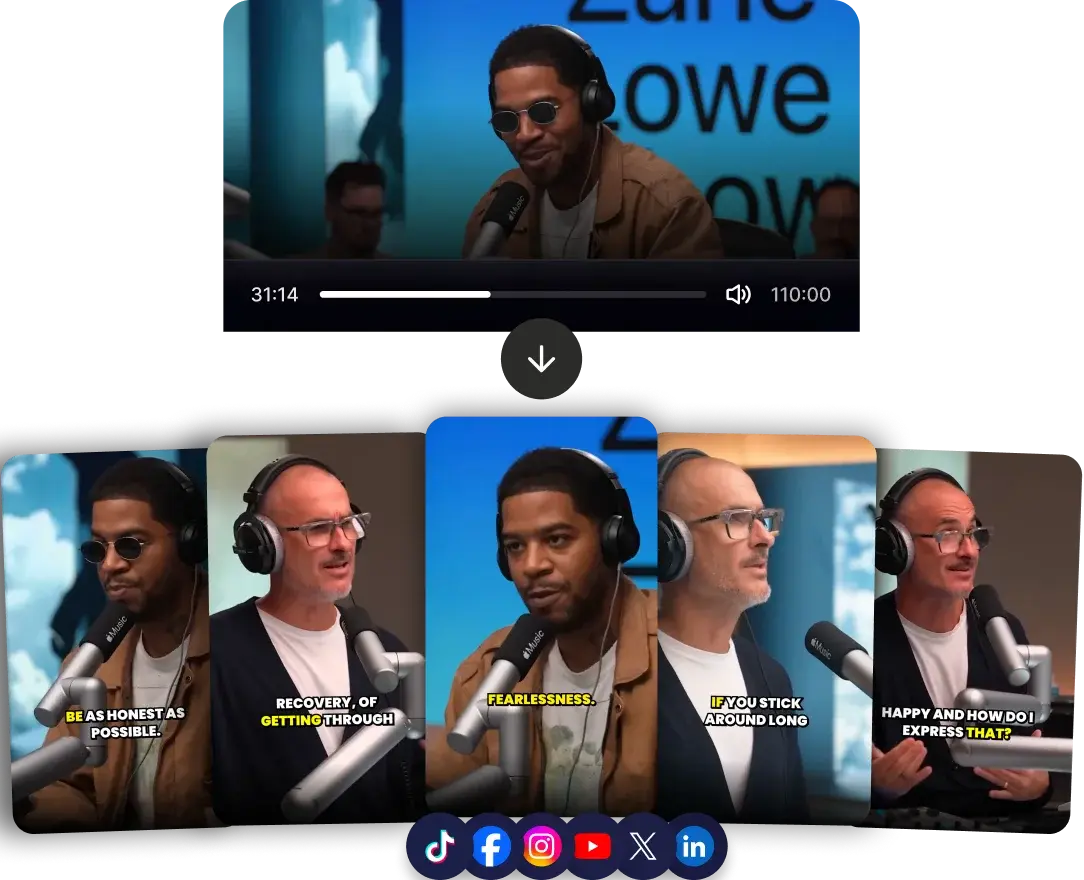
- Clips are created for youGet ready-to-post clips without manually searching through your full stream.
- Create Clips while you’re still liveClip and post before your stream ends, giving viewers another way to find you.
- Edit your clip by editing textDelete words from the transcript, and those moments are cut from the clip too.
More you can do with Restream
Multistream
Reach audiences across 30+ supported platforms at the same time.
- 1In Channels, choose a platform you want to connect.
- 2Sign in and grant Restream access to your channel.
- 3Repeat for each destinations you want to stream to.
Tip: Restream has been helping creators multistream since 2014.
- No extra upload bandwidth requiredWe send your stream to each platform for you, so adding destinations doesn’t increase the upload bandwidth you need.
- Keep chat in one placeSee messages from supported platforms together in Restream instead of monitoring each platform separately.
- Manage every destination togetherUpdate your stream title and settings without setting up a separate broadcast for each platform.
Invite guests
Bring guests and co-hosts onto your stream with just a link.
- 1Click , copy the link, and share it with your guest.
- 2You can add them to the screen from the guests panel.
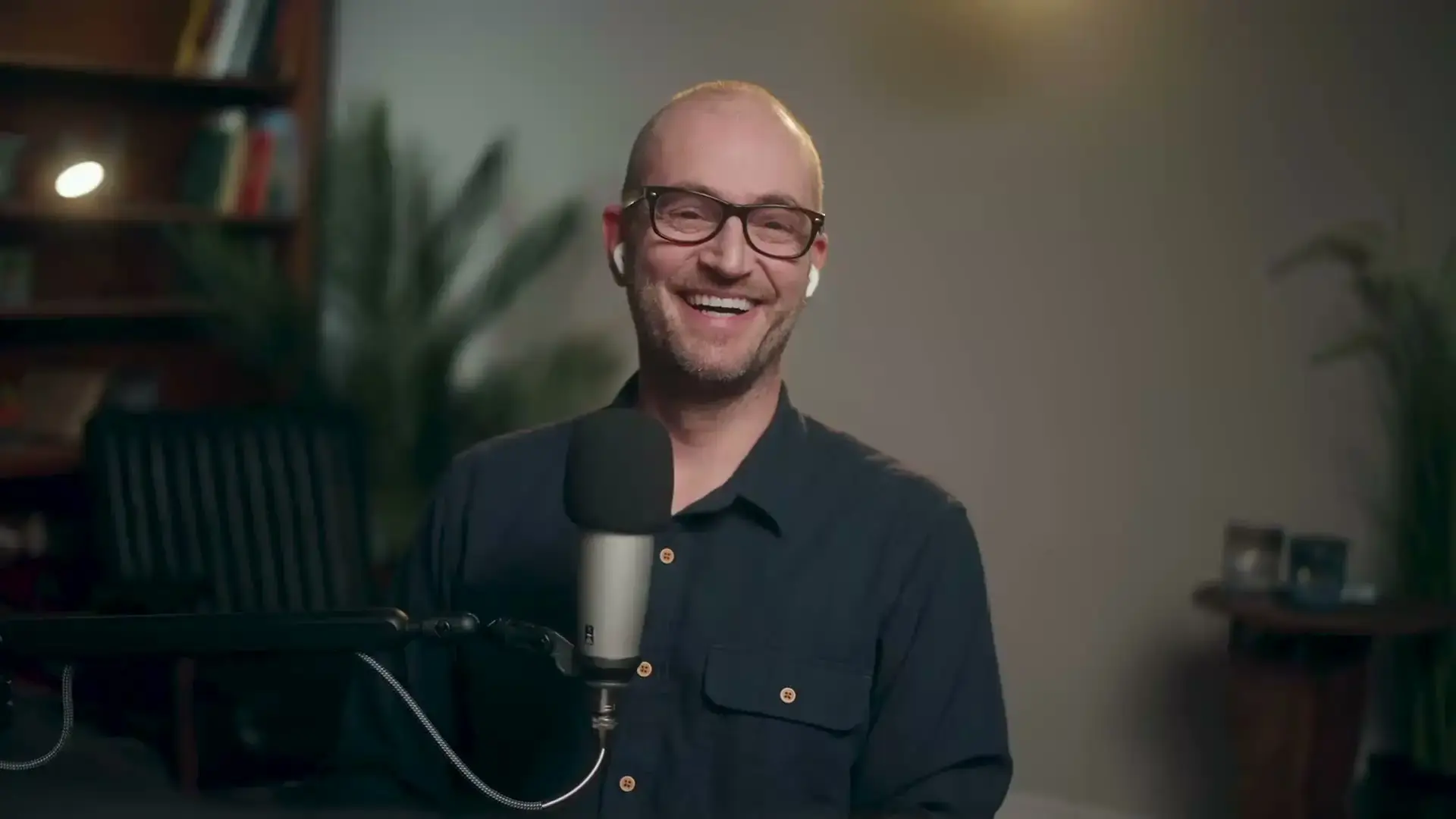
- Stream to your guests’ YouTube channelsGuests can connect their own channels to the stream, so the same broadcast can reach their audiences too.
Supported YouTube features
What works on YouTube when you stream through Restream.
Up to 1080p at 60 FPS
From Studio in your browser
H.264 video, 48 kHz audio
Audio bitrate up to 256 kbps
Horizontal and vertical
Both at once on the same channel
YouTube chat
Read and reply to chat from Restream
Super Chats and Super Stickers
Highlighted in Restream chat
Privacy settings
Public, unlisted, or private
Title, description, and thumbnail
Set them in Restream before you go live
Scheduled events
Viewers get a go-live reminder
Multiple YouTube channels
Go live on each from one stream
Latency settings
Normal, Low, or Ultra Low
Mid-roll ads
Turn on per stream in Restream
No stream length limit
YouTube saves streams under 12 hours
Streaming to YouTube, answered
The setup questions we hear most from YouTube streamers, with the help-center guide for each.
YouTube requires a verified phone number before your channel can go live. In YouTube Studio, open Settings, then Channel, then Feature eligibility, and verify your phone number under Intermediate features. Once verified, wait 24 hours before your first stream. There is no way to skip the wait on a new channel.