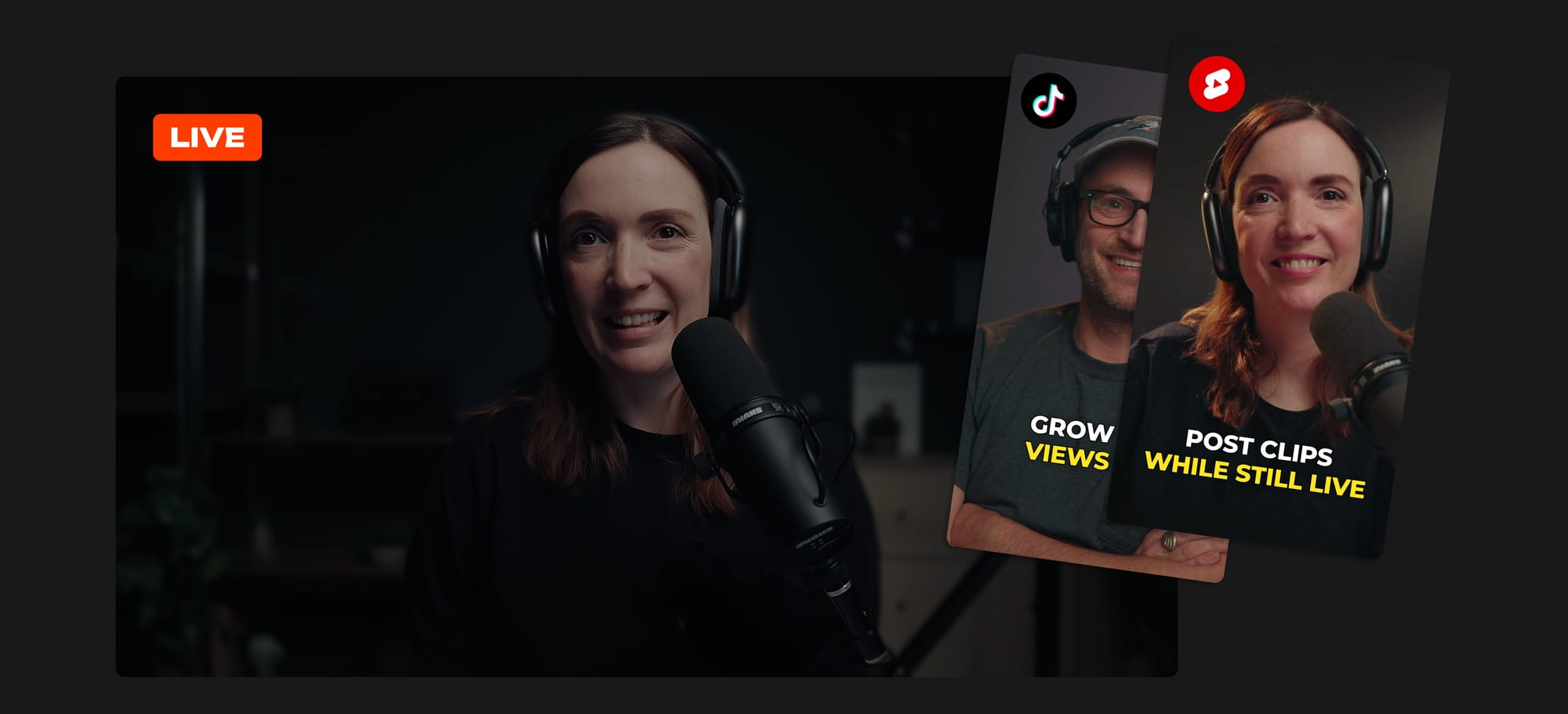
Publish Clips to Instagram Reels
Drop your best moments where the audience already scrolls — and multipost the same clip across top short-form destinations in one go.
In Clips → Publish, add an Instagram account, and post.

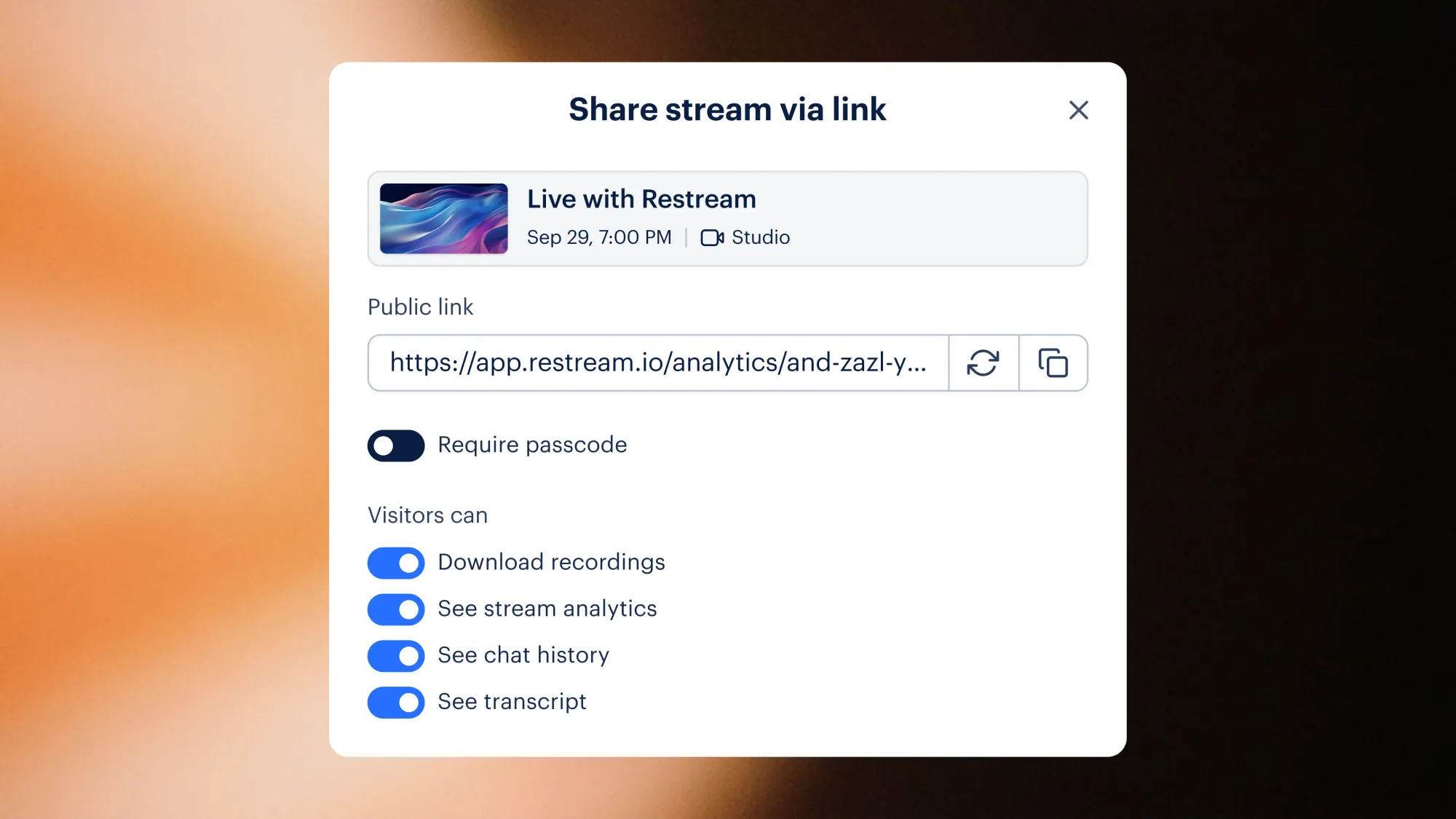
Control what you share with your stream link
Choose exactly what people can access when you share a stream. Give or remove visitors’ permission to download recordings, view analytics, see chat history, or access the transcript — and protect everything with a passcode when needed.
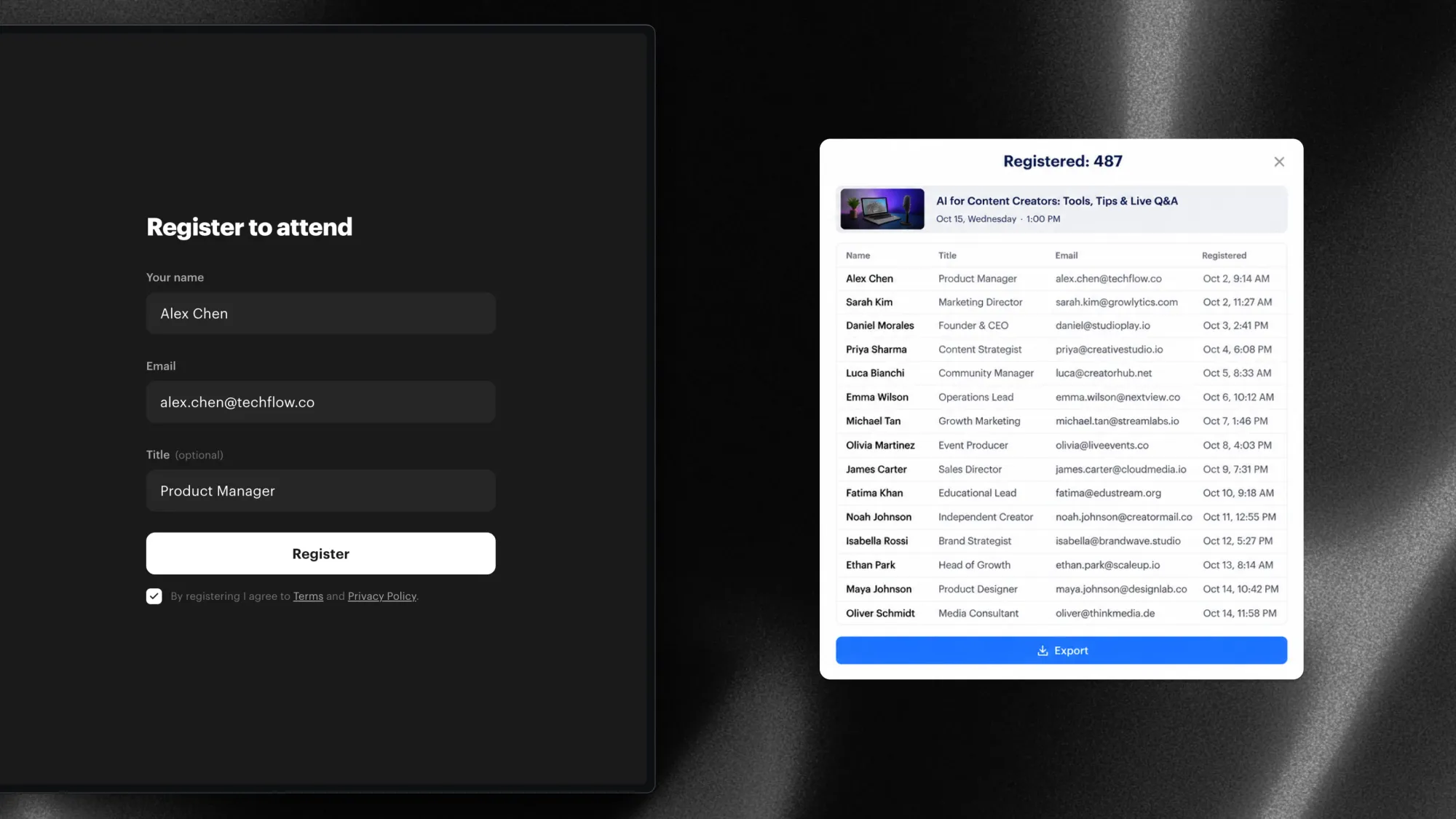
Turn webinar registrations into leads
Give attendees one link to register, watch live, and catch the replay. Export names, emails, roles, and registration details to CSV before or after your webinar.
Create Clips from public YouTube links
Generate clips and shorts from public YouTube links, alongside Google Drive, Dropbox, and OneDrive. Just paste a YouTube URL and start clipping right away.
Position your logo, captions, and QR codes anywhere
Now you can move your Studio elements anywhere on screen and keep important content visible.
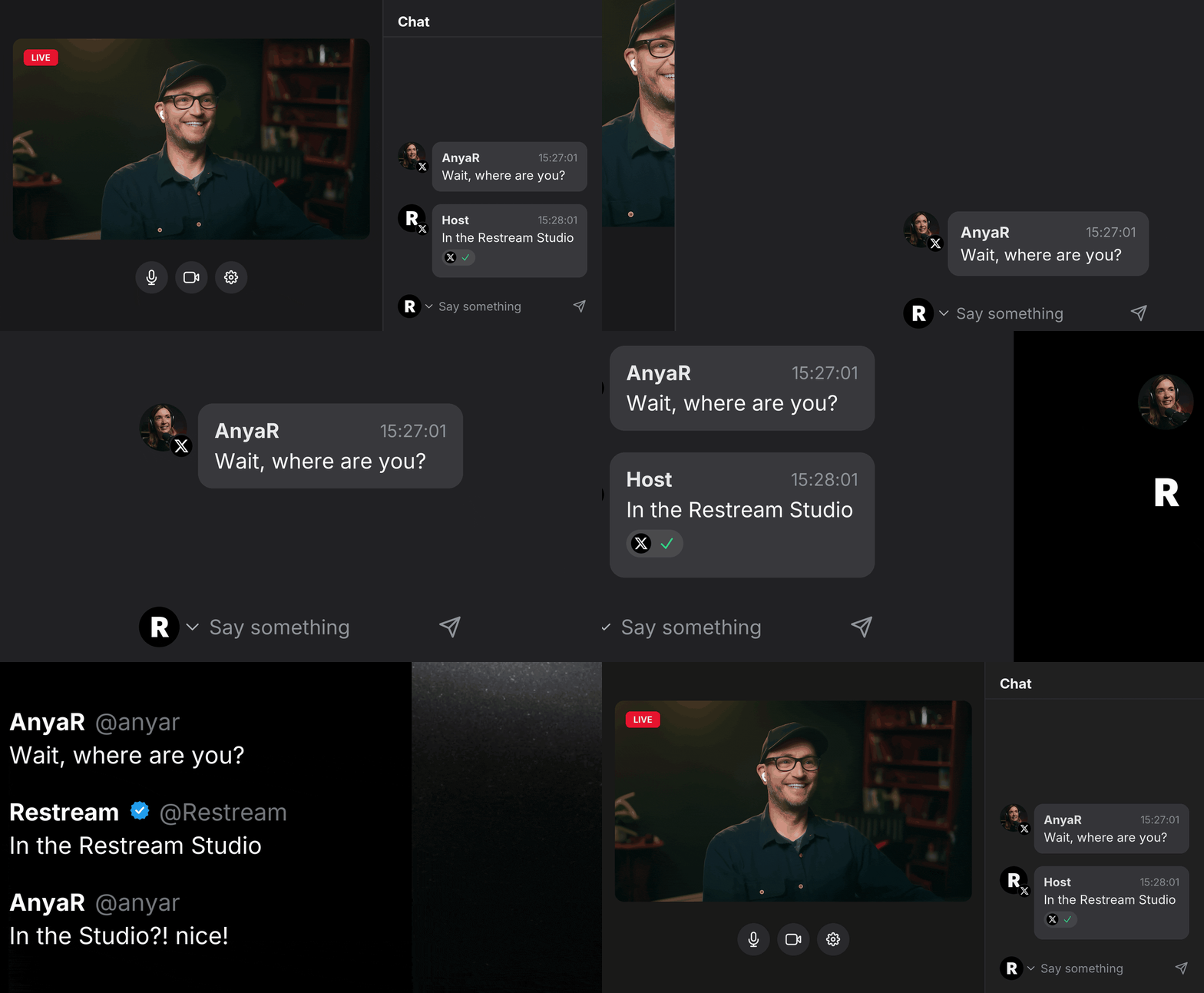
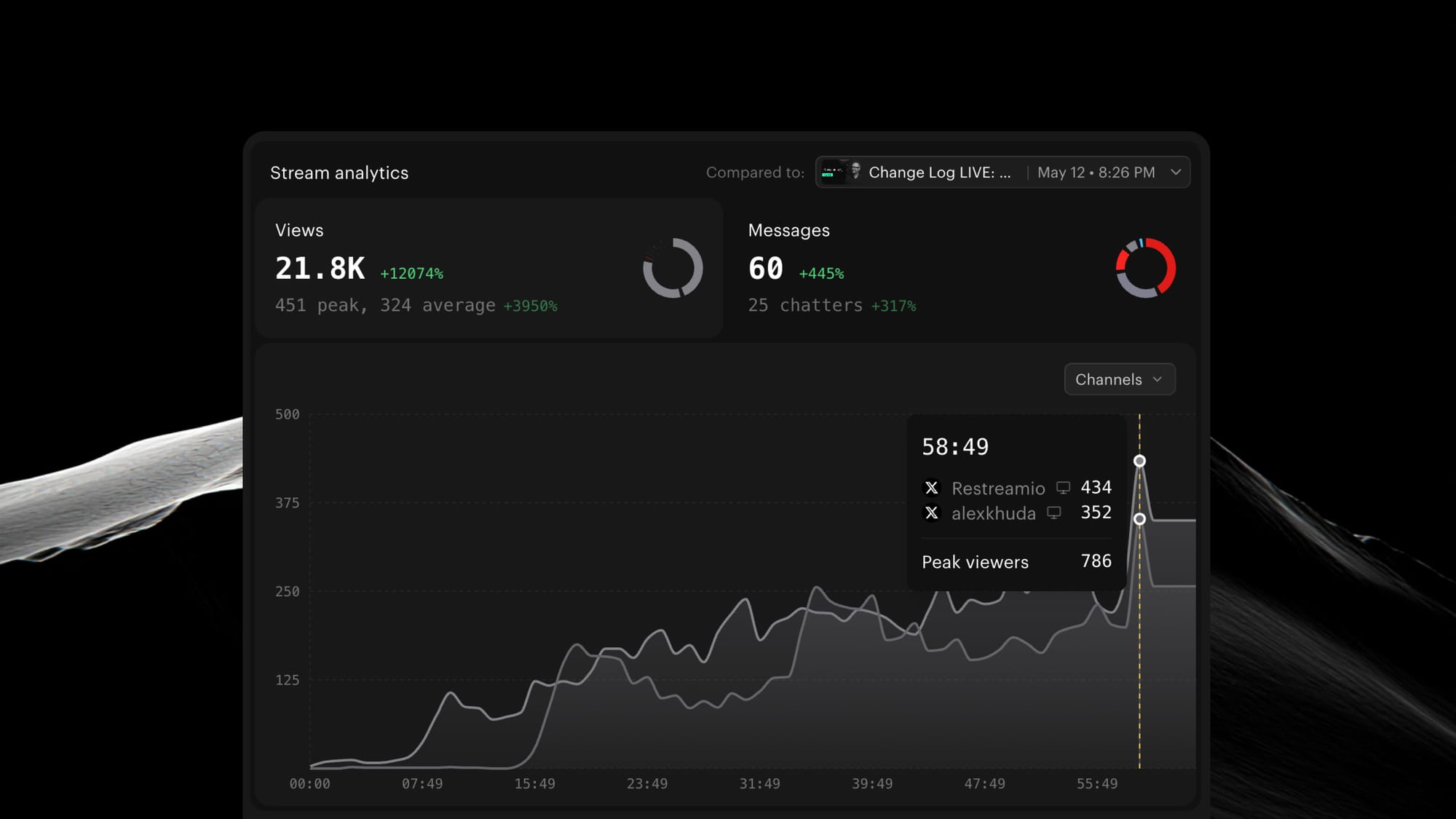
Explore viewer analytics from X
Check viewer analytics: Get a clearer picture of your engagement on X with concurrent viewers over time, average viewers, and peak viewers — for both host and paired guest channels.
Meet Edit mode in Studio
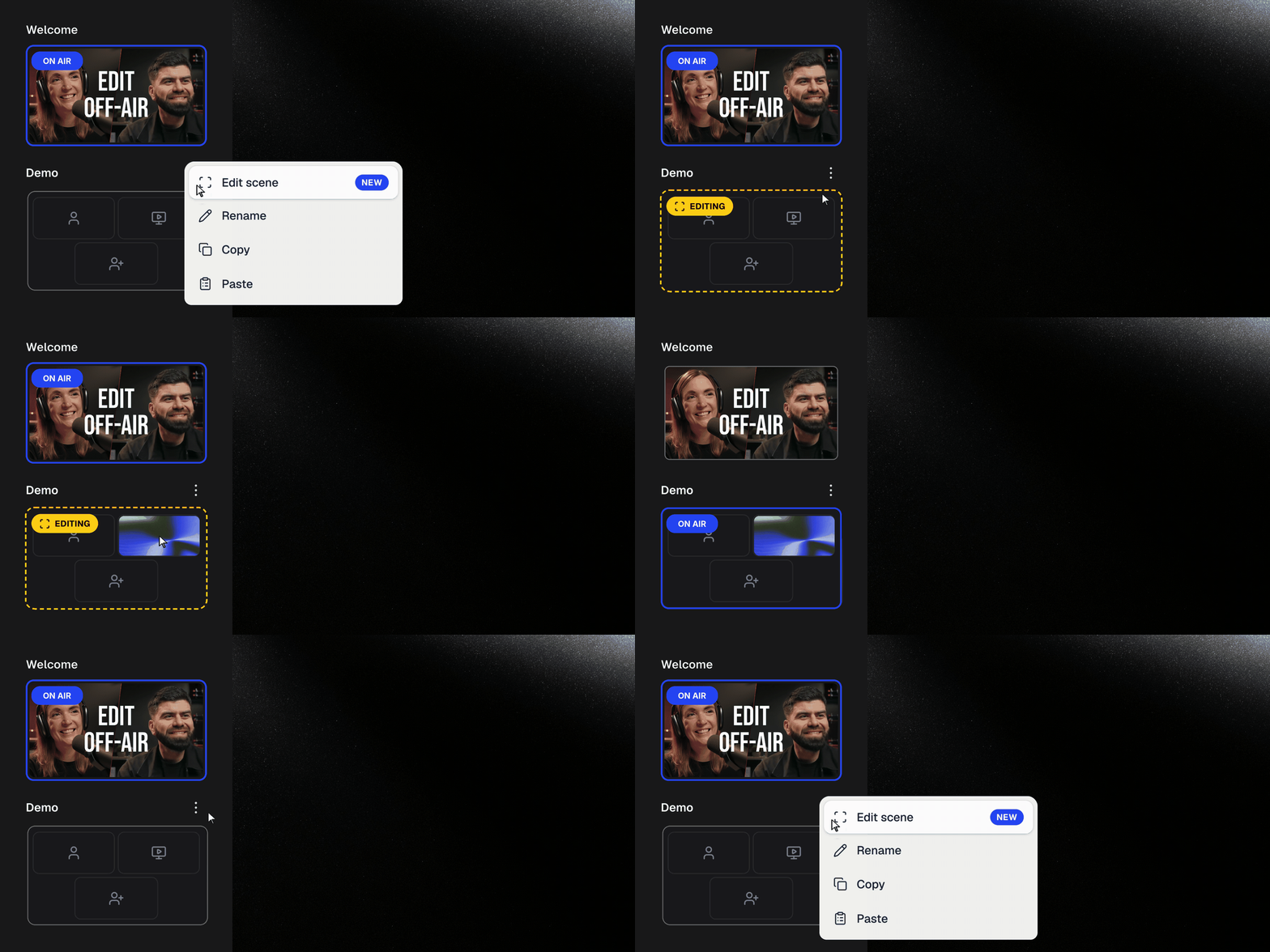
Update any scene while you’re live.
- Swap guests, add screen shares, apply graphics, and adjust the layout—without changing what’s on air.
- When you’re ready, switch to the updated scene.
Publish Restream Clips to Rumble
Restream Clips now support Rumble. Highlight your best moments and get more views on Rumble Shorts alongside five other platforms: TikTok, YouTube Shorts, Facebook Reels, LinkedIn, and X.
Pro tip: with Restream, you can share clips while still streaming, using our AI-powered auto-posting feature. Or review later and select manually.
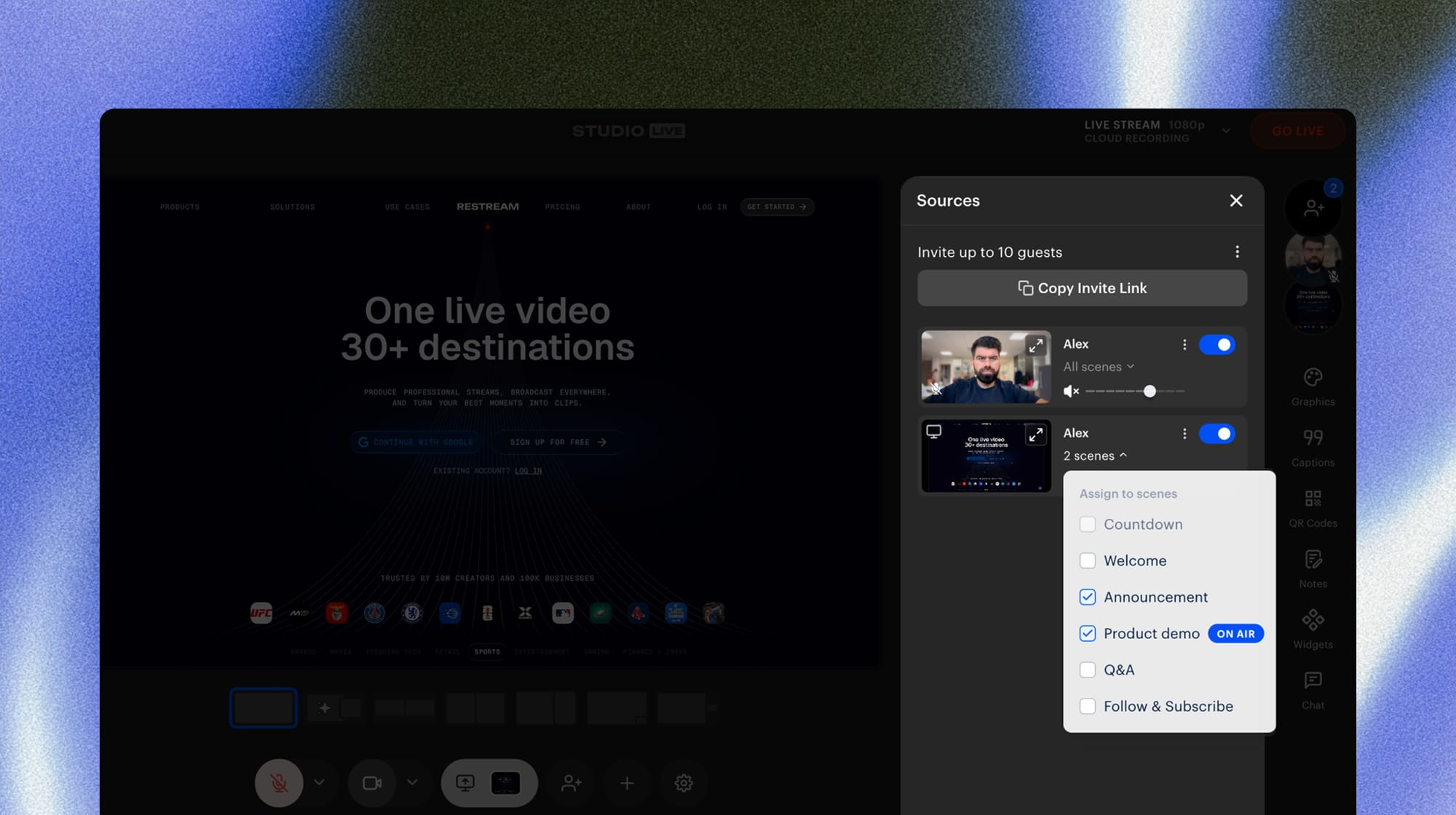
Assign screen shares to specific Studio scenes
Open screen share in the Sources panel and select the scenes where you want it to appear. Assign it to multiple scenes for smoother transitions between them.
Host live webinars and Slack townhalls
Run polished, studio-quality webinars — complete with guests, slides, scenes, and real-time audience interaction. Webinars are powered by Restream Studio and can be watched privately in Slack or shared through a public viewing link.
- To get started, go to Home → New Stream → Streaming to Slack.
- Stream live to any public Slack channel and moderate audience chat in real time.
- Showcase products, run demos, host Q&As, and collaborate with your team in a familiar Slack experience. Learn more
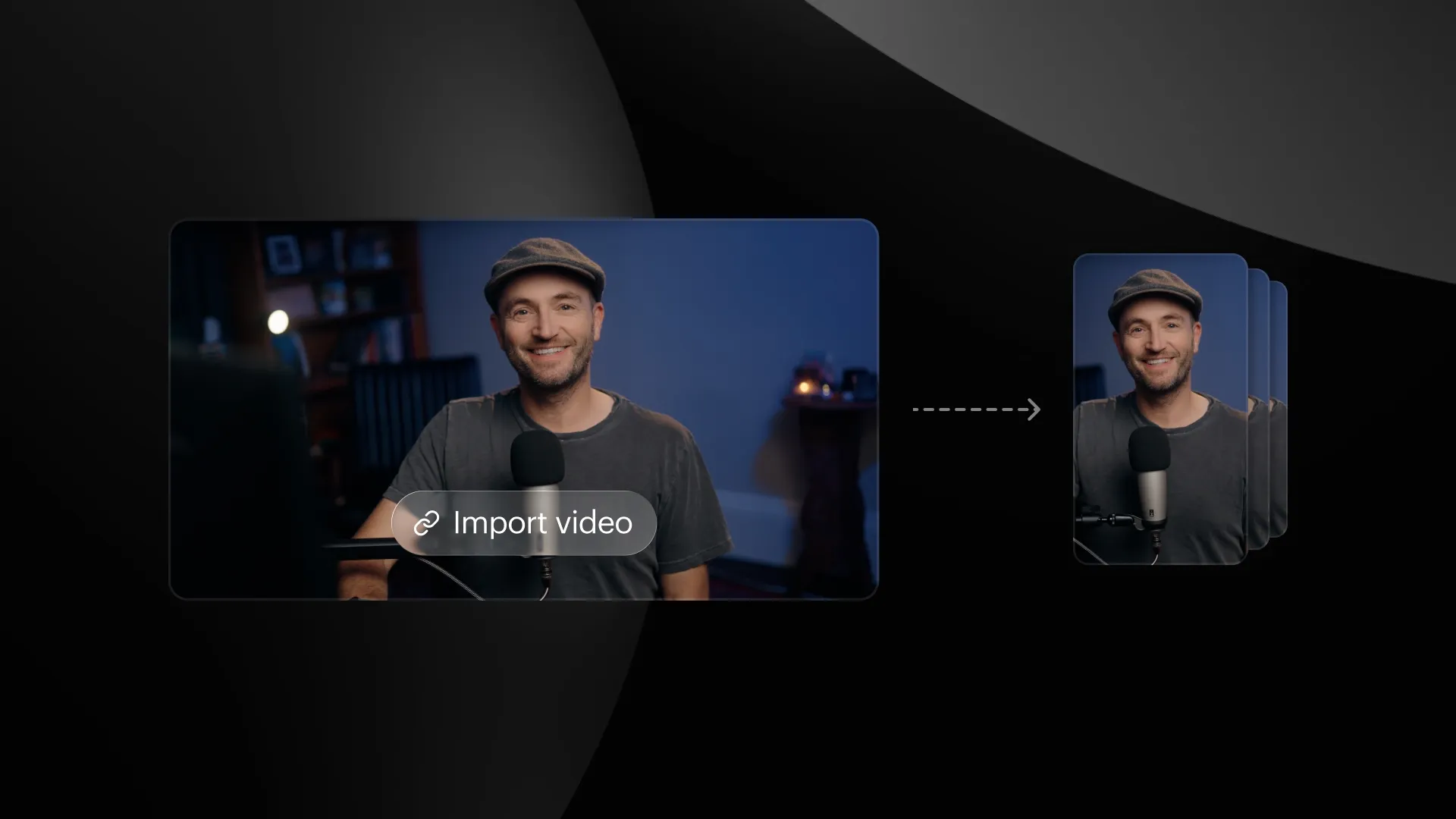
Create Clips from public video links
Now you can create clips from Google Drive, Dropbox and Microsoft OneDrive public links. Just paste a link and start clipping right away.
Generate more clips in projects
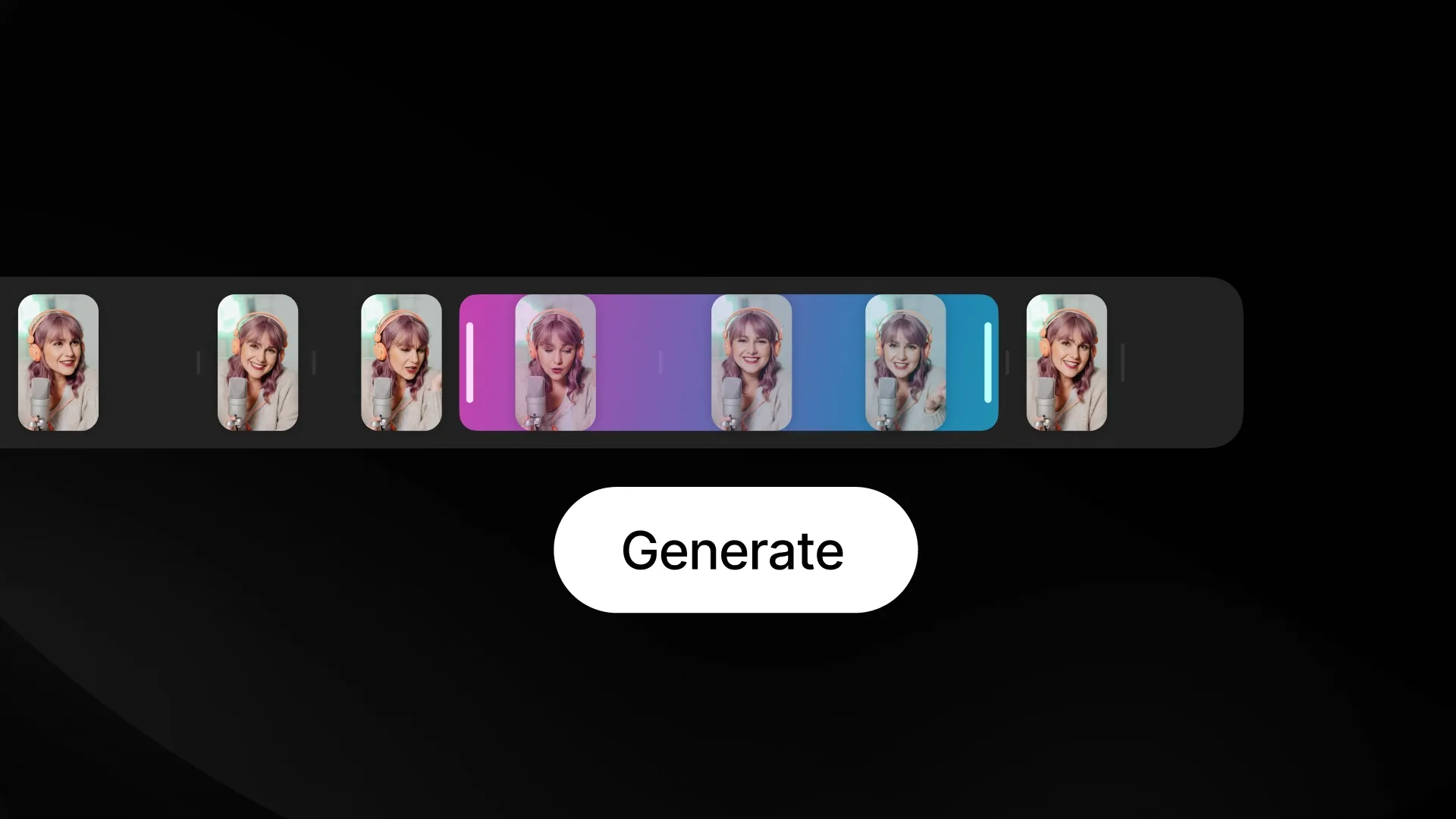
You can now create more clips from a project you've already processed. Select a range on the timeline, then choose: clip it exactly as selected, or let AI pull the best highlights from it.
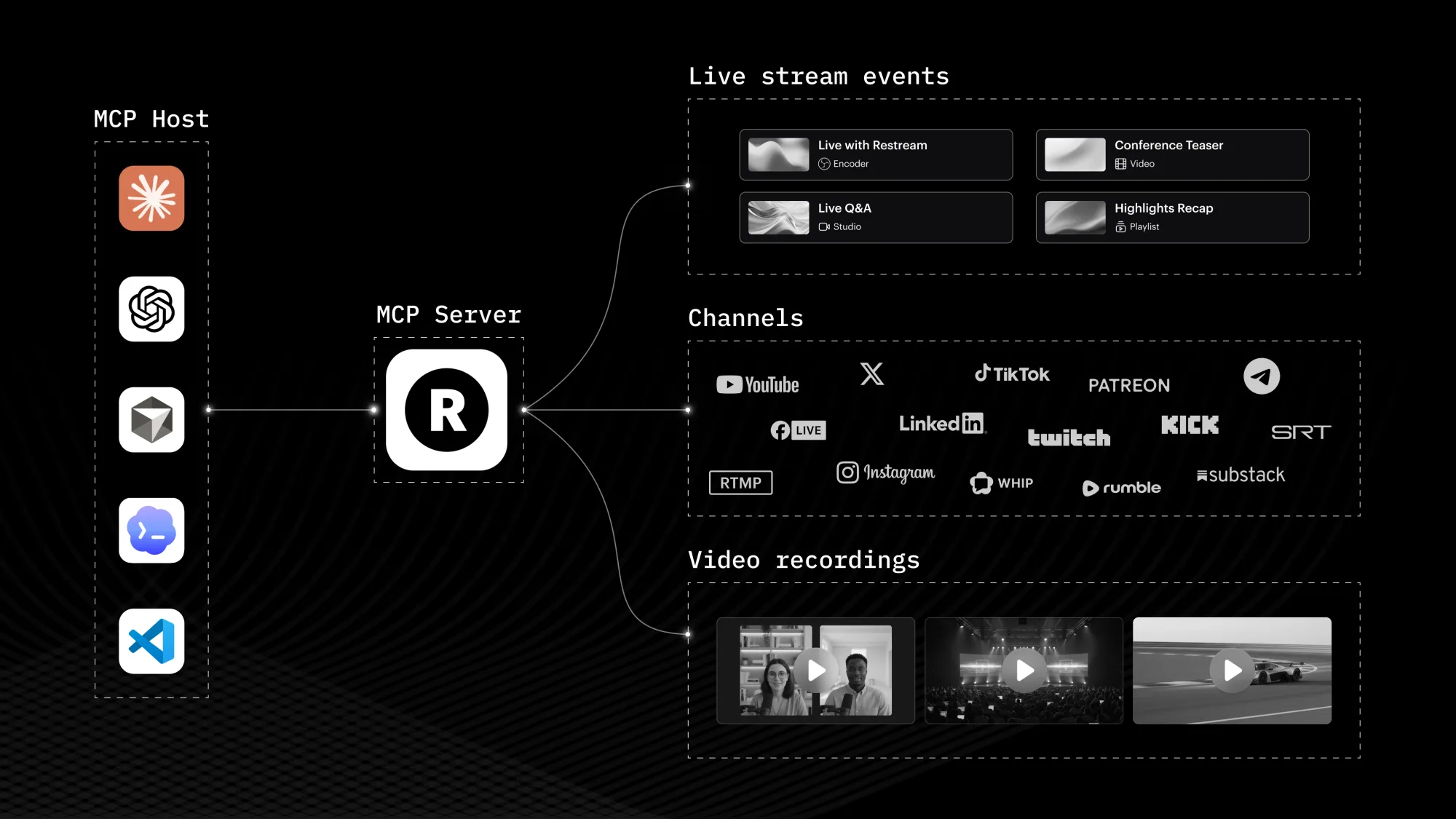
Automate your workflow with Restream MCP Server
Connect Restream to AI assistants like Claude, ChatGPT, or Cursor using our Model Context Protocol (MCP) server. Just paste a single URL into your favorite AI app, then ask your assistant to manage your live streams in plain language. For example, you can:
- Check your streaming setup, create and schedule streams, and update upcoming events.
- Add, remove, or update streaming destinations across 30+ platforms for any broadcast.
- Review post-stream analytics, including viewer counts, chat activity, and more.
- Discover videos in storage, turn them into clips, and review or download all generated clips.
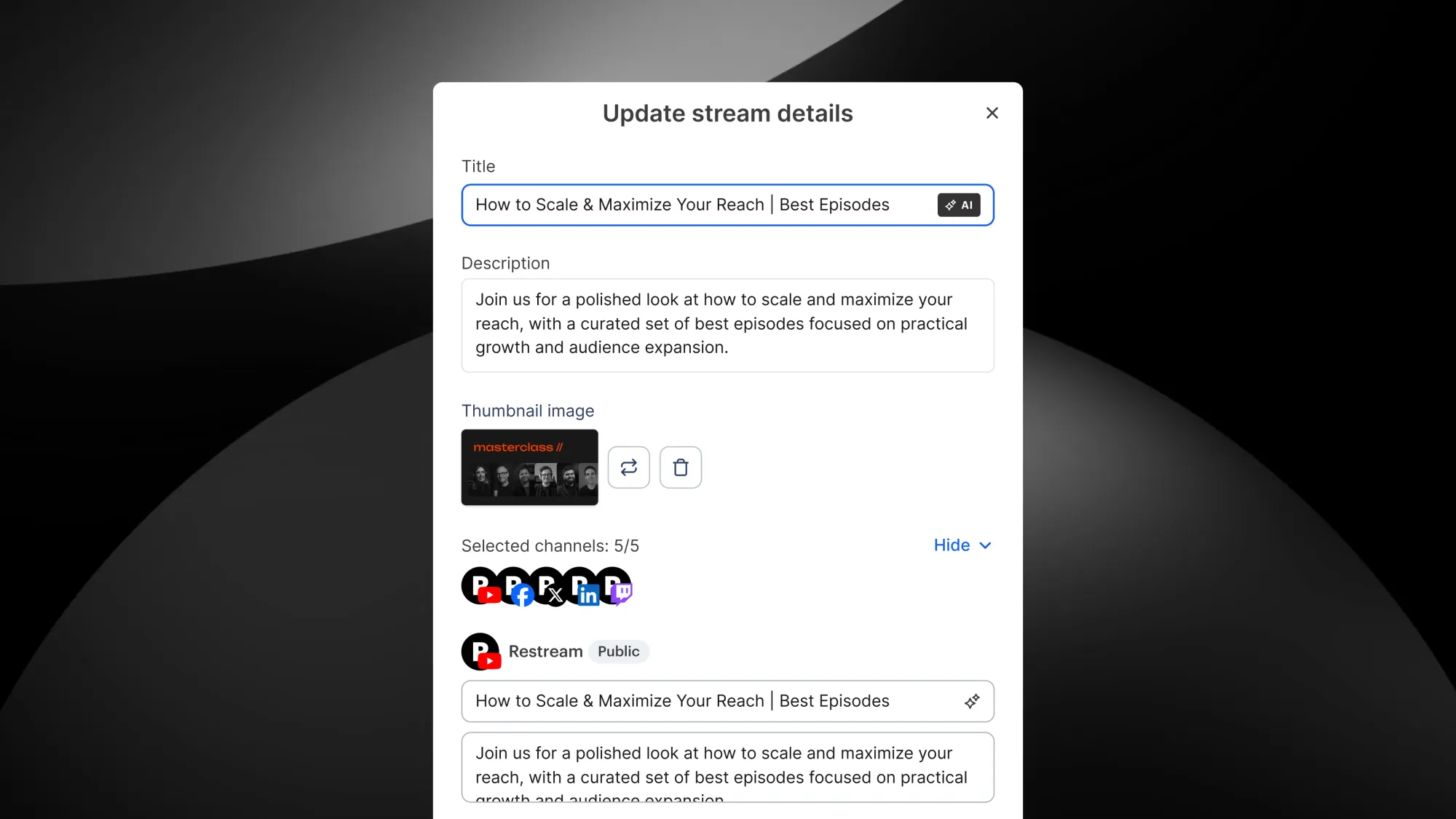
Update stream details with AI
Previously, Update titles always applied changes to every compatible channel in your setup. You can still do that, but now you can select exactly which channels receive updates.
You can also use AI to generate titles and descriptions globally or for individual channels. Your current title is used as the prompt, and you can regenerate as many variations as you like until you find one you love.
Post Live Clips automatically
Autoposting publishes eligible Live Clips as they're created, so your highlights go out while the moment still matters and you stay focused on the show.
Set it up in Clips Settings under Live Clipping, then dial in your controls:
- Choose which channels clips post to
- Set a limit on how many clips go out
- Choose a minimum virality score so only your strongest moments get posted
- Add preset captions to keep clips on-brand
Stream to Patreon with Restream
Whether you’re hosting exclusive Q&As, behind-the-scenes sessions, workshops, or member-only events, Restream makes it easy to include Patreon in your multistream workflow.
- Go to Channels page and connect your Patreon account.
- Select your audience Visibility settings, including Patron paid tiers.
- Go live to your members alongside all your other destinations from a single stream.
Public API for live stream analytics
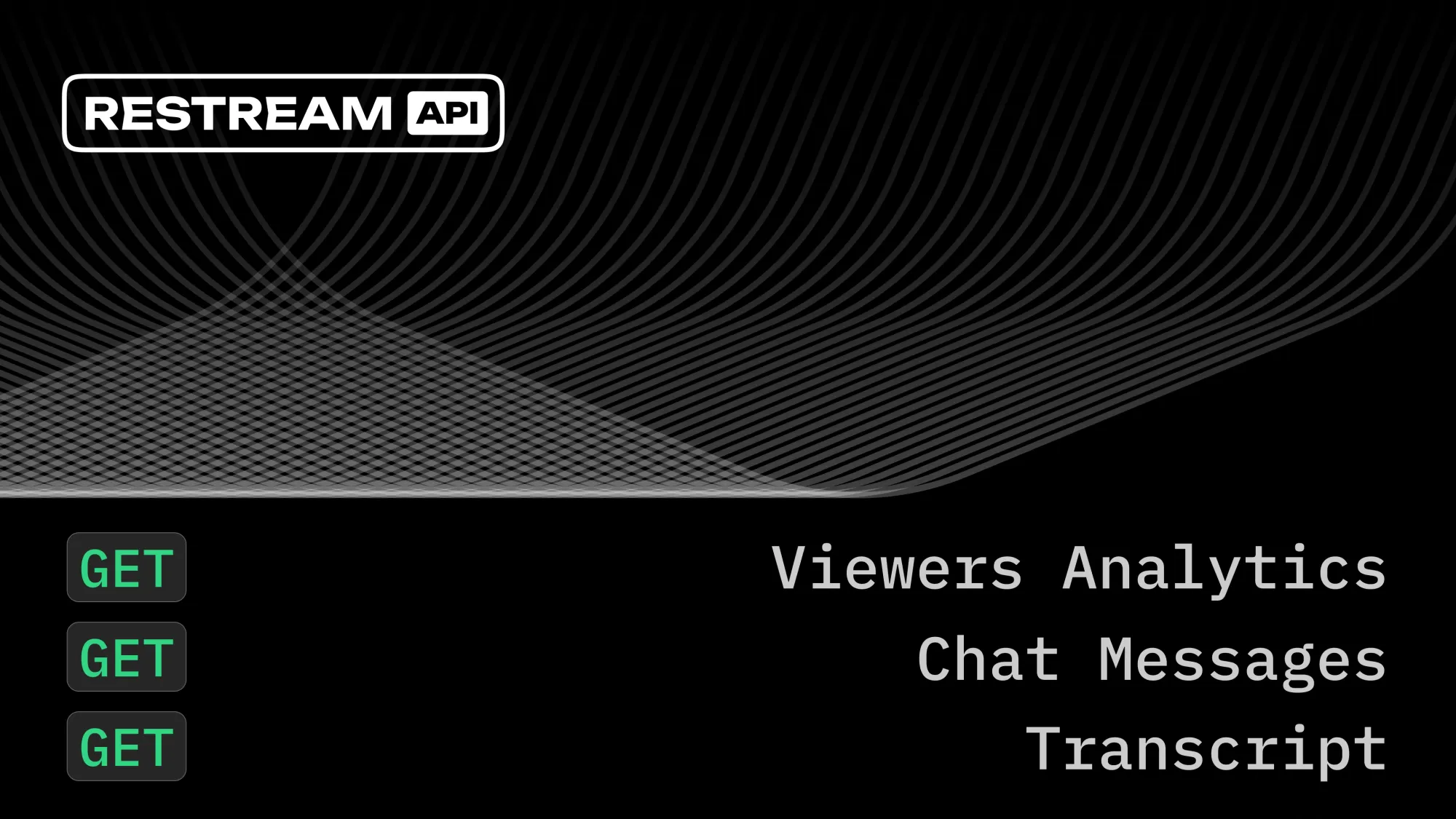
From managing streams and destinations to accessing event data, our API gives developers direct access to the building blocks behind Restream. Today, we’re expanding those capabilities with new analytics endpoints.
- Viewers: Track peak viewers, average viewers, total views, watch time, and audience trends throughout your event.
- Chat Messages: Measure engagement with total messages, unique chatters, and chat activity over time.
- Recording Transcript: Transcribe event recordings, check the processing status, and download the finished transcript file.
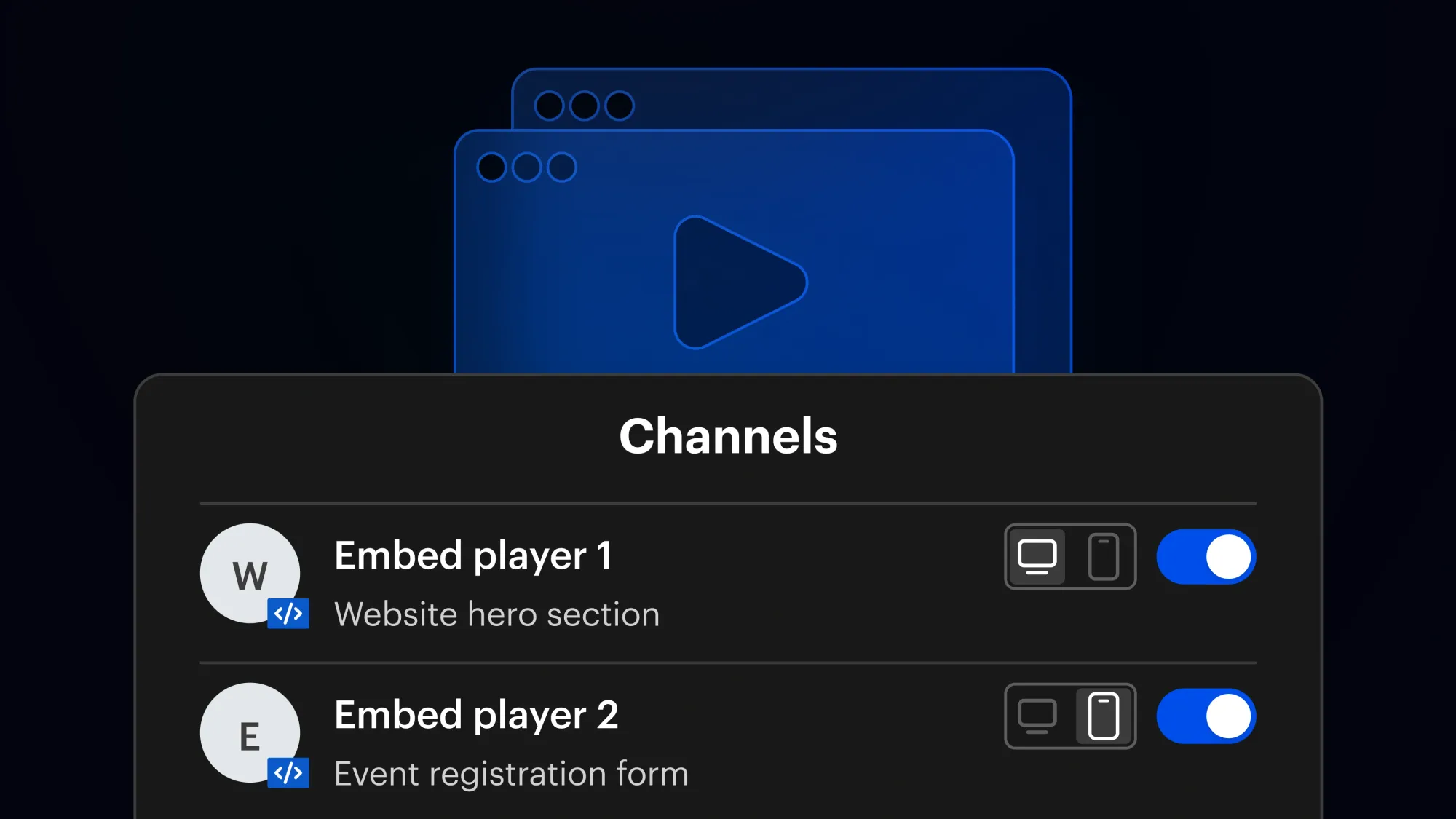
New embed channel — with analytics and orientation settings
Embedded web players are now treated like regular streaming destinations, making it easier to manage and measure their performance.
What’s new:
- Add embedded web players as streaming channels.
- Enable up to 2 embed players per stream.
- Configure stream orientation for each embed independently.
- Track viewer metrics from embedded players directly in Stream Analytics.
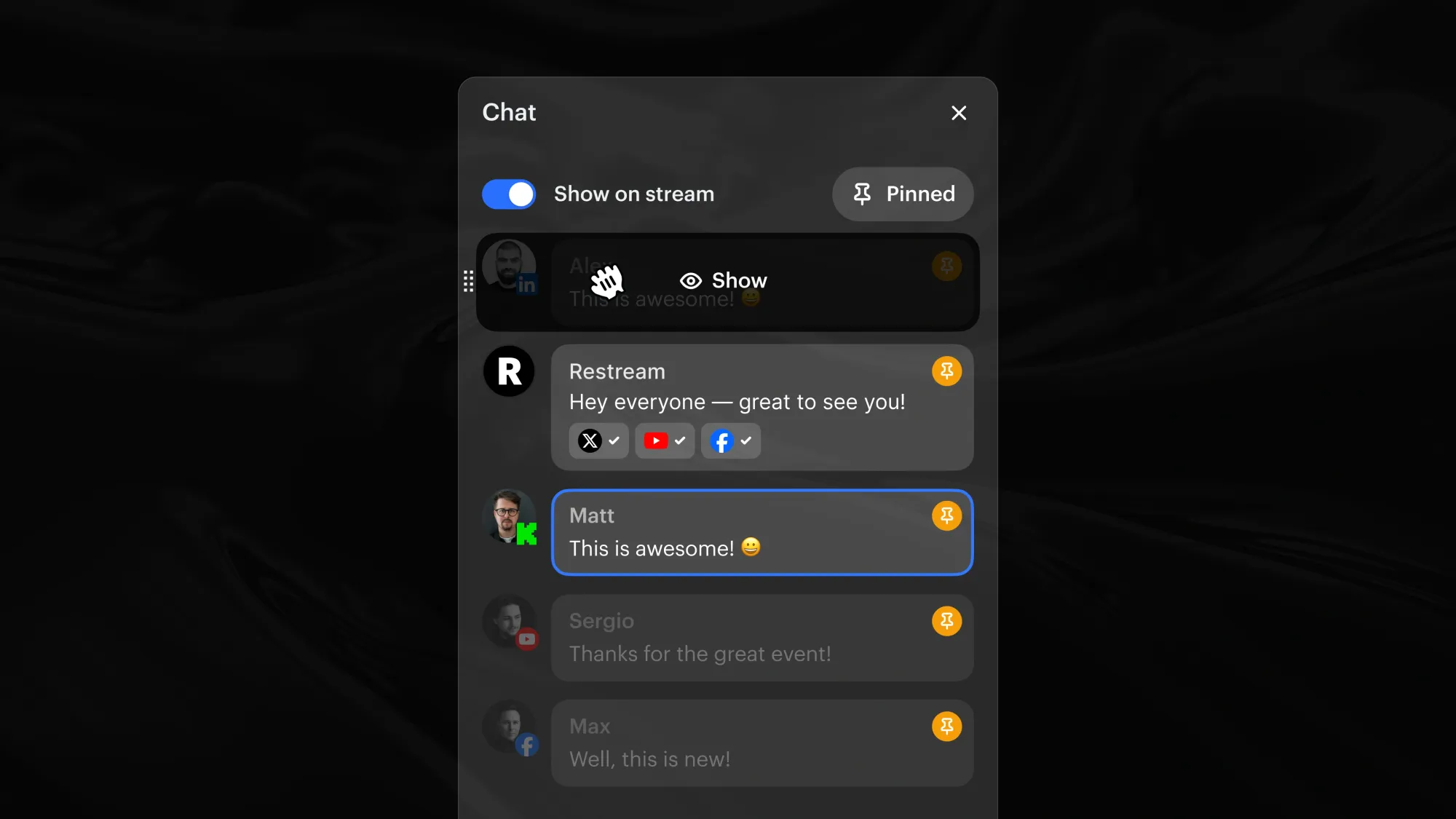
Manage Studio chat messages with confidence
- Pin the best comments from all chat messages to show them later.
- Already shown messages are now dimmed — just so you know.
- Reorder chat messages via drag and drop.
Talk to your audience in redesigned chat
We’ve redesigned our chat across different apps and fixed several issues in settings.
- Open Live Chat in a browser tab, our OBS integration dock, Studio, or our chat desktop app.
- Control where your send your replies and check platform limitations.
- Adjust chat appearance, embed chat, enable notifications, and more in new Settings.
Faster clipping with Templates in the new Editor
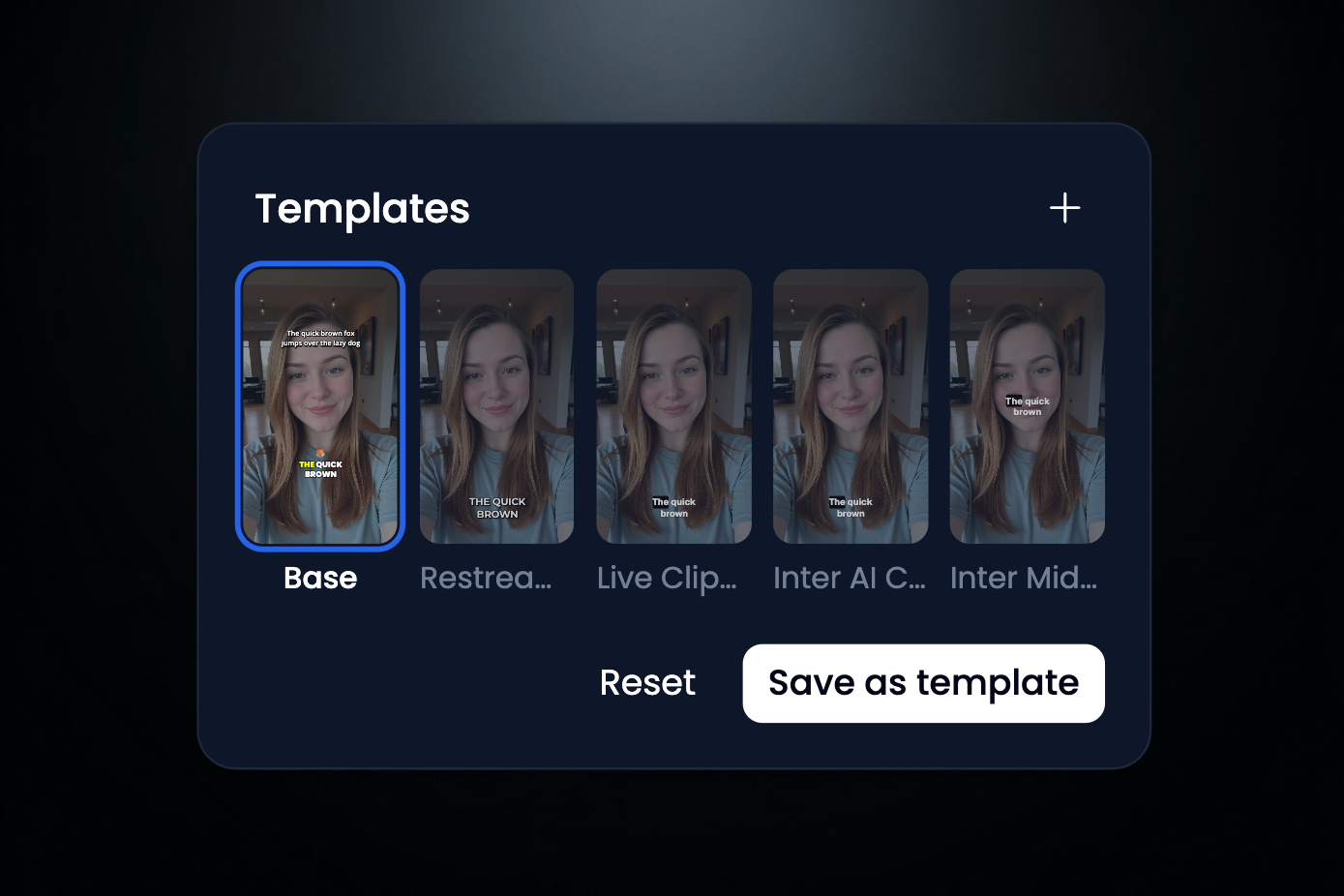
Produce consistent clips with Templates and move through edits faster. Save your caption styles, preferred layouts, and brand elements as a Template inside the new Clip Editor, then apply them to every future clip.
What's new
- A redesigned Clip Editor with smoother navigation
- Reusable Templates for caption styling, preferred layouts, and brand elements
- Bulk actions, so changes apply across every scene in a clip at once
→ Edit any clip to create your first Template.
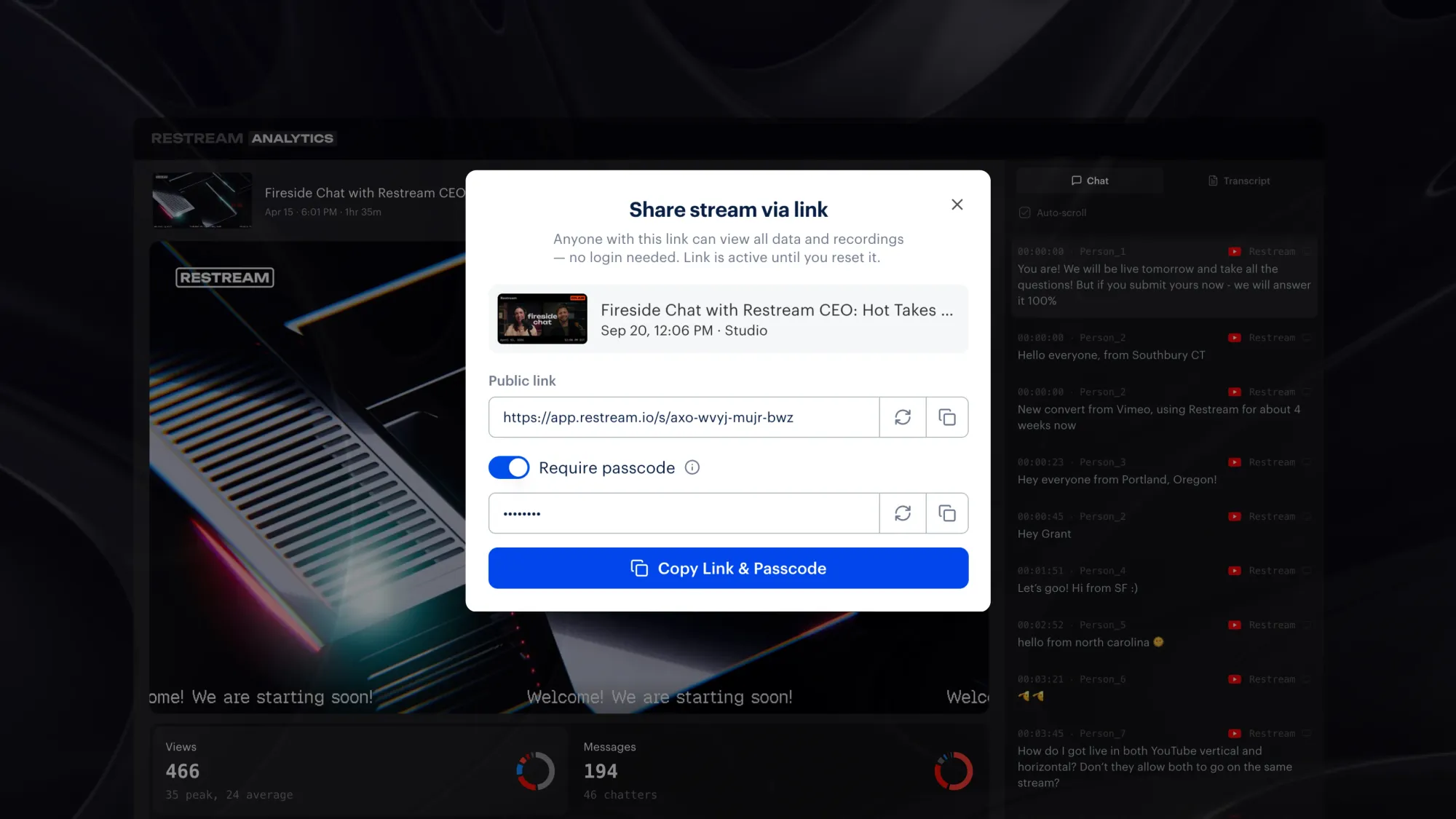
Share your stream analytics
Give others a clear view of your stream’s performance with a simple link — no screenshots or exports needed. Perfect for teams, clients, and anyone you want aligned on your results.
Share it publicly or protect it with a passcode. Viewers can:
- Watch the stream recording
- Read chat and transcripts
- See key metrics like views, messages, and stream quality
Ask AI about stream analytics
Turn your stream data into decisions — and improve your next broadcast. Ask questions and get clear, actionable insights beyond the charts. Start with ready-made prompts or go deeper with follow-ups to uncover what worked, what didn’t, and what to do next.
Use it to quickly:
- Summarize your streams
- Find unanswered audience questions
- Spot peak moments and drop-offs
- Get tips to improve your next stream and much more
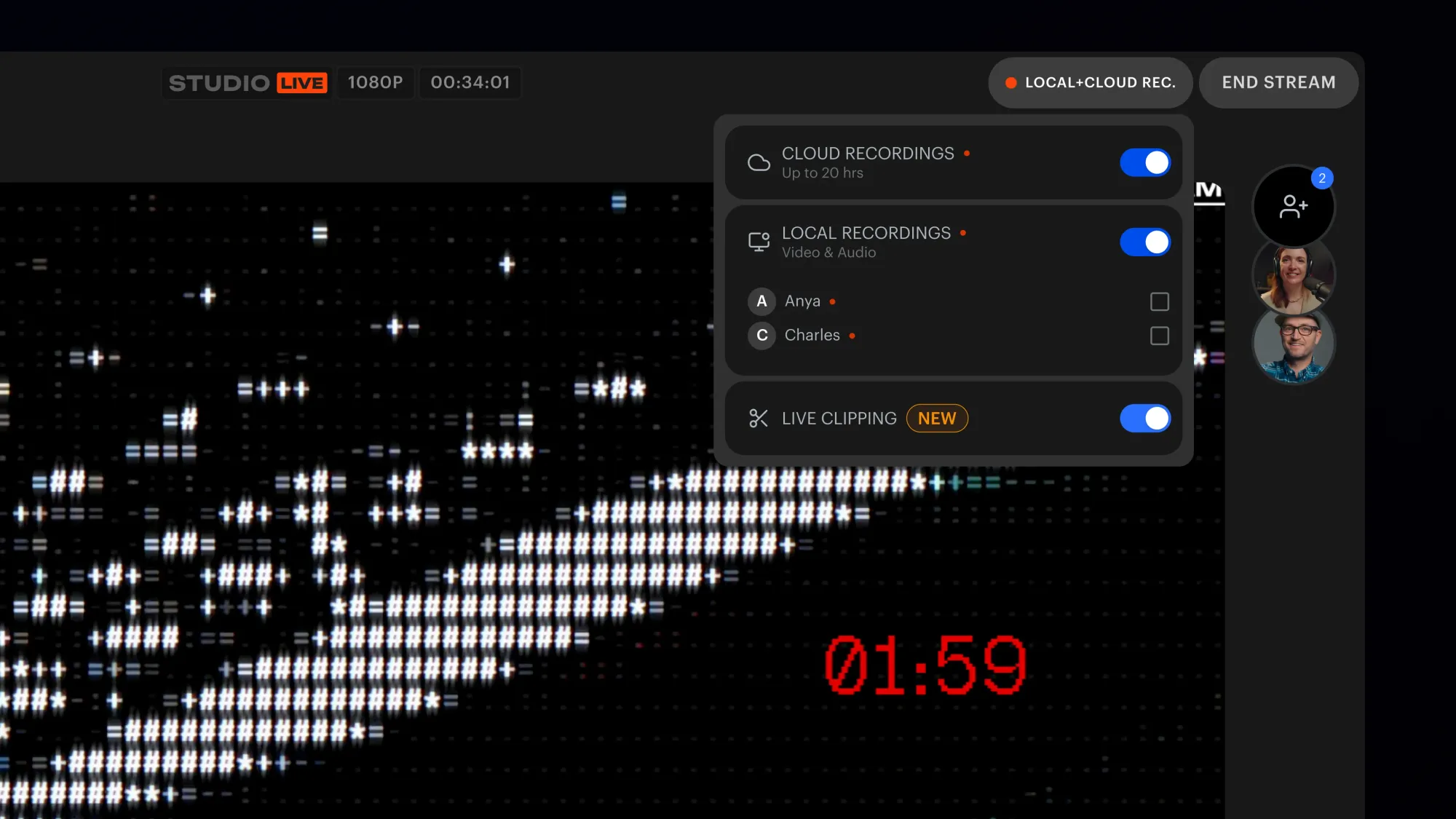
Create clips while live in Studio
Capture and share highlight moments as they happen — when engagement is highest. Just toggle on Live Clipping from the Recordings popup in the Studio header and go live.
What’s new
- First clips appear ~10 minutes after you go live
- Get notified as soon as clips are ready
- Post to Shorts, Reels, and TikTok in one tap
Build on Restream API
We’ve relaunched the Restream Developer Portal with unified docs for the Events API, Chat API, Clips API, and Video Storage API.
Use OAuth 2.0 to integrate Restream into your apps. You can:
- Access channels, platforms, stream keys, and metadata via REST API
- Subscribe to real-time updates (stream status, chat events) over WebSockets
- Build custom dashboards and automate workflows
- Sync stream state with external systems

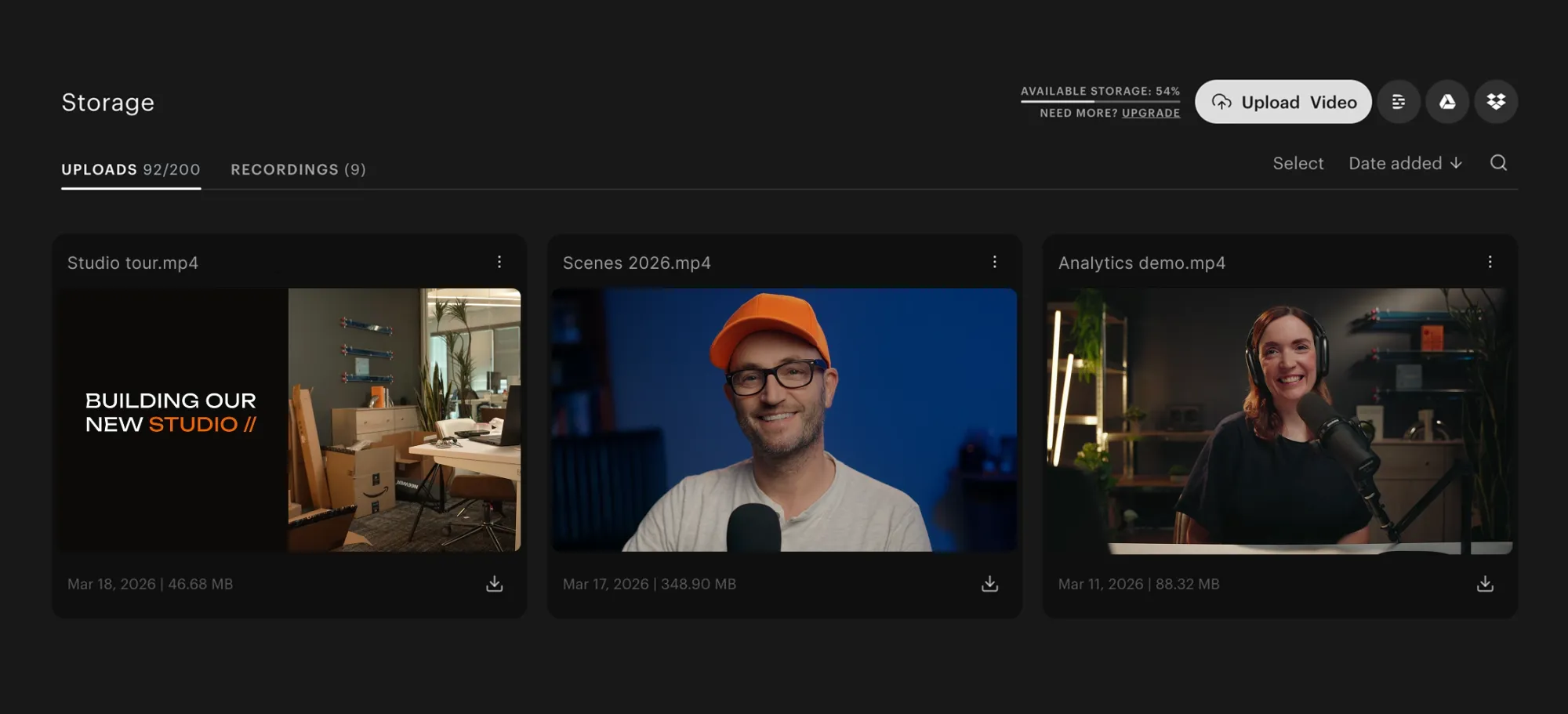
Your Video Storage, organized
Storage got a full refresh — manage your stream recordings and video uploads faster than ever.
- Sort your whole library
- Search by file name or label (like "dual" or "local recording")
- Watch videos in a new player on desktop and mobile
- Bulk delete or schedule multiple files at once
- See exactly where a video is used before deleting it
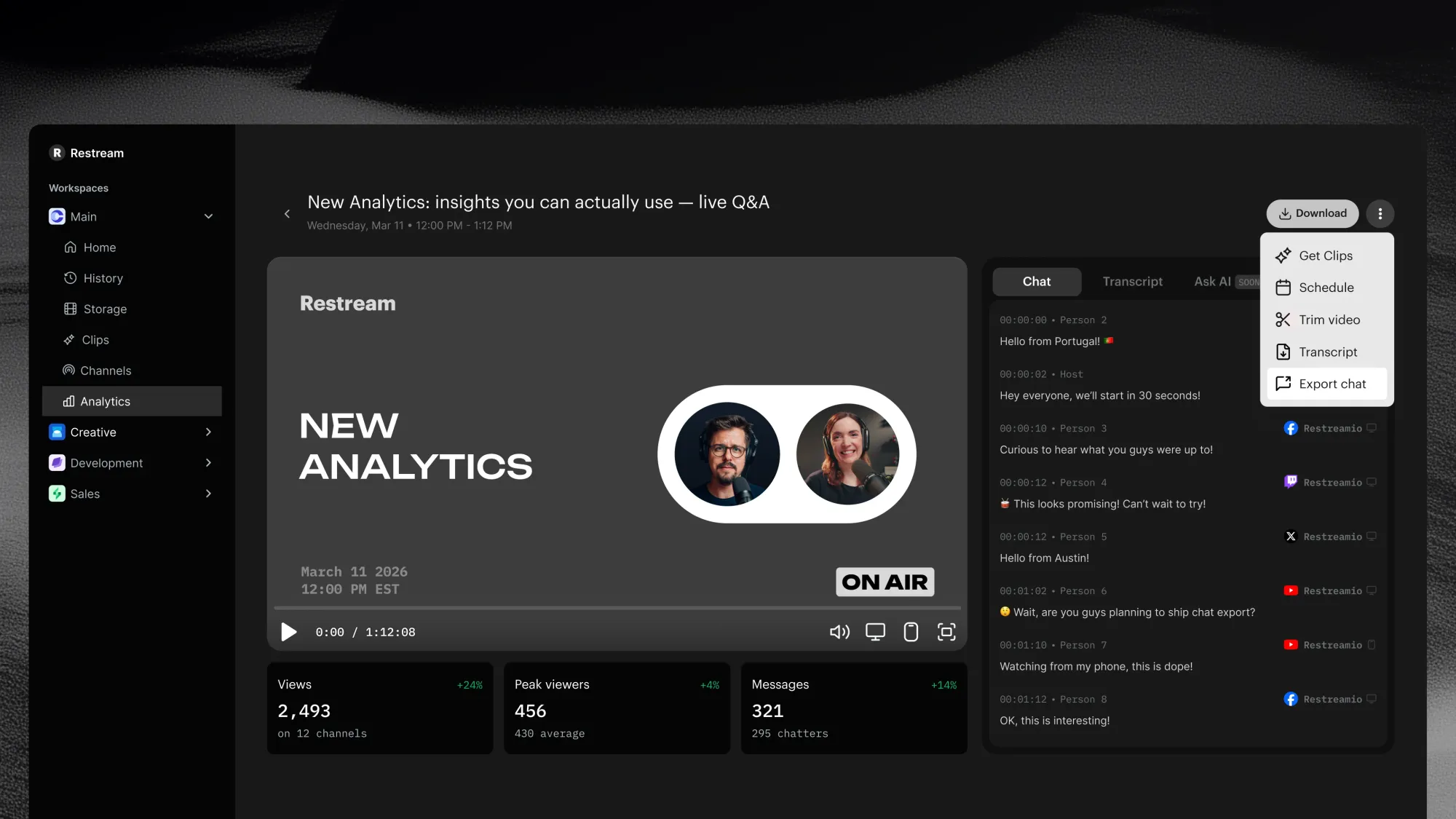
Read and export chat messages
Curious how your audience reacted during your live stream? Open any past stream analytics page to revisit the conversation anytime.
- Replay chat with your recording to see what viewers were saying during the stream.
- Export chat as CSV for deeper analysis.
- Structured, timestamped data from all supported chat platforms
- Anonymized chatter handles to protect viewer privacy
Restream Analytics: Understand your stream performance
Track how your streams perform across platforms in one place. Restream Analytics helps you understand audience growth, engagement, and performance with clear insights for every broadcast.
- Check analytics by date range – Filter performance over any time period and compare results between different ranges or your previous stream.
- Replay and learn — Watch your stream recording alongside chat activity and review the transcript to revisit key moments.
- Detailed stream analytics – Explore metrics for each stream, including views, chat activity, and stream quality.
- Cross-platform insights – See combined performance across all destinations you stream to.
Get clips while you’re still live
Live Clipping generates short-form clips in real-time — so you can share highlights to social media while you're still on air. Clips appear progressively in your project, ready to download or share before your stream ends.
- To start, make sure you're on the 250 Clips plan.
- Enable Live Clipping in Clips settings
- Go live — clips start appearing within minutes. Learn more.