You can stream a Zoom meeting or webinar to Facebook Live using Zoom’s Facebook option or a custom RTMP connection. To send the same meeting to Facebook and other platforms through Restream, connect Zoom to Restream’s RTMP URL and stream key, then enable your destinations.
Requirements for streaming Zoom to Facebook
For the built-in and custom RTMP workflows below, the meeting host needs a paid Zoom account with an assigned Meetings license, or the appropriate Webinar license. An account owner or admin must allow live streaming. Start the broadcast from the Zoom desktop app on Windows or macOS as the host.
Your Facebook account must be at least 60 days old. Pages and professional-mode profiles also need at least 100 followers. A Facebook Group uses a manual stream-key connection and requires a separate Go Live click in Facebook Live Producer after the preview appears. If a Page or Group is unavailable through Zoom’s direct Facebook option, use the custom RTMP route below.
How to enable live streaming on Zoom
To be able to go live on Facebook from Zoom, you must first enable live streaming. The host needs the appropriate paid Zoom license, and an owner or admin must enable these settings:
- Log in to your Zoom account on your browser web and access your Settings.
- Go to the Meeting tab and select In Meeting (Advanced).
- Turn on Allow livestreaming of meetings.
- Check the box next to Facebook.
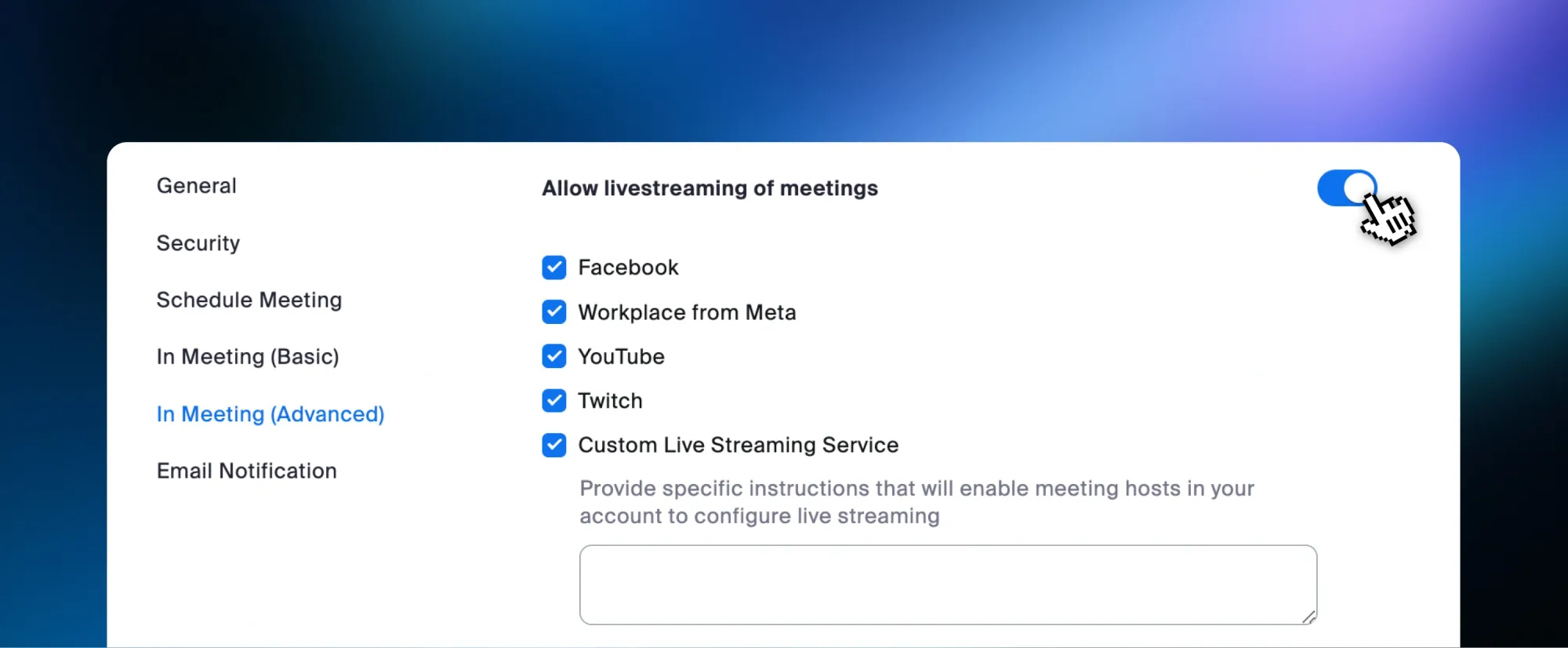
- Click Save.
If you’re doing a webinar, you can follow the same steps by selecting the webinar tab instead.
How to stream Zoom to Facebook Live only
- Join your meeting or webinar and make sure you’re doing so as the host.
- Click More from the bottom menu and click Live on Facebook.
- Follow the steps to log in to your Facebook account and grant Zoom access to it.
- You’ll be prompted to fill in a title and description for your Facebook stream.
- Select where you’d like to broadcast your meeting; you can choose between your Profile and a Page you own or manage.
- When you’re ready, click Go Live!
How to stream Zoom to Facebook Live and other platforms with Restream
To broadcast your Zoom meeting to more than just Facebook, you can use Restream’s multistreaming service.
- Sign in to Restream.
- From your home screen, click Channels, then Add Channels.
- Select Facebook Live from the options.
- Choose a Profile or Page and authorize access. For a Group, choose the Facebook Group connection, copy its stream key from Facebook Live Producer, and enter it in Restream. Start the feed from Zoom, then click Go Live in Facebook after the preview appears.
- Repeat this process for all the channels you’d like to connect to Restream.
- When your channels are set, create an RTMP stream:
- Click the New Stream button and select Encoder | RTMP from the options.
- Click the pencil icon to set a stream title and activate the channels you’ll stream to.
- If you want to create an event and notify your followers, you can also click the Schedule Event button, but that’s optional.
- Copy the RTMP URL and stream key from Restream - you’ll need them for Zoom.
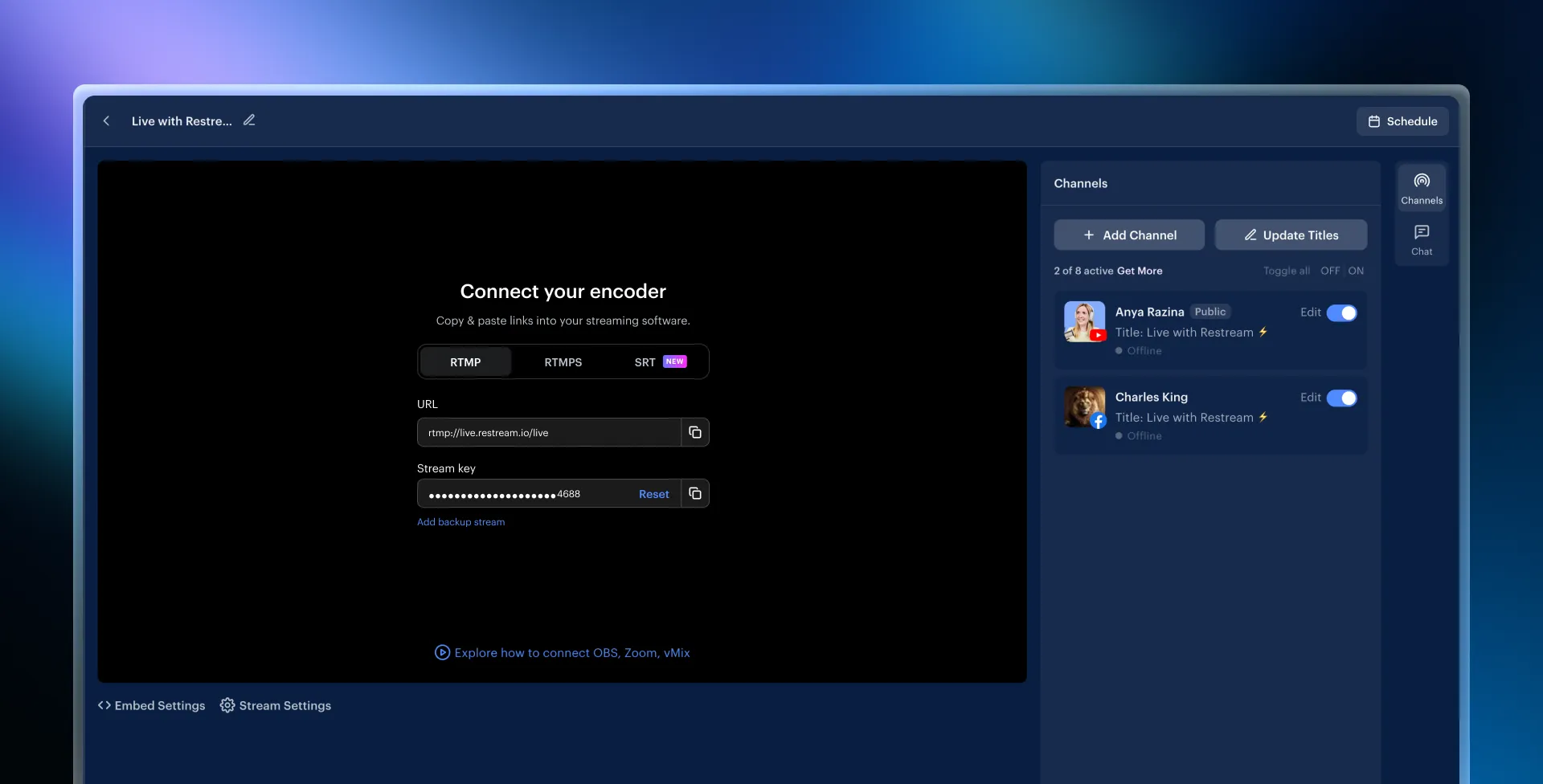
- When you’re ready to go live, join your meeting or webinar as the host.
- Click More from the menu and select Live on custom live streaming service.
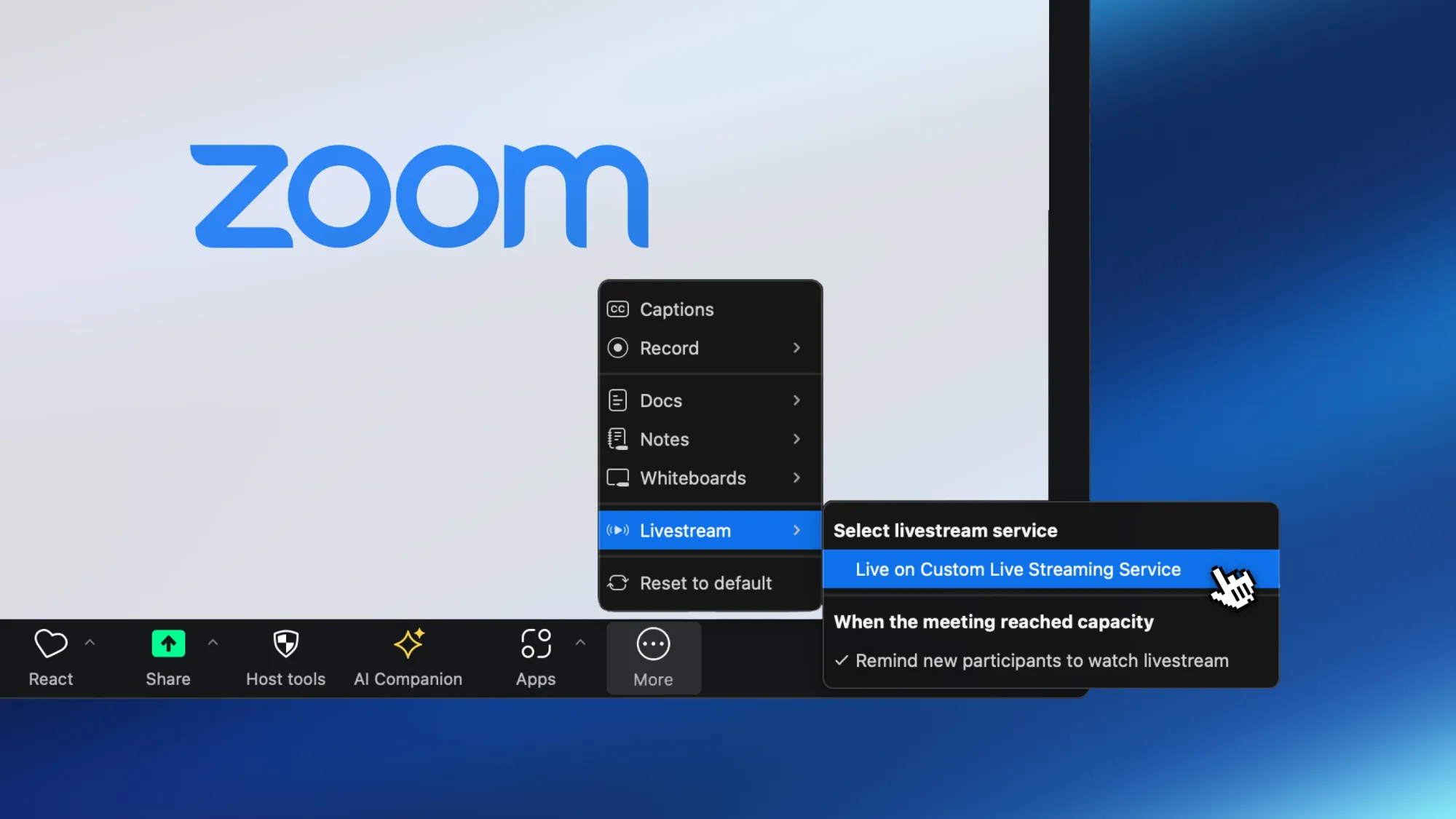
- Zoom will launch a tab on your browser where you’ll fill in the following details:
- Under Streaming URL, paste the RTMP URL.
- Under Streaming key, paste the stream key.
- Under Live streaming page URL, paste a link to any of the channels you’ll broadcast on.
- Click Go Live!
FAQs
Can I live stream Zoom to Facebook Live without Restream?
Yes. Zoom can stream directly to Facebook Live when the option is available for your account and destination. Zoom also offers a Live Streaming app that supports up to three simultaneous destinations. Restream is an alternative for managing destination connections and distributing one Zoom RTMP feed to multiple platforms. For Facebook Pages or Groups that are unavailable through the direct option, use custom RTMP.
Can I go live on Facebook and other platforms from Zoom for free?
The built-in/custom RTMP workflow in this guide requires an eligible paid Zoom account and an assigned host license. Restream’s Free plan can send one stream to two supported free destinations, with Restream branding. Facebook Pages, Facebook Groups and custom RTMP destinations require a paid Restream plan, even when you use only two destinations. Check the destination requirements before choosing a plan.
Can I schedule events for my Zoom streams on Facebook and other platforms?
Yes. Create an Encoder | RTMP stream in Restream and use Schedule Event for supported destinations, then configure Zoom with that stream’s RTMP URL and key. Use the public event URL for Zoom’s Live streaming page URL field; that field does not select where Restream sends the video. Confirm the correct destinations are enabled before starting. A Facebook Group still needs its manual Live Producer setup and Go Live step.
Wrap-up
Going live on Facebook from Zoom is a powerful way to connect with your audience in real time. With Zoom’s direct integration with Facebook Live, you can easily share your content with your followers. And if you’re looking to expand beyond Facebook, Restream offers a simple solution to stream across multiple platforms at once. Whatever you choose, mastering how to stream to Facebook or go live across several platforms will help you connect with viewers, share valuable content, and grow your community. Start streaming and make an impact!