


Live stream webinars to Slack
Bring town halls, product launches, and training sessions into the Slack channels your team already uses. With Restream, your live video plays in the channel and the discussion stays alongside the broadcast.
Slack streaming requires the Restream Webinar add-on. It works with Live Webinar events, not regular streams. Choose an add-on tier with enough attendee capacity for your audience before planning a company-wide event.
Why use Restream for Slack live streaming?
- Produce a broadcast in your browser: use Restream Studio for guest speakers, screen sharing, slides, layouts, and branded graphics. Build a consistent format for recurring leadership updates and internal events.
- Keep the conversation close: messages can travel between Slack and Restream Chat, so the host can respond from Studio. Your audience can discuss the event in its Slack channel.
- Give people a place to return: scheduled webinars appear in the channel before the broadcast, with an Add to Calendar option. The live video appears in that event when you start.
- Support different time zones: viewers can use Watch Replay in Slack while replay access remains enabled. The host can disable playback or remove the event later.
How to stream a webinar to Slack
- Prepare your account: create a Restream account and add the Webinar add-on. Check your attendee limit and your workspace’s app approval requirements.
- Create the webinar: choose New Stream → Live Webinar, enter the event details, and follow the prompts into Studio.
- Connect Slack: choose Connect Slack, authorize the intended workspace, select the channel, and save. For a private channel, add the Restream app to that channel first.
- Prepare and test: arrange your speakers, presentation, and branding. Confirm the selected channels and event access settings, then start the webinar and check the audience view in Slack.
For the complete connection instructions, see the existing Stream to Slack setup guide.
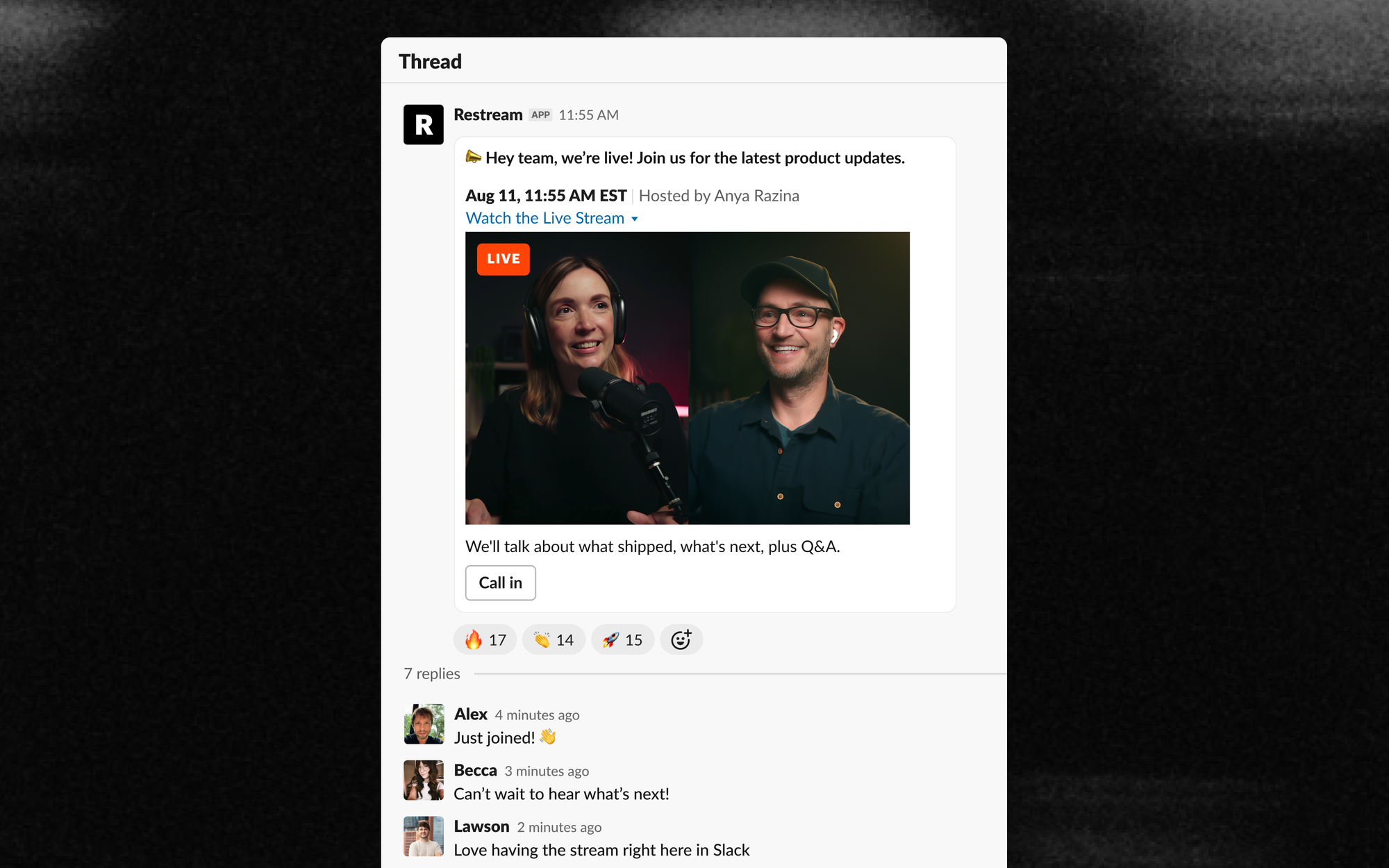
Slack broadcasts for your team
- Town halls: combine leadership updates with questions from the team.
- Product launches: show a demo and explain what changes for customers and colleagues.
- Training and onboarding: walk through a process with slides or a screen share, then keep a replay available for later viewing.
- Quarterly reviews: present results and priorities in a familiar channel.
- Hackathons and celebrations: broadcast kickoffs, demos, and team milestones.
Slack streaming FAQ
Is Slack streaming included in the free Restream plan?
No. Streaming to Slack requires the Webinar add-on, which is separate from your main Restream subscription. The add-on tier determines the maximum webinar audience.
Can I stream to several Slack channels?
Yes. You can connect multiple channels, including channels in different workspaces, and enable them for the same webinar. Check that you selected the intended audience before going live.
Do viewers need a Restream account?
Viewers do not need their own Restream account. Webinar registration or access restrictions may apply depending on the host’s settings, and viewers need access to the Slack channel to watch there.
How is this different from a Slack huddle?
Use a huddle for a team conversation. Use a Restream webinar when you want to produce a hosted broadcast with planned speakers, presentation materials, branding, audience chat, and replay access. Choose the format that fits the event.


