


Live streaming software for X (Twitter)
Produce live video for X with Restream. Use a browser studio to host guests, share your screen, and add branding, or connect your existing encoder. Send the same broadcast to X and other supported channels without building a separate production for each audience.
What you need to go live on X
Your X account must be verified and have a Premium or Premium+ subscription to broadcast live video. X Basic is not sufficient. Review the X verification and live-streaming requirements before your event; Restream cannot bypass X’s eligibility rules.
This integration is for X live video. X Spaces is a separate audio conversation format. Restream’s free plan can stream to an eligible X account, but your X subscription is separate from your Restream plan.
Build your X live broadcast with Restream
- Produce in your browser: Restream Studio provides a production workspace without installing a separate broadcasting app. Invite guests for interviews and panels, or share your screen for demos and presentations.
- Make the stream recognizable: organize logos and graphics and add QR codes. Branding options and guest limits depend on your plan.
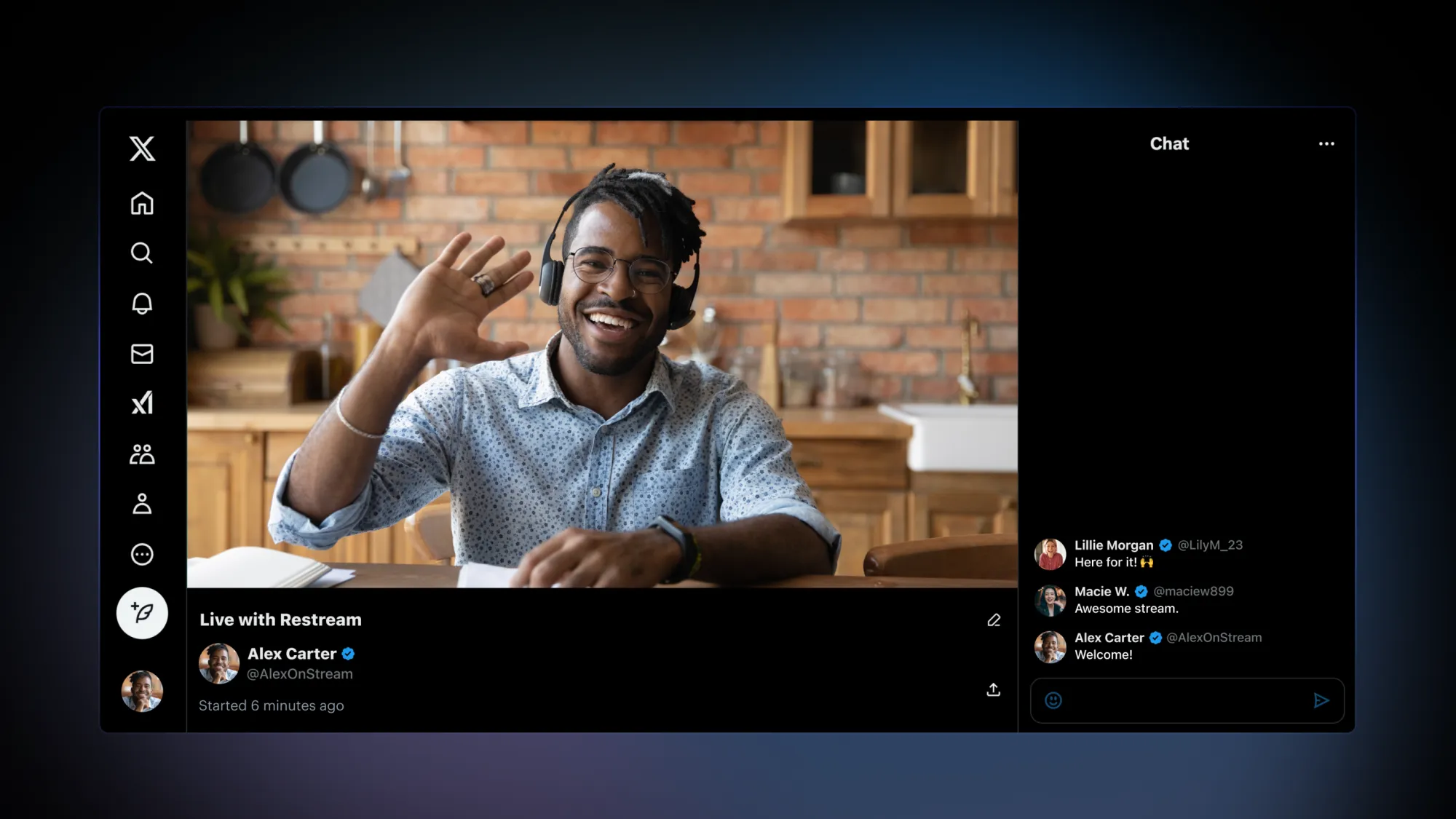
- Manage the conversation: use Restream Chat with the native X connection to read and reply to supported comments. In Studio, you can show audience comments on screen. Support differs across your other destinations.
- Distribute one production: multistream to X alongside supported destinations such as YouTube or Twitch. Your Restream plan determines how many channels can be active at once.
- Keep your encoder: if you already produce in OBS, send its feed through Restream instead of rebuilding your scenes in Studio.
How to connect X to Restream
- Create your account: sign up for Restream and confirm that your X account is eligible for live video.
- Connect X: open Channels → Add New, choose X, then Connect X. Log in and authorize Restream to access the account you want to broadcast from.
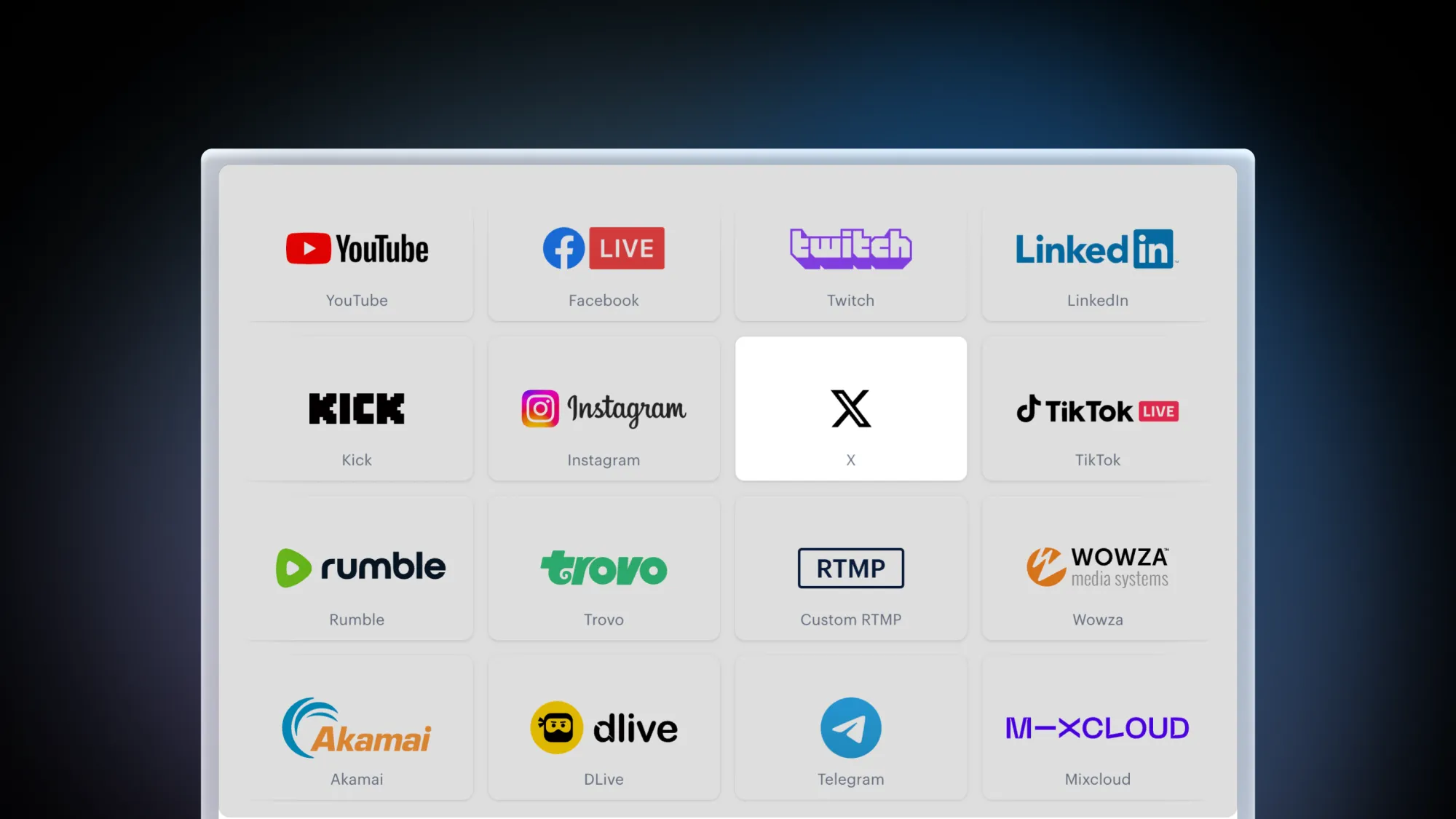
- Prepare your production: choose New Stream, select your production method, and enable X. Set up Restream Studio for a browser broadcast, or choose Encoder | RTMP for external software. Add your title and check the destination.
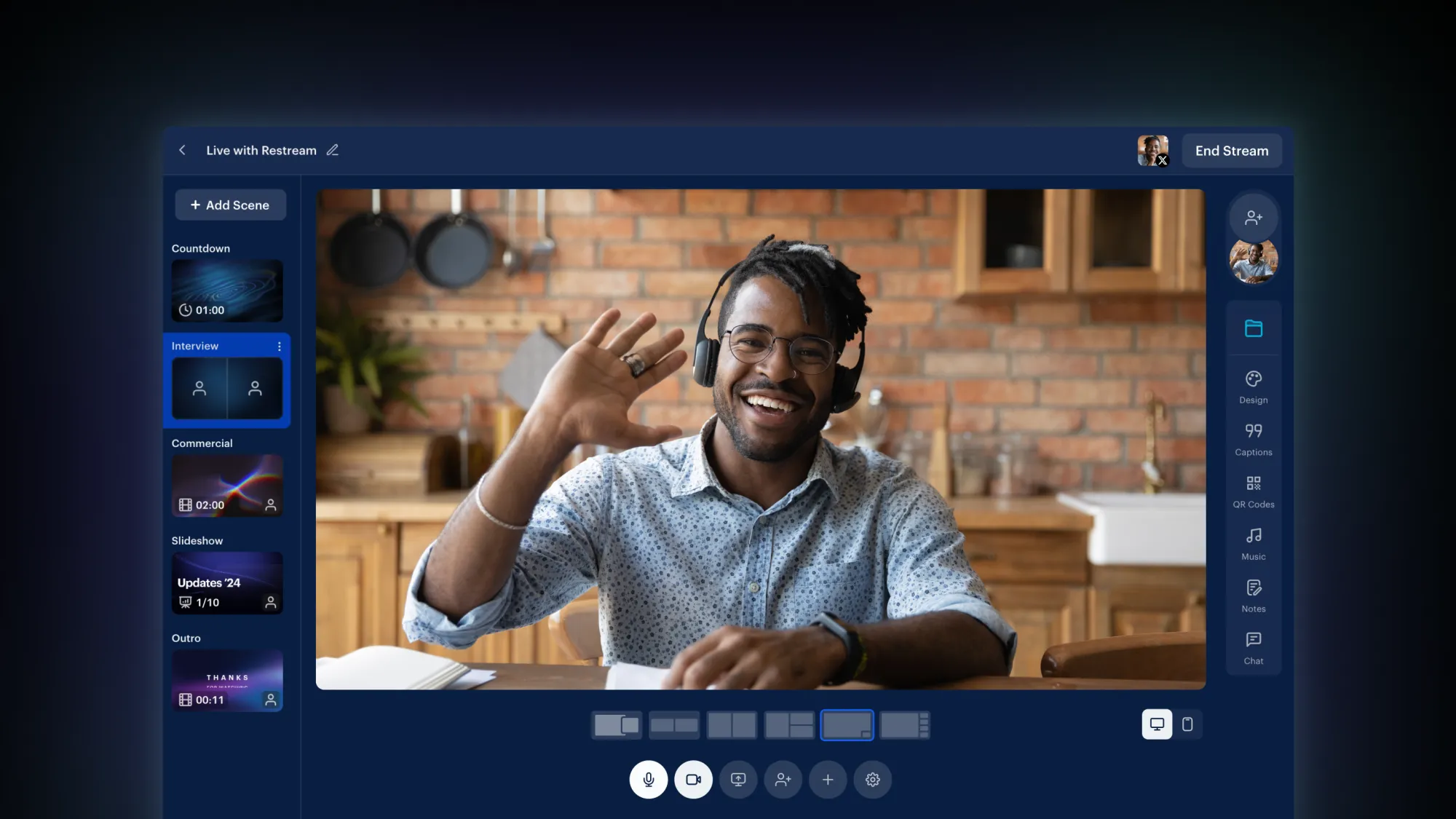
- Test and start: check audio, video, guest permissions, and any shared media. Start the broadcast and open X to verify that viewers can see and hear the intended feed.
Prepare and reuse your content
Keep talking points in Studio scene notes. If you add music, use the provided background tracks under their applicable terms or upload music you have the rights to use. Music availability is not a guarantee against every platform claim.
Cloud recordings are available on eligible paid plans and have plan-specific limits. Check recording availability before the event if you want to reuse the broadcast later.
X (Twitter) streaming software FAQ
Do I need X Premium to stream with Restream?
Yes. X requires a verified account with Premium or Premium+ for live video. Basic is not sufficient, and using external streaming software does not remove this requirement.
Can I stream to X with Restream’s free plan?
Yes, using the native X connection and an eligible X account. Restream’s free plan supports two eligible channels with Restream branding. More channels and paid features require an upgrade; X Premium is purchased separately.
Do I need an X stream key?
Not for Restream’s native X connection: connect and authorize your X account. A custom RTMP connection is a separate paid Restream workflow and does not provide the same native chat and analytics integration.
Can I stream to X and YouTube at the same time?
Yes. Connect both eligible accounts, enable both destinations, and start one broadcast. The number of simultaneous channels depends on your Restream plan.


