Your first trip through Vice City deserves an audience. GTA 6 is a console release, so the dependable way to stream it to several platforms at once is to pair your PS5 or Xbox Series X|S with a capture card, OBS Studio, and Restream.
To stream GTA 6 to multiple platforms:
- Connect your PS5 or Xbox Series X|S to a capture card, then connect the card to your TV and your computer.
- Add the capture card to OBS Studio as a Video Capture Device.
- In OBS, select Restream.io as the streaming service and connect your account.
- In Restream, add and turn on the channels you want, such as Twitch, YouTube, and Kick.
- Click Start Streaming in OBS.
After the broadcast, Restream's Autopilot can turn the recording into short clips for you.
Rockstar's release date for GTA 6 is November 19, 2026, on PS5 and Xbox Series X|S. In this setup the console runs the game and your computer handles the broadcast, so you don't need a PC version of the game.
How the setup works
PS5 or Xbox → HDMI → capture card → USB → OBS on your computer → Restream → Twitch, YouTube, Kick, and more
The capture card also passes the picture through to your TV or monitor, so you keep playing on your usual screen while OBS receives a copy of the video and audio.
What you need
- A PS5 or Xbox Series X|S with access to GTA 6.
- A capture card compatible with your console and computer.
- A TV or monitor, two HDMI cables, and the capture card's USB cable.
- A computer with OBS Studio installed.
- A Restream account and the channels you want to stream to.
- A microphone for commentary. A webcam is optional.
Check your capture card's supported resolutions, frame rates, and USB requirements before you connect it. A card's pass-through mode and its capture mode are separate specs: you can often play at a higher resolution or refresh rate than the card records. Follow our capture card setup guide alongside the manufacturer's instructions.
How to stream GTA 6 on PS5
1. Turn off HDCP
On your PS5, open Settings → System → HDMI and turn off Enable HDCP. If you leave it on, the capture preview can stay black.
Movie and TV apps on the console can require HDCP, so turn it back on when you want to use them.
2. Connect your capture card
- Run an HDMI cable from the PS5's HDMI output to the capture card's HDMI input.
- Run a second HDMI cable from the card's HDMI output to your TV or monitor.
- Connect the card to your computer over USB.
- Install any software your capture card requires.
These connections and the HDCP setting are covered in our console capture instructions. Once your TV shows the PS5 picture through the card, go to Add your console to OBS.
How to stream GTA 6 on Xbox Series X|S
1. Connect your Xbox to the capture card
- Run an HDMI cable from the Xbox's HDMI output to the capture card's HDMI input.
- Run a second HDMI cable from the card's HDMI output to your TV or monitor.
- Connect the card to your computer with the USB cable and port type the card requires. A slower USB port can reduce the capture resolution.
For an example of the layout, see Elgato's Xbox Series X|S setup guide.
2. Confirm your capture card detects the console
Install the manufacturer's software and check that the Xbox picture appears. Use a video output mode that both your card and your display support.
Xbox has no HDCP switch to change for gameplay. Capture cards can't use HDCP-protected signals, so if the preview is black, close any movie or TV apps and return to the game.
Add your console to OBS
These steps are the same for PS5 and Xbox.
1. Add the capture card as a source
- In OBS, create a scene named "GTA 6."
- Under Sources, click + and choose Video Capture Device.
- Select your capture card in the Device dropdown.
- Resize the console picture to fit the canvas.
If the source stays blank, set Resolution/FPS Type to Custom and pick a mode your card supports. OBS shows nothing when the selected resolution or frame rate isn't supported. See the OBS video capture source guide for every option.
2. Check the game audio
Play some game audio and watch the OBS mixer. In the source's properties, Audio Output Mode controls what you hear: with Capture only, the audio reaches your stream but you won't hear it through OBS unless you turn on audio monitoring.
If the picture works but the game is silent, check whether a headset plugged into your controller is pulling sound away from HDMI. Elgato's audio troubleshooting guide explains the common routing issues.
3. Add your microphone and webcam
Speak into your microphone and confirm it has its own meter in the mixer. To add a camera, create a second Video Capture Device source and position it over a part of the screen that doesn't hide the minimap or HUD. The OBS sources guide lists the available source types.
4. Record a short test
Click Start Recording, play for a minute while you talk, and listen back. A moving audio meter won't tell you whether your voice is too quiet or the game sound is doubled. A recording will, and nothing goes public while you test.
Connect OBS to Restream
With your console picture and audio working in OBS, connect the broadcast.
1. Add your streaming channels
In Restream, click Channels in the sidebar, then + Add New. Pick a platform, such as Twitch or YouTube, and follow its connection prompts. Repeat for each platform you want to reach.
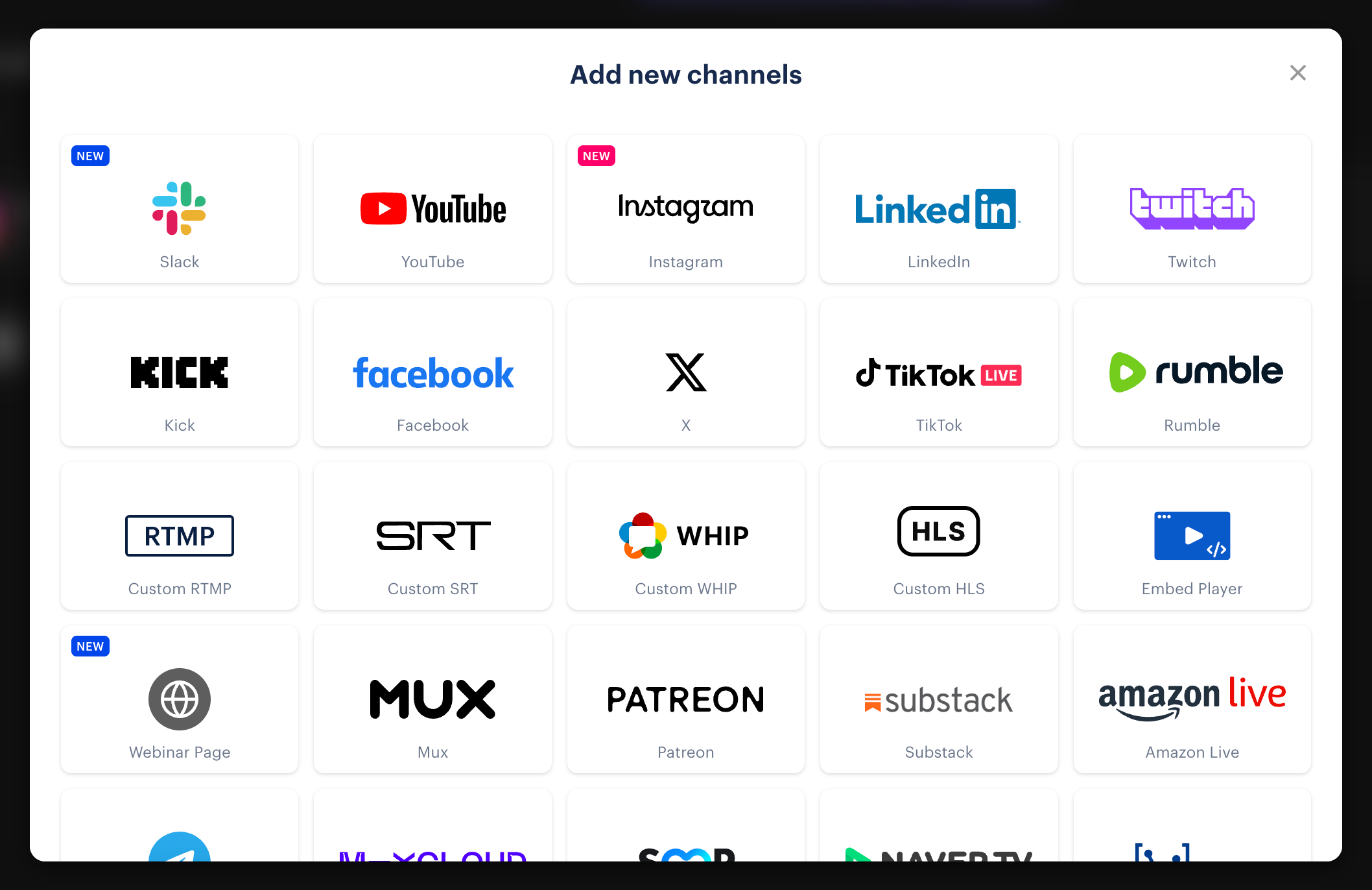
The number of channels you can turn on at the same time depends on your plan. Our channel setup guide explains how to add and enable them.
2. Link OBS to your Restream account
In OBS:
- Open Settings → Stream.
- Select Restream.io as the service.
- Click Connect Account and sign in.
- Leave the server on Autodetect, then click OK.
This links OBS to the stream labeled Default RTMP on your Restream home screen.

Prefer a stream key? In Restream, click + New Stream and choose Encoder | RTMP, or open an RTMP stream you already have.
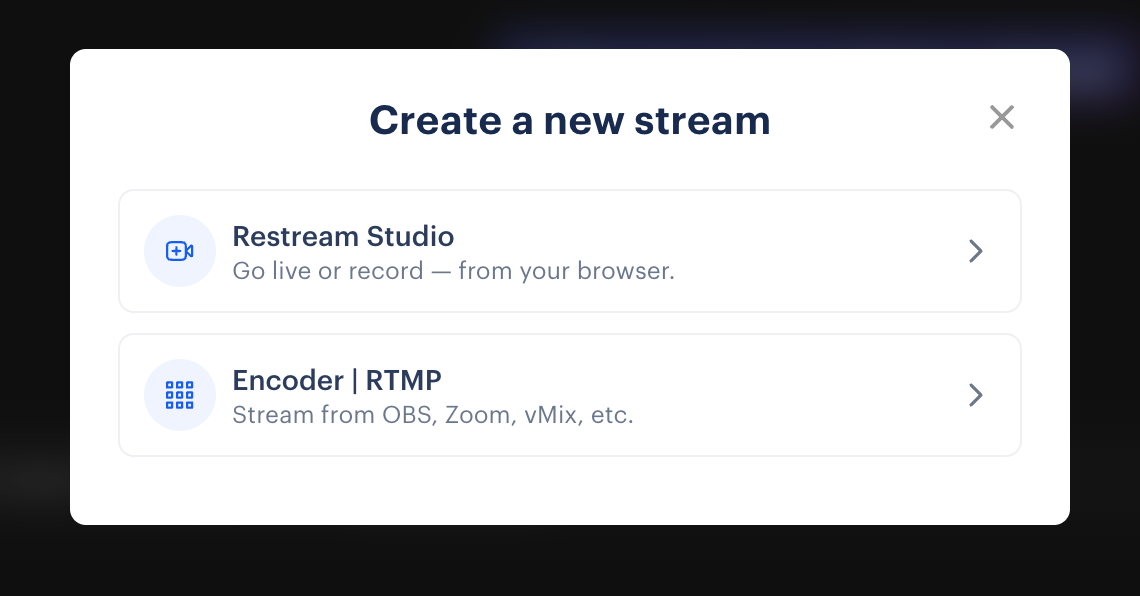
Copy the stream key, then in OBS click Use Stream Key and paste it. Treat the key like a password and keep it off screen while you're live.
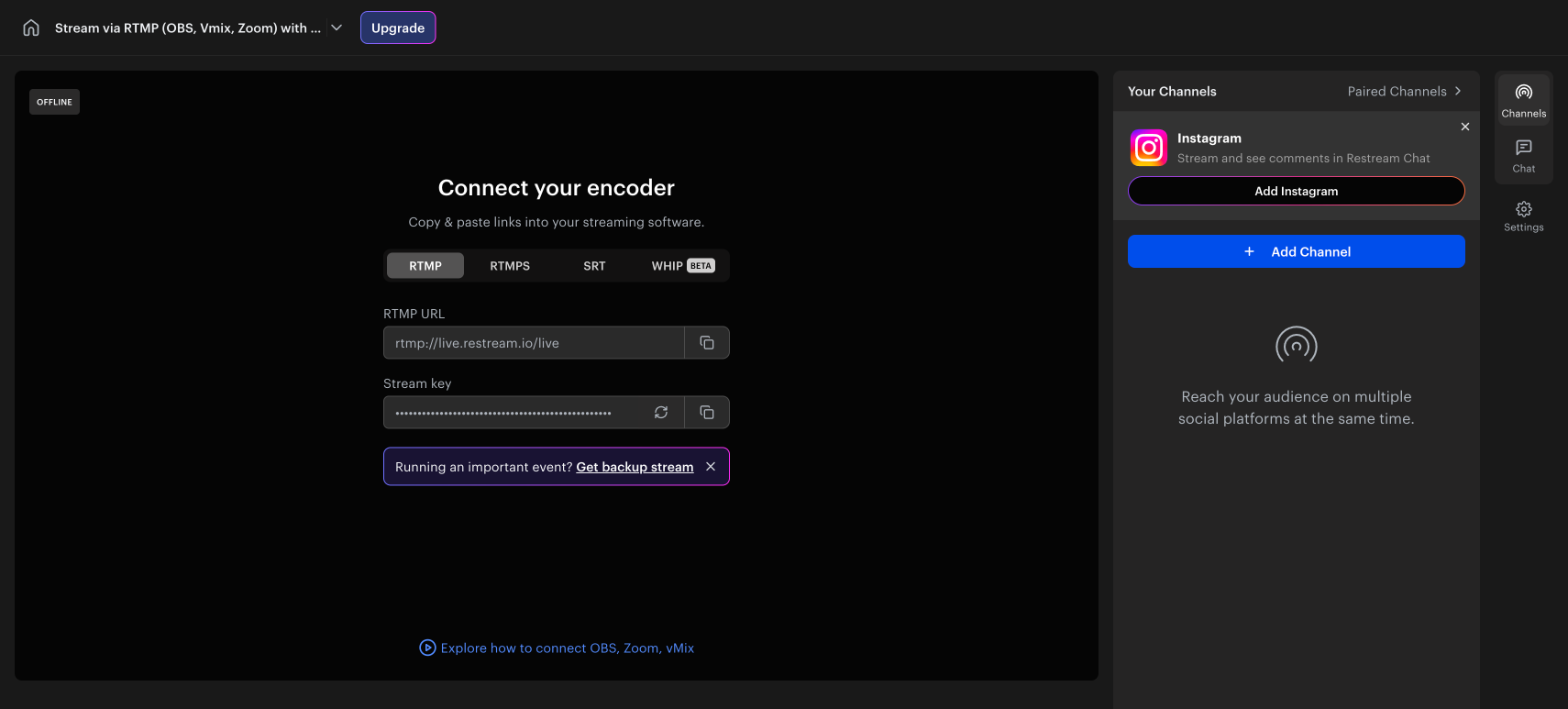
Both methods are covered step by step in our OBS connection guide.
3. Choose your stream settings
Restream sends the same feed to every channel, so set OBS for the strictest platform on your list. These are the starting points from our recommended streaming software settings:
| Resolution | Frame rate | Video bitrate |
|---|---|---|
| 720p | 30 fps | 2,500–4,000 Kbps |
| 1080p | 30 fps | 4,500–6,000 Kbps |
| 1080p | 60 fps | 6,000–9,000 Kbps |
- Rate control: CBR
- Keyframe interval: 2 seconds
- Encoder: H.264
- Audio: AAC, up to 160 Kbps
Twitch accepts up to 6,000 Kbps. If Twitch is one of your channels, stay at or below that bitrate. Requirements change, so check each platform's current guidelines, and pick a setting your upload speed can hold steadily for hours.
4. Go live
Confirm your enabled channels, your stream title, and the game category (Grand Theft Auto VI). When you're ready to broadcast publicly, click Start Streaming in OBS.
Open the stream on your Restream home screen to check its performance, manage your channels, and follow viewer counts. Then look at each destination to confirm viewers can see and hear you.
Automatically create clips after your GTA 6 stream
A long session is also raw material for your next short video.
Restream's Autopilot generates clips from your stream recording after the broadcast ends. It applies to streams longer than 10 minutes and is available on all plans.
To check it before you go live:
- Open your RTMP stream in Restream and click Settings on the right.
- Select Clips.
- Make sure Autopilot is on. It affects all your streams.
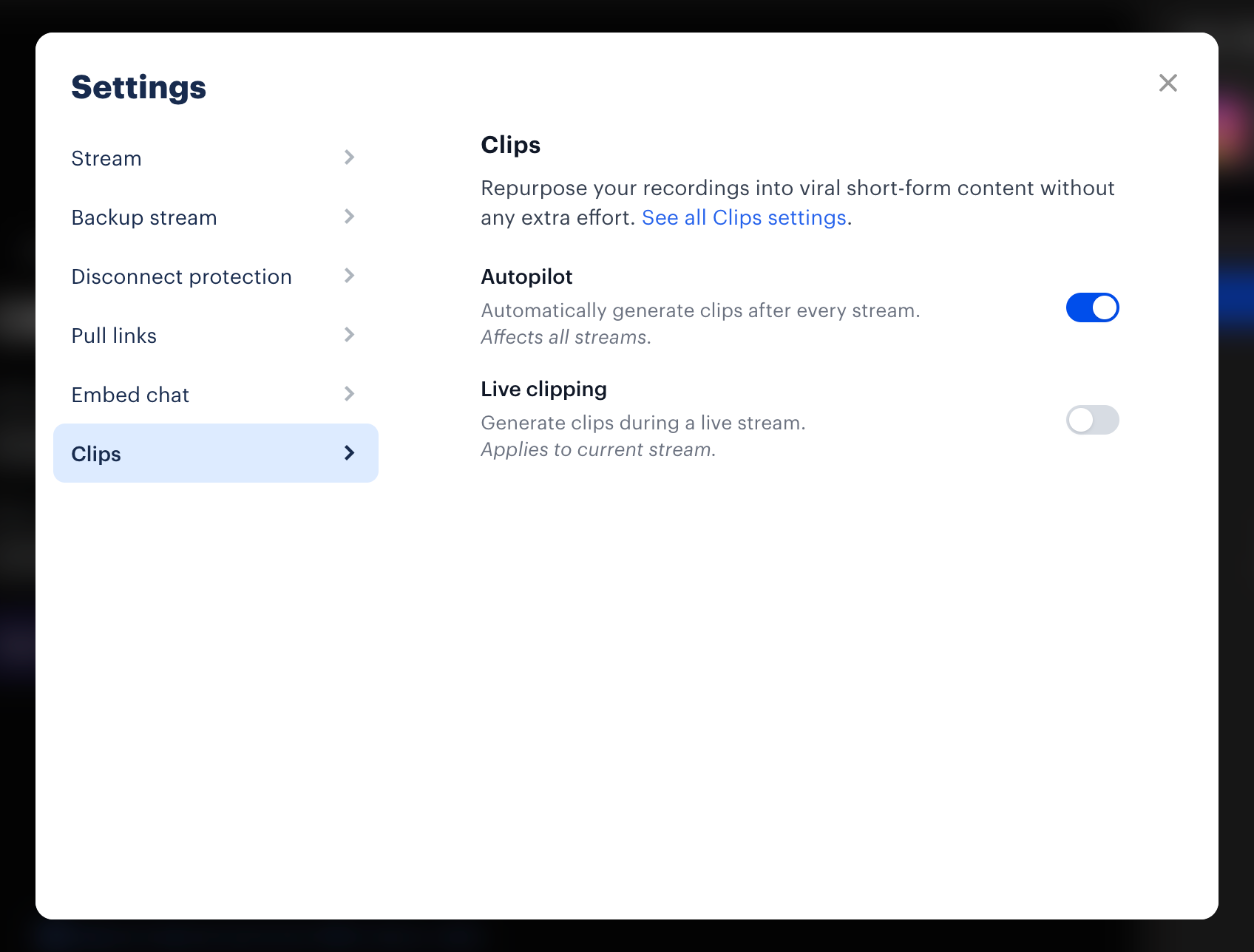
To change what Autopilot produces, select See all Clips settings, or go to app.restream.io/settings/clips. Under Generation defaults you can set:
- Clip style: the template, captions, and framing. Choose a vertical aspect ratio for Shorts, TikTok, and Reels.
- Topic: for example Highlights or Funny Moments.
- Language: auto-detect, or a specific language for captions.
- Number of clips: a maximum, not a guarantee. If the stream has fewer strong moments, you get fewer clips.
- Duration: the target length of each clip.
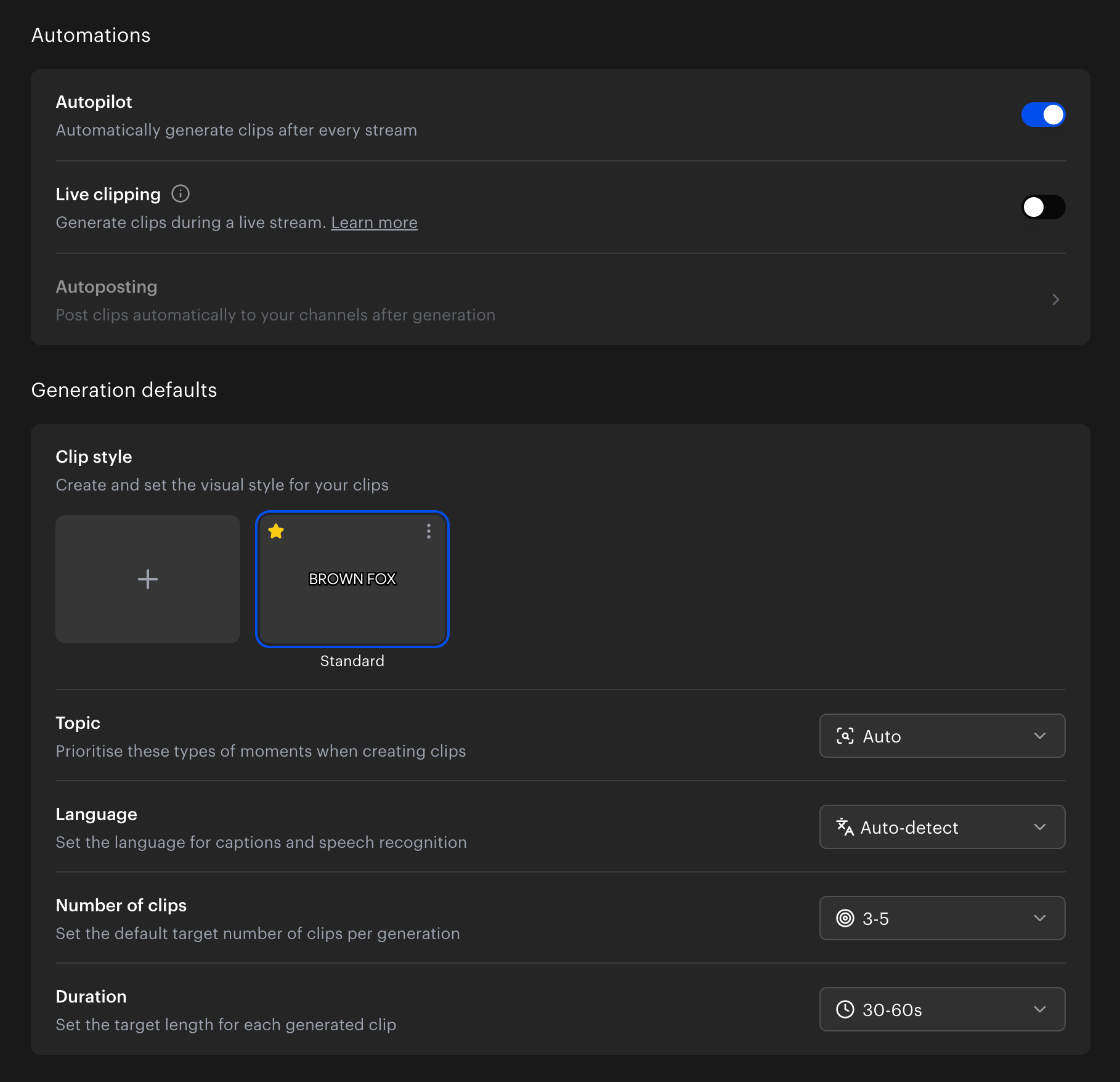
Once this is set, you don't need to start clip generation by hand after each eligible stream. See Clips settings for every option.
Make your commentary part of the moment
Clips works best with clear speech, such as commentary and conversations. Your reactions and explanations give the AI spoken context to work with, so a silent stunt or chase is less likely to be picked than one you talk through.
Two more things help with console footage:
- Keep the source at 1440p or lower. Clips from true 4K recordings may fail to export.
- Review before you post. Check the framing and captions, then publish to YouTube Shorts, TikTok, Instagram Reels, Facebook Reels, X, LinkedIn, or Rumble. You can also download clips in 1080p.
The Clips FAQ lists the supported workflows.
Want clips while you're still live?
Live Clipping is a separate option on the 250 Clips plan. It processes the first 30 minutes of a stream in 10-minute segments and produces up to three clips per segment, so up to nine in total. These count toward your monthly allowance. You can turn it on for a single stream in the same Settings → Clips tab.
Optional Autoposting publishes eligible Live Clips to the channels you select. You choose the channels, a minimum virality score, the maximum clips per batch, and a caption template. Turning on Autopilot alone does not publish anything automatically. See the automation settings.
Before your first broadcast
Give yourself time for a rehearsal:
- Record a short test with gameplay and commentary.
- Listen for echo, missing game sound, and a soundtrack that drowns out your voice.
- Check that your webcam leaves the minimap and HUD visible.
- Confirm the right channels are turned on in Restream.
- Check Autopilot before the session you want clipped.
- Say in your stream title whether you're showing story spoilers.
Quick fixes
| Problem | What to check |
|---|---|
| Black preview on PS5 | Turn off Enable HDCP in Settings → System → HDMI. |
| Blank source in OBS | Set Resolution/FPS Type to Custom and choose a mode your card supports. |
| Picture but no game sound | A headset on the controller may be taking audio away from HDMI. |
| Doubled or echoing microphone | The same device is selected in OBS Settings → Audio and added as a scene source. Remove one. See the OBS audio source guide. |
| Stream doesn't appear in Restream | In OBS Settings → Stream, use Switch Account to confirm you're connected to the right Restream account. |
Frequently asked questions
Can I stream GTA 6 without a capture card?
Yes, with limits. On PS5, press the Create button, choose Broadcast, and pick a linked service such as Twitch or YouTube. PlayStation's Broadcast instructions note that, depending on the game, some scenes may not appear to viewers. On Xbox, open the guide, go to Capture & share → Live streaming, and link your Twitch account.
Built-in console streaming goes to one service and doesn't give you OBS scenes or overlays. To bring the console picture into OBS without a capture card, Restream documents PS Remote Play for PlayStation and the Xbox app on Windows. Game compatibility and connection quality matter, so test either route before relying on it for GTA 6.
Do I need a PC version of GTA 6 to use OBS?
No. In the capture card setup described here, GTA 6 runs on your PS5 or Xbox Series X|S, and OBS receives the console's video on your computer.
Can I stream GTA 6 to Twitch and YouTube at the same time?
Yes. Connect both channels in Restream and turn them on, within your plan's channel allowance. Our guide to going live on Twitch and YouTube at the same time covers the details.
What bitrate should I use to stream GTA 6?
For 1080p at 60 fps, start at 6,000 Kbps. That is the top of what Twitch accepts and the bottom of the range we recommend for 1080p60. If your upload speed can't hold it, drop to 1080p at 30 fps or 720p. Always use CBR and a 2-second keyframe interval.
Why is my capture card showing a black screen?
On PS5, the usual cause is HDCP. Turn off Enable HDCP in Settings → System → HDMI. On either console, a resolution or frame rate your card doesn't support will also leave the OBS source blank.
Will Restream automatically find every highlight?
No. Clip selection and quantity depend on the content. Clear commentary helps, and reviewing the results lets you choose what best represents your stream. See the Clips FAQ.
Get your GTA 6 stream ready
Connect your console, check your sound, and turn on your channels before your first session. With Restream handling distribution and Autopilot preparing clips from eligible recordings, you can keep your attention on the game and your audience.