


Instagram live streaming software for PC
Instagram Live creators are no longer limited to streaming from the mobile app. Now, anyone with a Professional Instagram account and 1000+ followers can go live on a computer using their favorite streaming software for Instagram. This opens up new possibilities for streamers who are looking for more customization options and tools to actively engage with their audience. Restream is Instagram live streaming software that works right in your browser: it makes it easy to set up your stream on your PC or Mac and broadcast it on Instagram and all of your favorite channels at once.
Why choose Restream as your Instagram streaming software
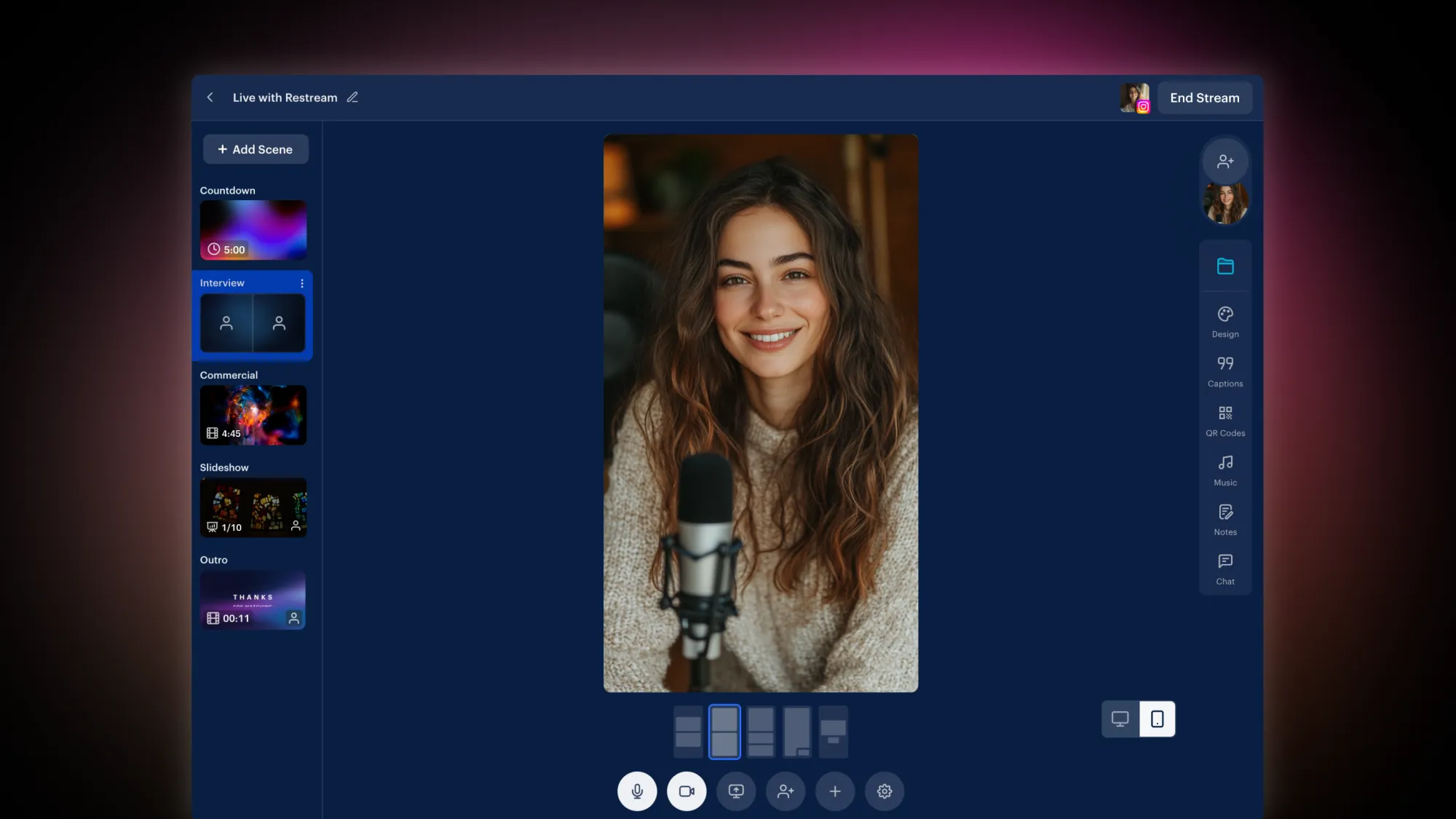
- Custom layouts and branding: The look of your stream doesn’t have to be limited to the Instagram app's built-in options; Restream allows you to customize your stream layout and add your own branding.
- Browser-based streaming software: Setting up and controlling a stream is so much easier on a larger screen, and Restream Studio is accessible right from your browser. Unlike most Instagram live stream software, there’s nothing to download or install.
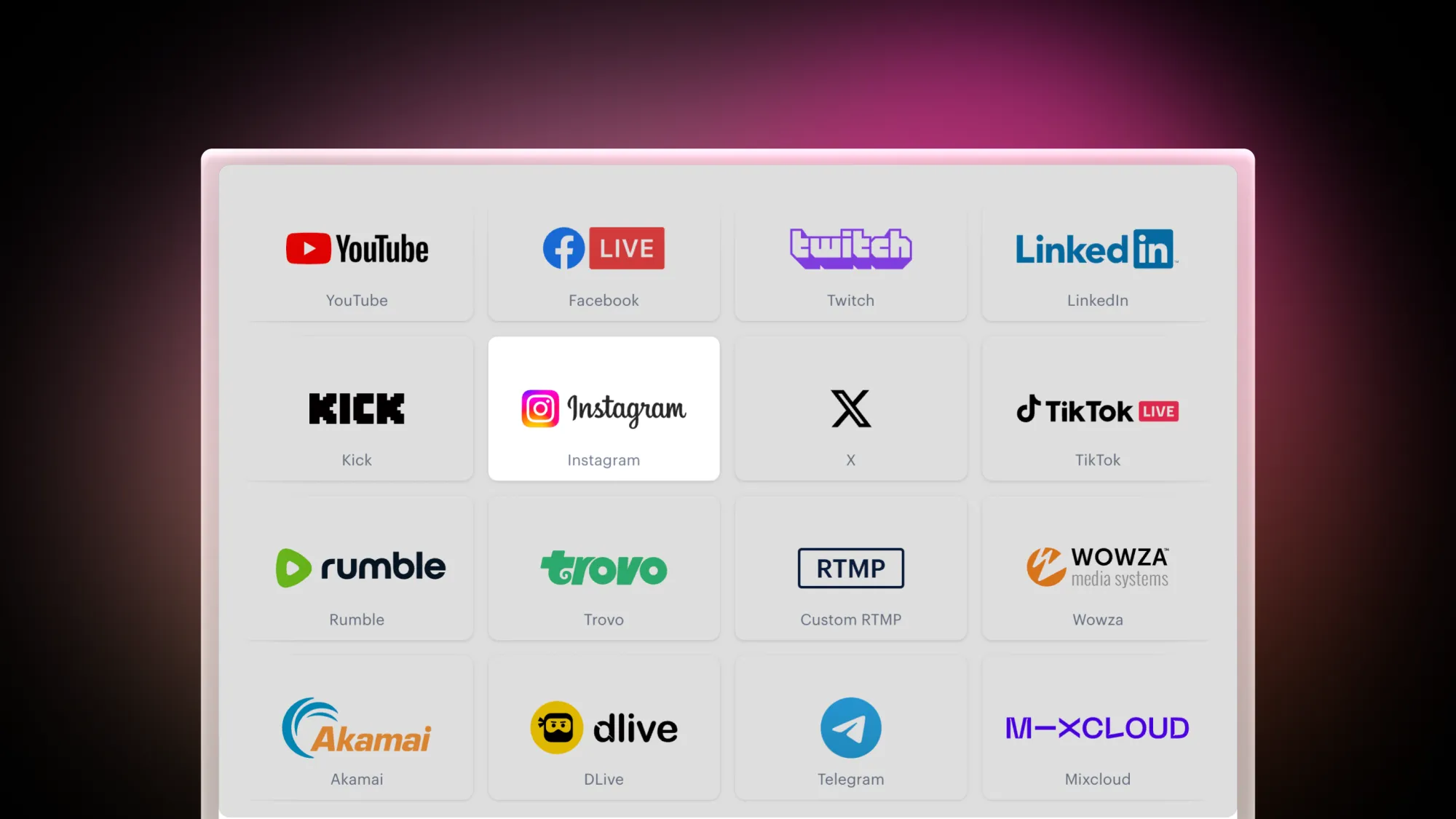
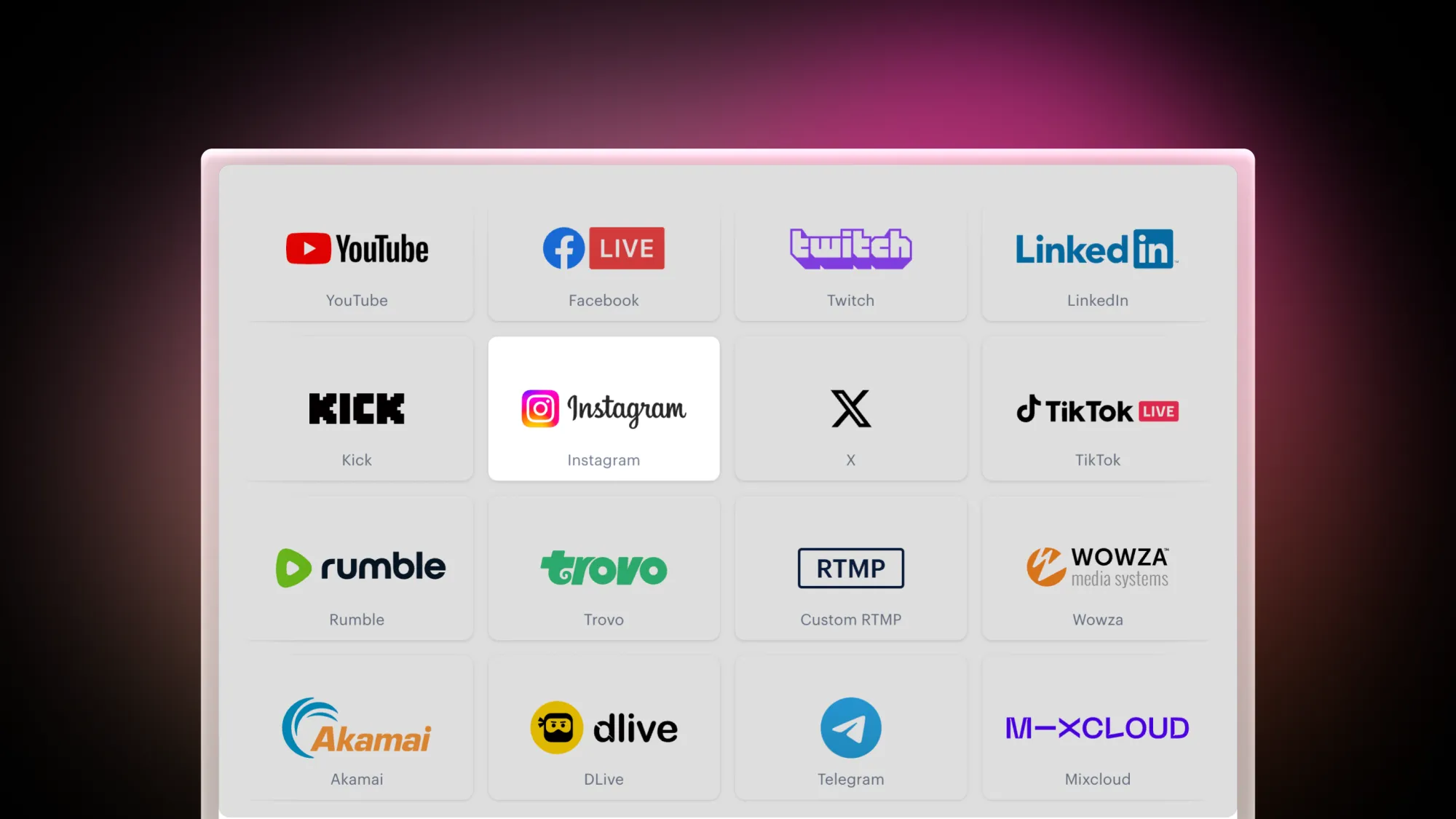
- Multistreaming: If you’re looking for ways to expand your reach, Restream supports going live on multiple channels at once, so you can restream your Instagram Live to Facebook, YouTube, and other platforms and reach your viewers anywhere they are.
- Record and repurpose: Restream automatically records your Instagram live streams so you can easily use them to create highlights and Reels.
- 24/7 technical support: Restream offers human support 24/7, so you can effectively set up and learn the ins and outs of streaming on Instagram.
How to stream on Instagram from PC with Restream
To stream on Instagram from your PC or laptop with Restream, you’ll be using the Instagram Live Producer. Before you get started, switch your Instagram to a Professional account for free.
- Create a Restream account: You can sign up for free at Restream.io.
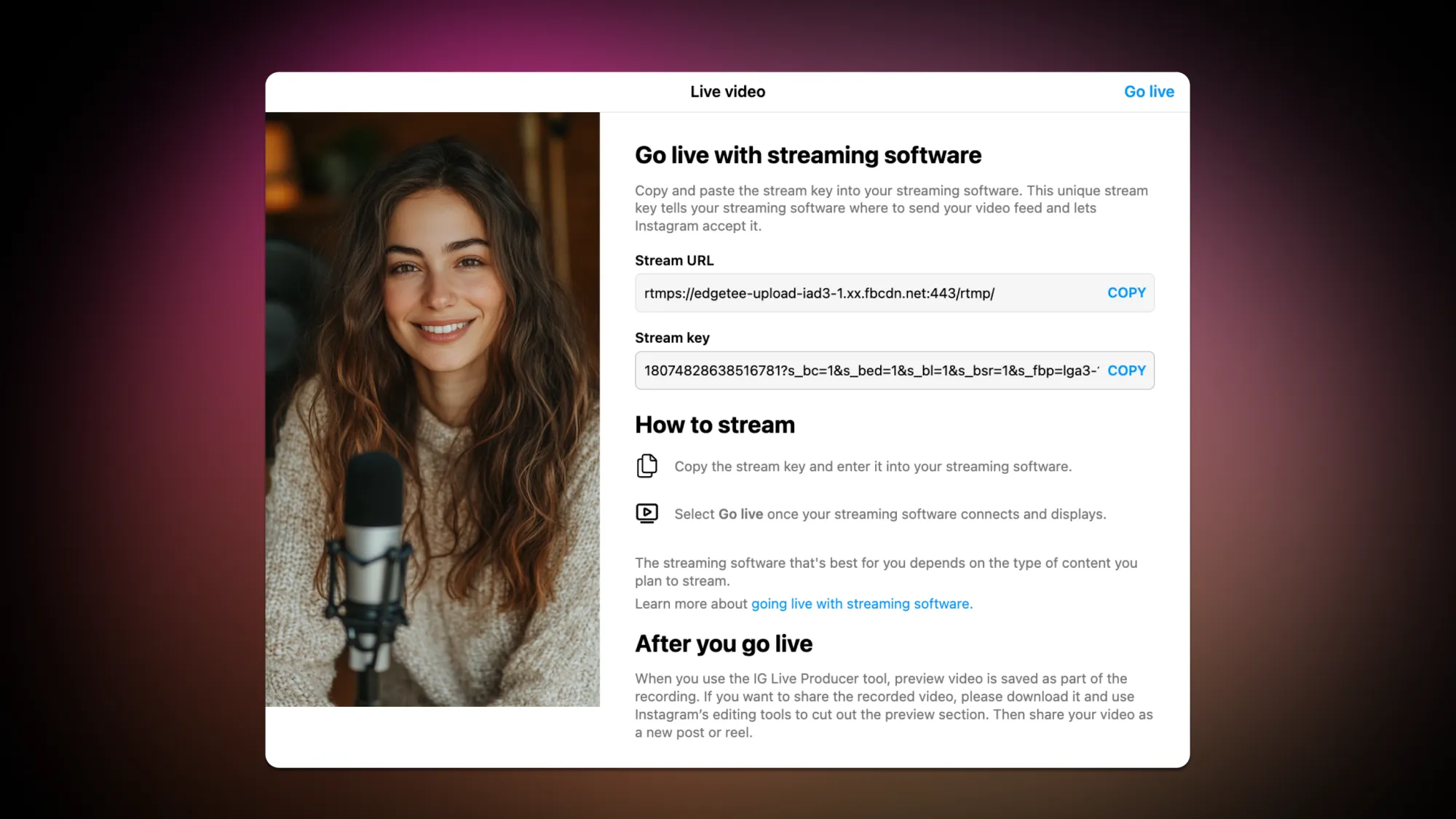
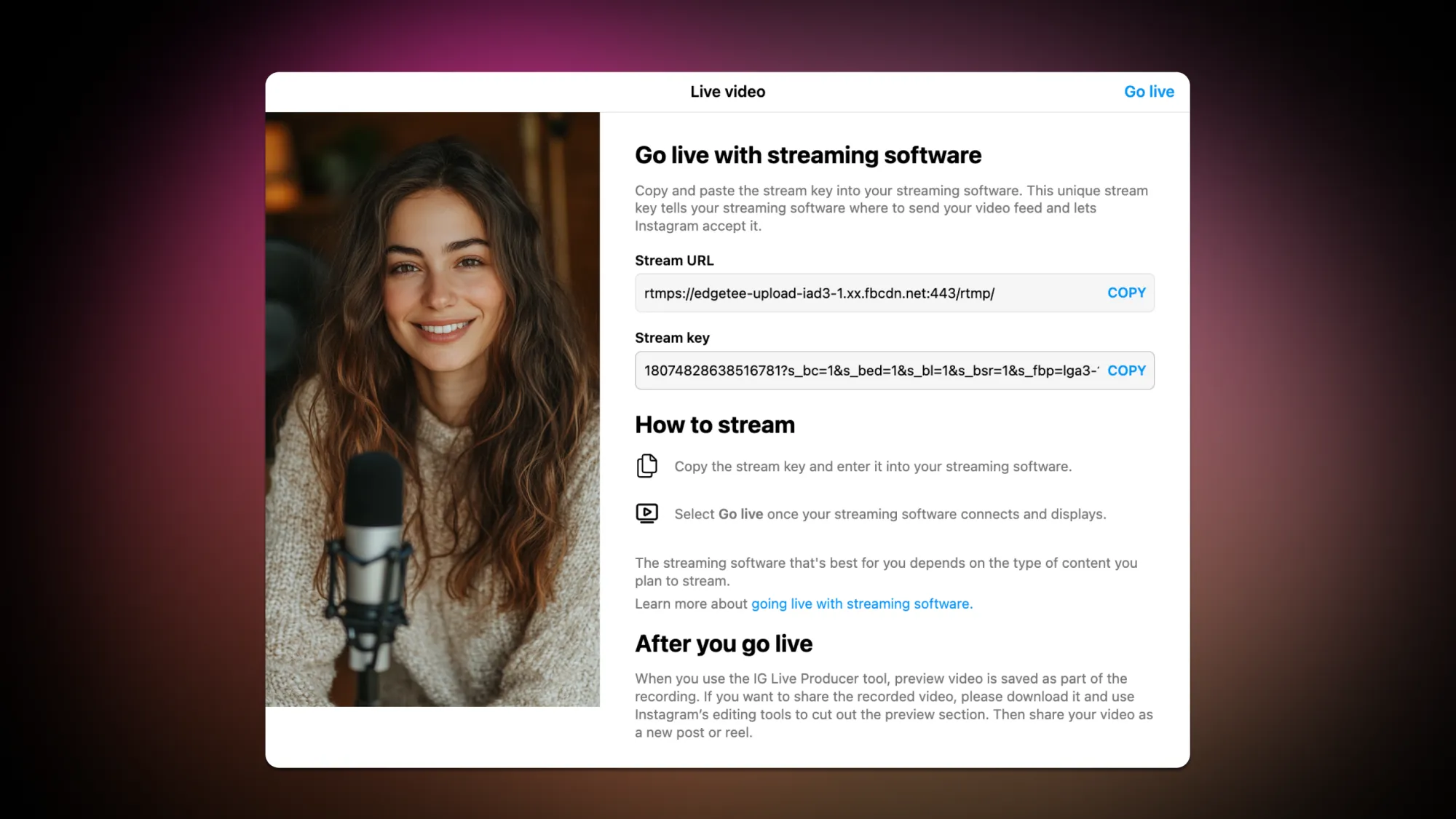
- Gather your credentials: Go to instagram.com, click Create, and select Live Video. Set your preferred audience and title, and click Next. Then, copy the Stream Key and keep this tab open.
- Connect Instagram to Restream: Open Restream in a new tab and click the Channels button. Select Add New, click the Instagram icon, and paste the stream key along with your username in the relevant fields. Click Add Channel to save.
- Set up a stream: Click New Stream and choose how you’ll go live. Restream Studio helps you go live from your browser; see how to go live with Restream Studio to set it up. Prefer desktop software? You can also stream to Instagram from OBS or any other encoder by sending your feed to Restream.
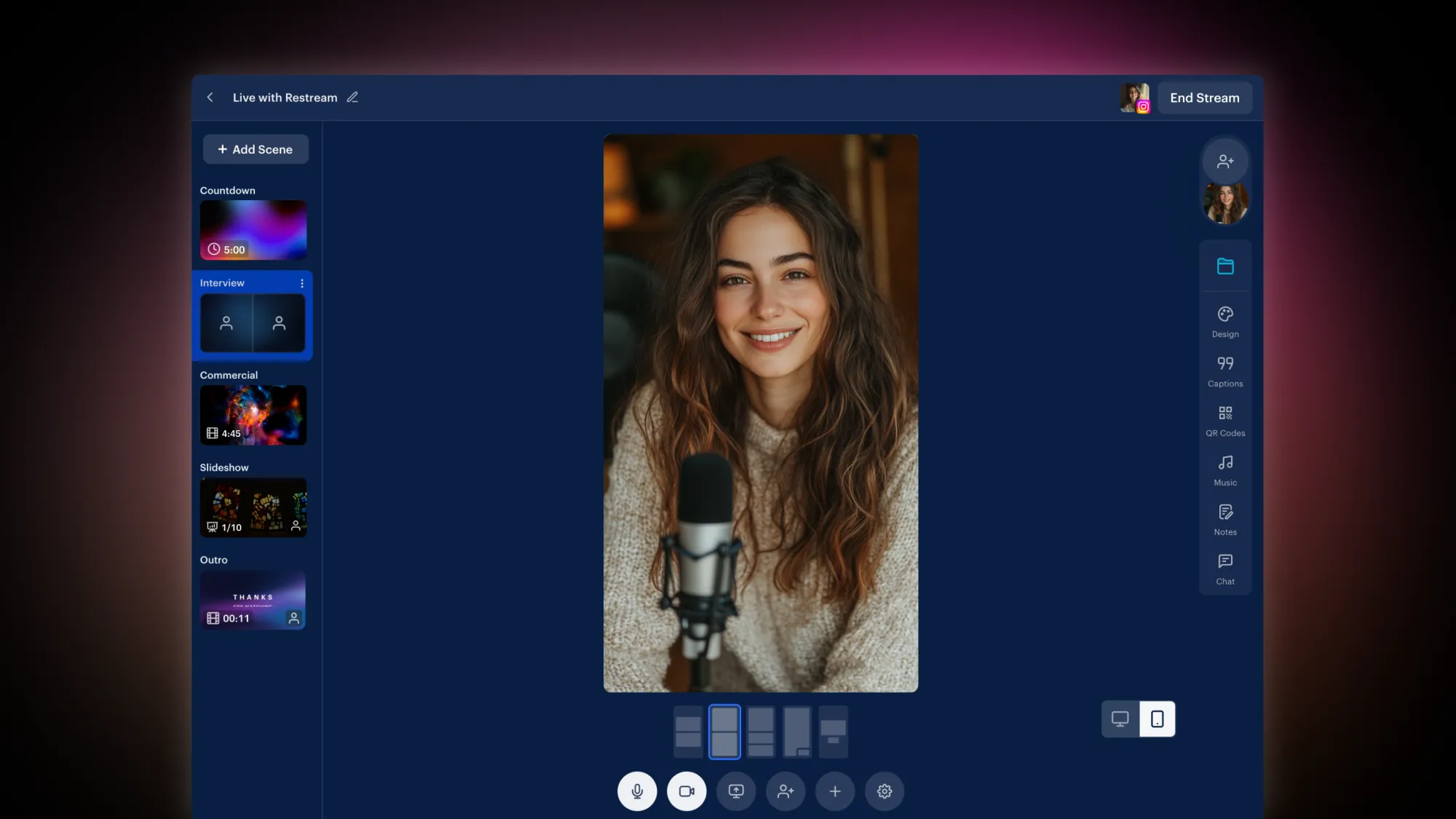
- Start streaming: Once you’ve set everything up, click Go Live and go back to the Instagram tab. Within a few seconds, you'll see a stream preview. Click Go Live in Instagram Live Producer to broadcast your stream to your audience!
For more details and best practices about streaming on Instagram, check out our step-by-step Stream to Instagram guide.
More Instagram Live features in Restream Studio
- Vertical (portrait) streaming: With a single button, Restream Studio switches from a horizontal to a vertical layout, so you can easily stream in portrait mode. Even if you stream horizontally, we’ll auto-adjust your feed so that the full view is available on Instagram.
- Invite guests to your Instagram Live: Collaborating with friends and co-creators is a great way to boost your engagement. Restream Studio supports inviting on-screen guests with a simple link—no account is required.
- Instagram live shopping: If you’re using your Instagram streams to sell products live, Restream Studio includes a built-in live shopping tool that allows you to import a whole store or individual products. It also supports affiliate links!
- Demos and presentations: Restream offers various ways to integrate interactive content into your live, such as presentations, screen sharing, or pre-recorded videos.
Instagram streaming software FAQ
Can you stream on Instagram from a PC?
Yes. Instagram lets Professional accounts go live from a computer through Instagram Live Producer on instagram.com. Live Producer doesn’t capture your camera by itself, though: you need streaming software like Restream to send your video, and then you start the broadcast in Live Producer. For other ways to go live, see our guide on how to go live on Instagram.
Which streaming software works with Instagram Live?
Instagram Live Producer works with any streaming software that supports a stream key, such as Restream, OBS Studio, or other encoders. Restream runs in your browser, so there’s nothing to install, and it adds custom layouts, guests, recording, and multistreaming. You can also connect OBS to Restream and forward your stream to Instagram.
Can I restream my Instagram Live to other platforms?
Yes. With Restream, you can go live on Facebook and Instagram at the same time and add YouTube, LinkedIn, and other channels to the same stream.
Where do I find my Instagram stream key?
Go to instagram.com, click Create, select Live Video, set your audience and title, and click Next. Instagram Live Producer will show your stream key. Learn more about how to find your Instagram stream key.
What do I need to go live on Instagram from a computer?
You need a Professional Instagram account with 1000+ followers, a Restream account, and a webcam or other video source. Switching to a Professional account is free, and you can sign up for Restream for free.
Start streaming on Instagram from your computer
Streaming on Instagram with Restream gives you added flexibility in setting up your stream, customizing your content, and adding interactive elements to your live video. Going live from your desktop with dedicated Instagram streaming software helps you go beyond the limitations of the mobile app and levels up your streaming experience. Start streaming with Restream today and take advantage of all the powerful features that can help your Instagram live stand out.


