To stream on Twitch and YouTube at the same time, connect both channels to Restream and send one live feed from OBS or Restream Studio. Restream distributes that feed to both destinations. This guide covers the setup, free-plan limits, and checks to make before you go live.
Before you dual stream on Twitch and YouTube
Enable live streaming on your verified YouTube channel in advance; initial activation can take up to 24 hours. Your channel must have no live-streaming restrictions in the past 90 days, and you must meet YouTube’s minimum age requirement of 16.
Check your Twitch agreement and current simulcasting rules. Keep the Twitch viewing experience at least as good as the other broadcast and do not direct Twitch viewers to leave for your concurrent YouTube stream. Test audio, video and chat on both destinations before your main broadcast.
Restream is a simple live video platform that empowers you to create beautiful videos and stream them to your favorite channels. Connecting your various live streaming accounts and setting up only takes a few minutes. Use Restream’s built-in connection in OBS or a browser-based production tool like Restream Studio. No additional OBS plug-in is required.
How to stream on Twitch and YouTube at the same time with OBS
If you’re an OBS user and you want to level up your streams by multistreaming, Restream makes it easy. Follow the steps below to take advantage of your OBS setup, paired with the power of Restream.
- Log into your Restream account or create one for free.
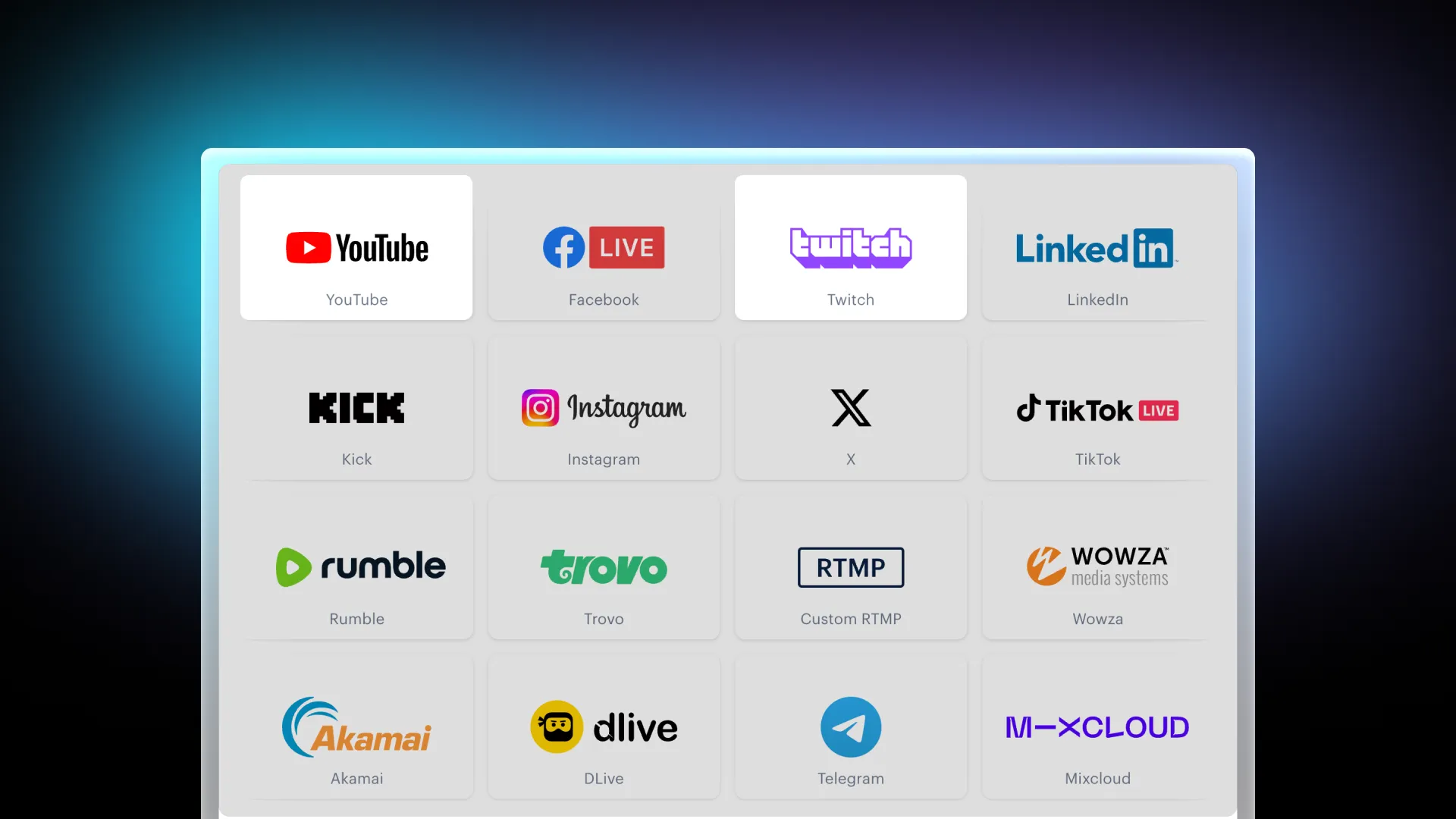
- Use the Channels button on your home screen and select Add Channels.
- For Twitch: Click the Twitch icon and log in to give Restream access to your Twitch account.
- For YouTube: Click the YouTube icon, select between your channel or an event, and log in to give Restream access to your channel.
- From your home screen, click New Stream.
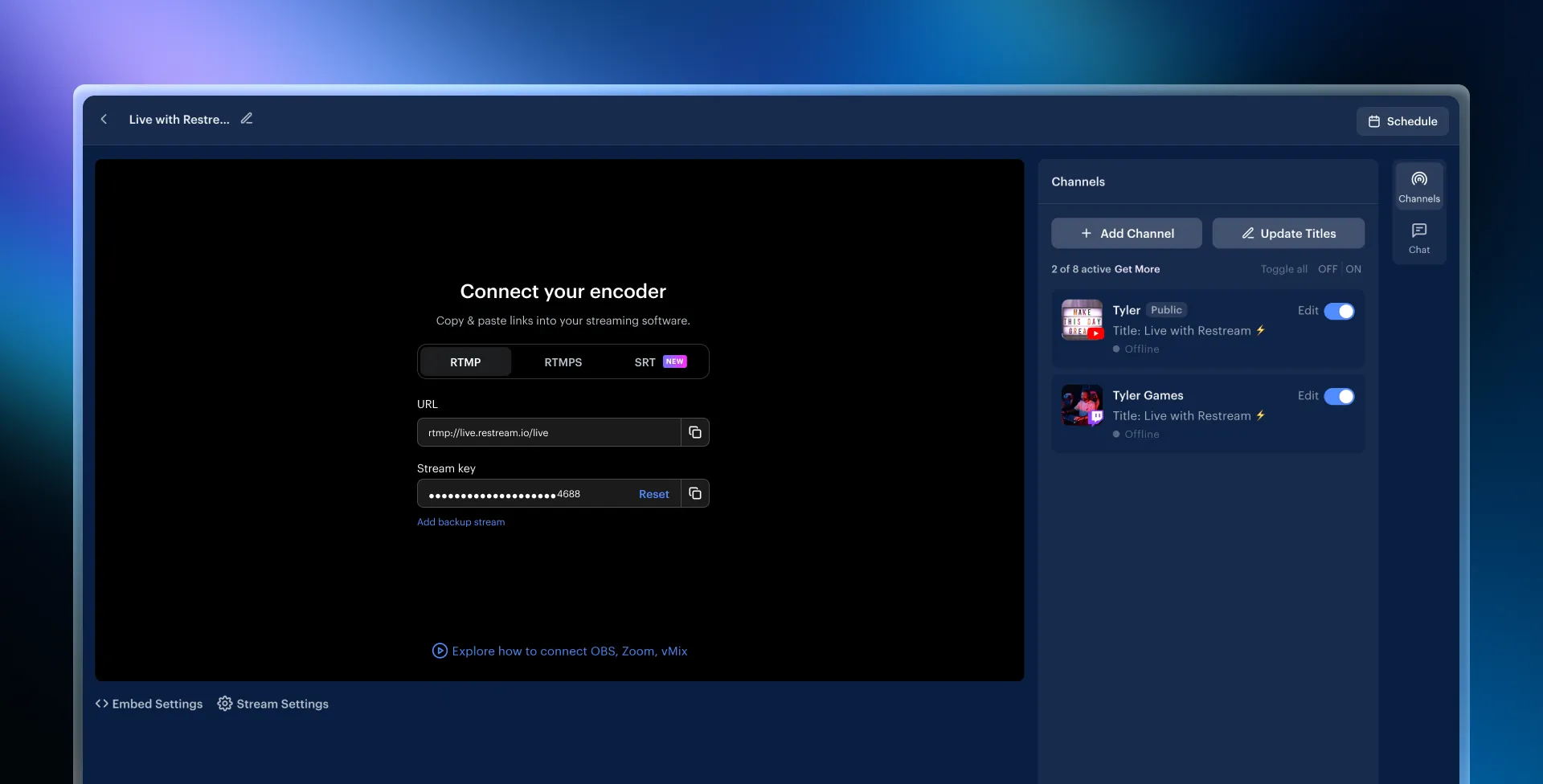
- Select Encoder | RTMP to stream from OBS.
- To set up your live stream:
- Use the pencil icon to set your title, description, and content type, then click Update All.
- Toggle on Twitch and YouTube under the list of channels.
- Copy the stream key you see on Restream.
- Open OBS and click Settings in the bottom-right corner:
- Under the Stream tab, select Restream.io as the Service, then click Use Stream Key.
- Paste the stream key and click OK.
- Start streaming on OBS.
And that’s all! Now, Restream will broadcast your stream on Twitch and YouTube. OBS sends one encoded feed to Restream, which distributes it to both platforms. Your computer still runs OBS and needs a stable upload connection. Use a private chat dashboard to monitor both audiences. You can learn more about seeing your chat in OBS docks here.
How to stream on Twitch and YouTube at the same time with Restream Studio
If you don’t want to use additional software or download applications, Restream Studio is a great solution to elevate the look of your streams while using a simple browser-based tool.
- Log into your Restream account or create one for free.
- Repeat step 2 from the previous section to connect Twitch and YouTube to Restream.
- Click New Stream on your home screen.
- Choose Restream Studio to stream from your browser.
- Follow the prompts to allow access to your camera and microphone, then fill in your name and Enter Studio.
- Start setting up your stream:
- Select Add Scene on your left to build out your stream using scenes.
- Add media like videos and presentations, or navigate to the right-hand menu to customize your stream with graphics.
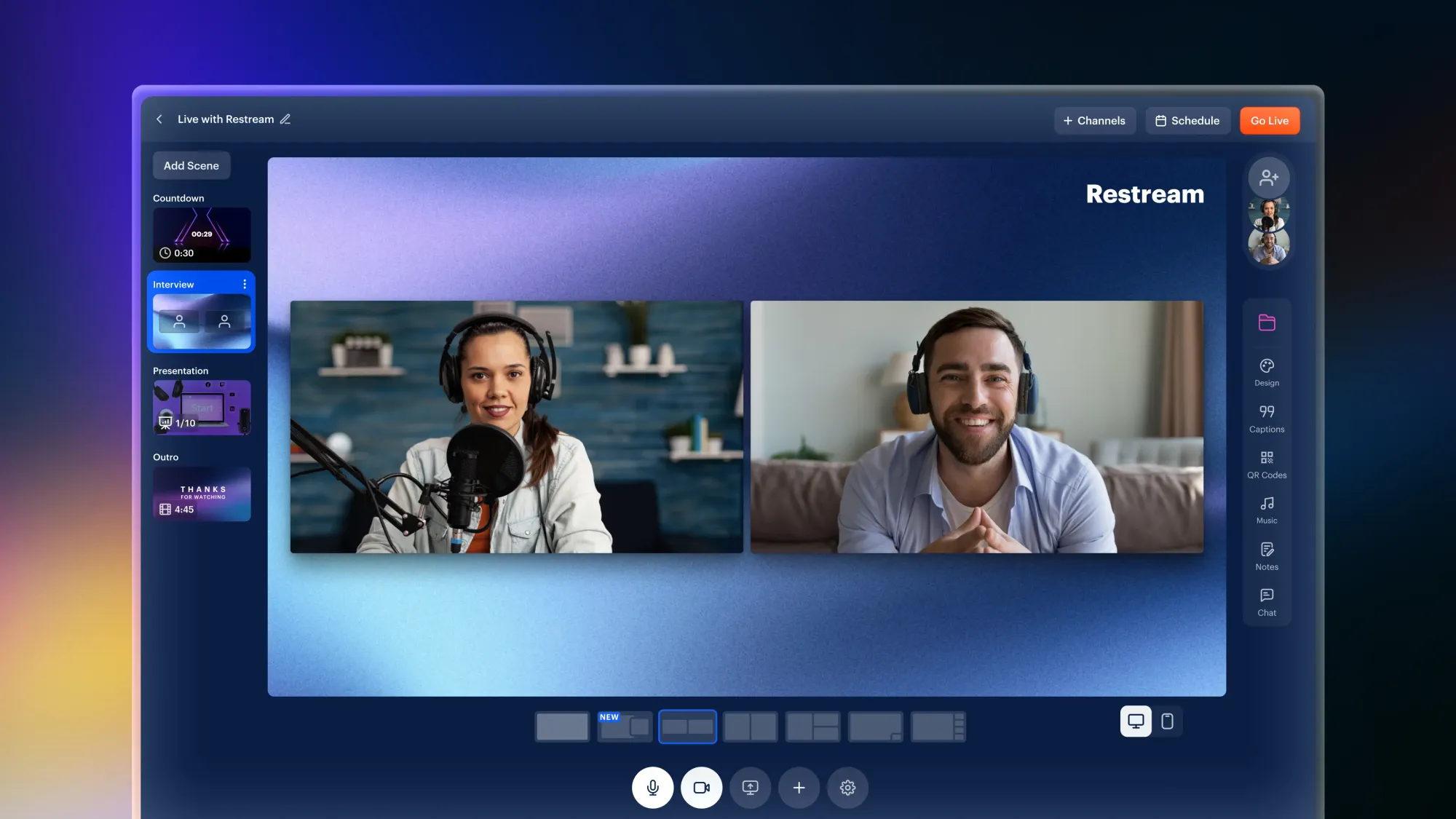
- Once satisfied, click the pencil icon to fill in your title.
- Then, click + Channels and toggle on Twitch and YouTube. If you want to add a stream description, click Edit next to each channel.
- Once you're ready, click Go Live.
Producing your live stream with Restream Studio is that easy! Within a few clicks, you’ll be streaming on Twitch and YouTube at the same time, all while enjoying an intuitive Studio and ensuring a smooth stream flow using Scenes.
FAQs
Does Twitch allow simulcasting?
Yes, provided you follow Twitch’s simulcasting rules and any separate agreement that applies to you. Keep the Twitch experience at least as good as the other broadcast, and do not direct Twitch viewers to your concurrent stream elsewhere. Twitch’s written guidelines restrict displaying combined cross-platform activity on the Twitch stream; a private combined chat dashboard is allowed.
Can you stream on Twitch and YouTube at the same time for free?
Yes. Restream’s Free plan supports two channels, so you can send one broadcast to an eligible Twitch channel and YouTube channel. Free-plan branding applies. Additional destinations and premium features require a paid plan.
Why should I multistream with Restream and not an OBS plug-in?
OBS can connect to Restream through its built-in streaming service setting; a separate multistreaming plug-in is not required. OBS encodes and uploads one feed, and Restream distributes it to your selected channels. Your computer still needs enough capacity to run OBS, and your connection must sustain the upload. Monitor both destination players and keep any combined chat dashboard private when simulcasting on Twitch.
Wrap-up
Learning how to stream on Twitch and YouTube at the same time doesn’t have to be complicated. With Restream, you can connect both platforms and more and stream either with OBS for greater customization or Restream Studio for a browser-based, intuitive experience. Whether you’re an experienced creator or just getting started, Restream offers powerful tools and integrations to help you engage with your audience on multiple platforms at once, all while ensuring a smooth and professional stream. Ready to go?