


How to find a Twitch stream key
Quick answer: your Twitch stream key is in the Twitch Creator Dashboard under Settings → Stream. Copy it and paste it into OBS Studio, Streamlabs or another encoder to go live. You don't need a stream key if you go live from the Twitch mobile app.
A stream key (Twitch Help also calls it an "authorization key") tells Twitch which channel your encoder is sending video to. Unless you reset it, you only need to enter it in your encoding software once. New to the term? Read what a stream key is and how it works.
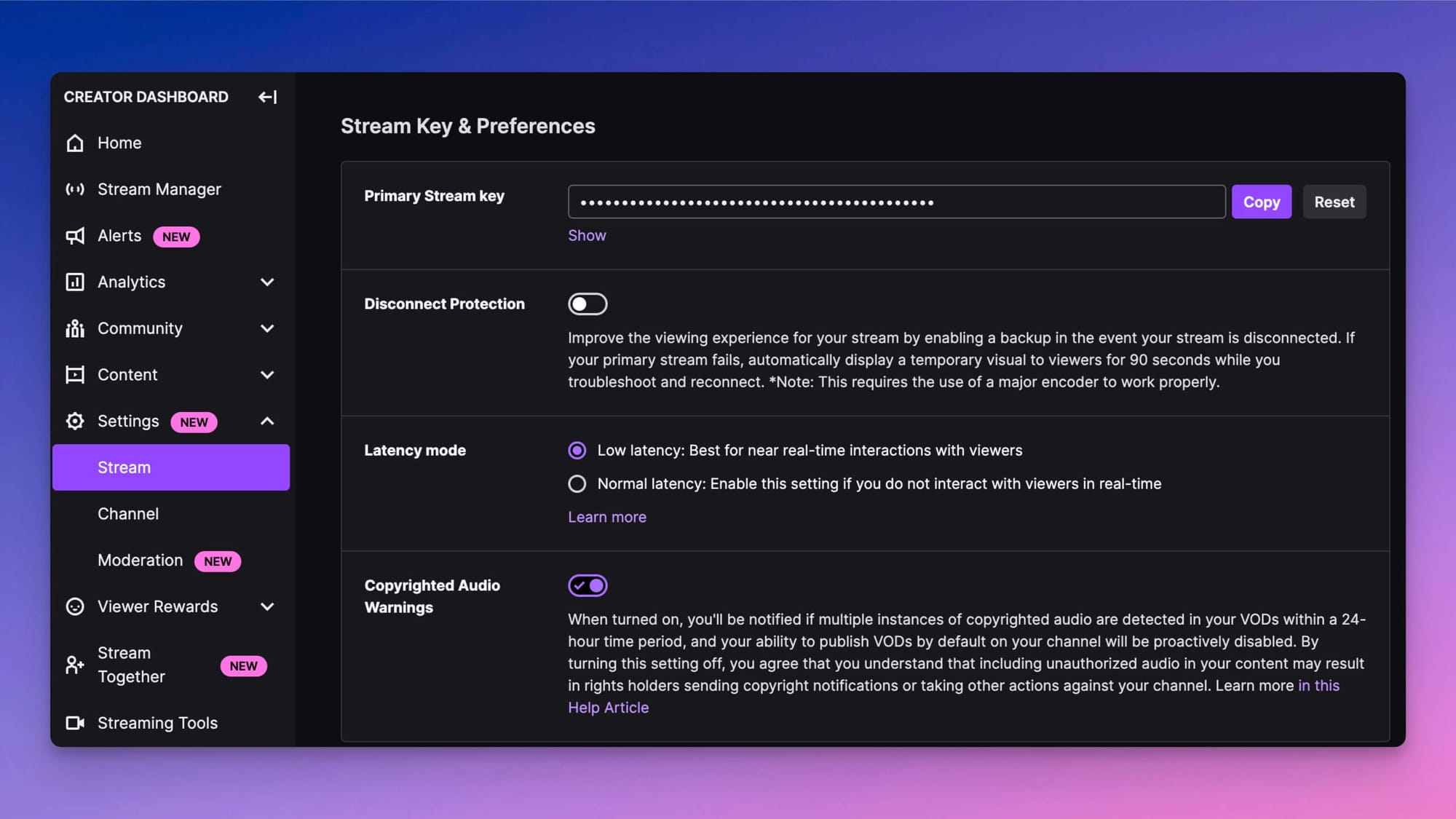
Where to find your Twitch stream key on desktop
Here's how to find your Twitch stream key in a web browser:
- Go to twitch.tv and log into your Twitch account.
- Click on your profile in the top right corner and select Creator Dashboard.
- Pop out the Creator Dashboard menu on the left side.
- Click Settings.
- Click Stream.
Copy and paste your stream key into your encoding software.
How to find your Twitch stream key on mobile
You don't need a stream key to go live from the Twitch app on iOS or Android: according to Twitch Help, streaming from the mobile app doesn't require one. You only need the key if you use a third-party encoder app on your phone. In that case, sign in to the Twitch Creator Dashboard in your phone's browser and follow the same path: Settings → Stream.
How to reset your Twitch stream key
If your stream key has leaked, for example because it appeared on screen during a stream, reset it straight away:
- Open the Creator Dashboard and go to Settings → Stream, where your stream key is shown.
- Reset the key using the option next to it.
- Copy the new key and paste it into your encoder. The old key stops working.
Twitch also resets your stream key automatically every time you change your password. Resetting your key doesn't affect people you've authorized to stream to your channel. To revoke their access, remove them under Permissions in your stream settings.
How to add your Twitch stream key to OBS or Streamlabs
- In OBS Studio, open Settings → Stream.
- Choose Twitch as the service.
- Either click Connect Account to log in with Twitch (no key needed), or choose Use Stream Key and paste your key.
- Click Apply, then OK, and click Start Streaming when you're ready.
Streamlabs Desktop and most other encoders have a similar stream settings screen where you choose Twitch and paste your key. For a full walkthrough, see how to stream on Twitch with OBS, or read our complete guide on how to stream on Twitch.
Stream to Twitch without a stream key
If you'd rather not set up encoding software, you can go live from your browser with Restream Studio. Connect your Twitch account to Restream once, and you can stream to Twitch, and to other platforms at the same time, without copying a stream key. See how streaming to Twitch with Restream works.