


How to find TikTok stream key
To go live on TikTok from your computer, you can use either the TikTok LIVE Studio software or a third-party streaming software such as Restream or OBS Studio. If you use Restream, you can take advantage of our TikTok integration, which makes it possible to log in to TikTok, apply for desktop LIVE access and go live without copying a stream key. If you’re not using Restream, you can go live with your favorite software using a stream key.
If you want go live on TikTok on your smartphone or tablet, you can stream directly from the TikTok app. A stream key isn’t needed to go live on TikTok on mobile devices.
How to find your TikTok stream key on a computer
You’ll only need your TikTok stream key to go live on TikTok if you’re streaming from a desktop or laptop computer with encoding software, like OBS.
- Log in to your TikTok account on a computer.
- Click Go LIVE on the left-hand side. You’ll be redirected to livecenter.tiktok.com/producer.
- Scroll down and click the red Go LIVE button at the bottom.
- Select a category and stream title for your stream. Click the red Save & Go LIVE button.
- Your live stream dashboard will appear — but don’t worry, you’re not live yet. At the bottom of the screen, you’ll see your Server URL and Stream key.
- To copy the stream key to your clipboard, click the Copy button on the right.
- You can now paste your stream key into your preferred software and start streaming.
Why don’t I see a TikTok stream key?
Access to a stream key is decided by TikTok, not by your streaming software. According to TikTok Support, you must be at least 18 years old and have 1,000 followers to go LIVE (the follower requirement may vary by region). Streaming from a computer with third-party tools has an extra condition: TikTok must approve your account for this route, and as of July 7, 2025, TikTok requires creators to stream at least 50% gaming content to keep that access, as explained in how to stream to TikTok with Restream.
From a computer, you have two routes:
- Custom RTMP with a TikTok-issued key: if TikTok shows you a Server URL and stream key, paste them into OBS or another encoder, as described above.
- Restream’s TikTok connection: log in to TikTok through Restream and go live without copying a key. TikTok still has to approve your account for third-party tools. See how to stream on TikTok without a stream key.
How to stream to TikTok with Restream
Restream’s integration with TikTok makes it easy to start a stream without needing to use a manual setup. We’ll go through how to do it using Restream Studio, a browser-based live streaming studio that lets you fully customize your live streams and broadcast to multiple platforms simultaneously. You can add your favorite streaming platforms and start a new live broadcast within two minutes — even if you have zero experience with live videos.
- Create a Restream account or log in if you already have one.
- Click the Channels button.
- Select the TikTok icon from the list of streaming platforms.
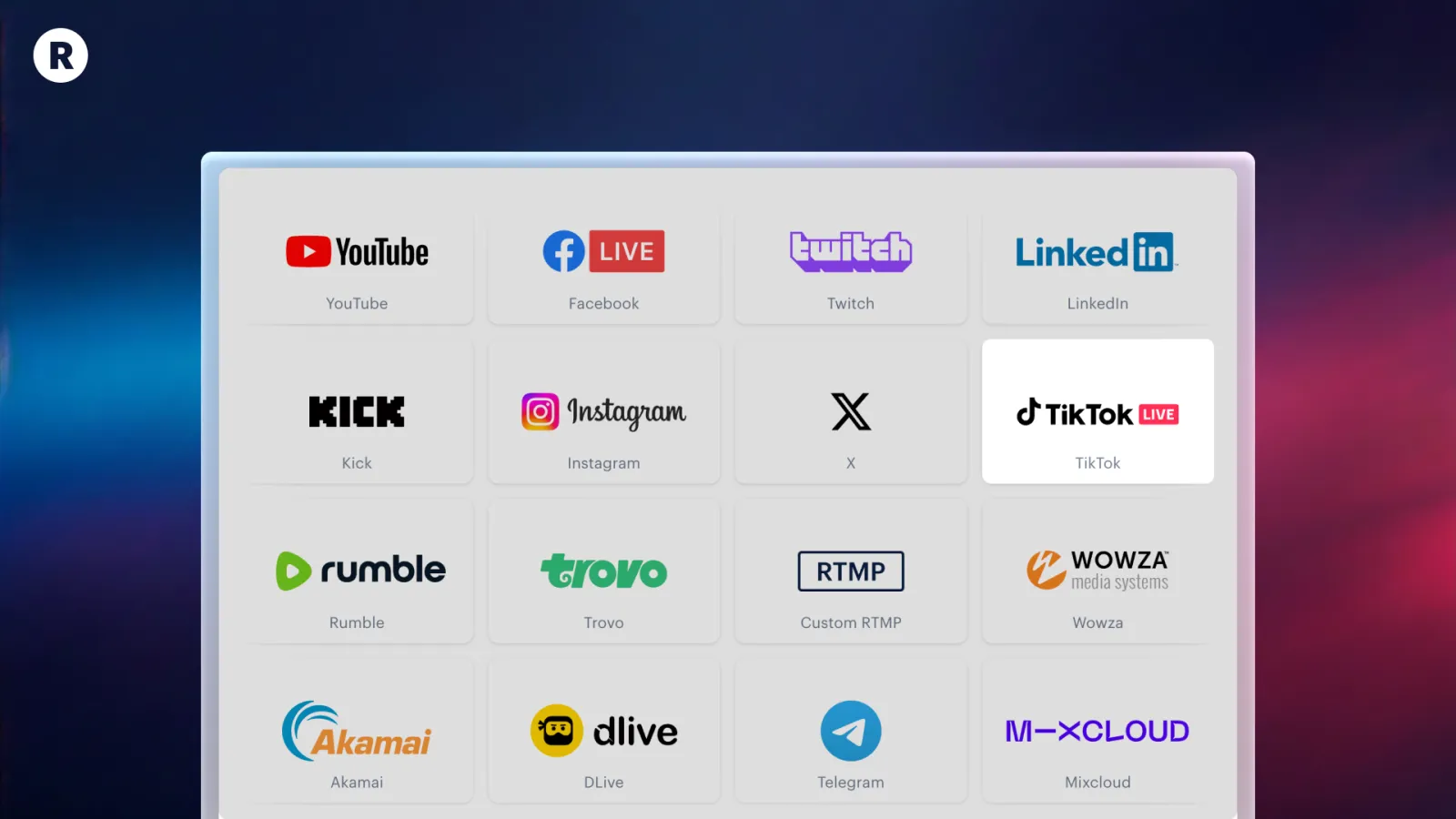
- Follow the steps to log in to TikTok and authorize Restream.
- When you’re ready to start streaming on TikTok, click the New Stream button and select Restream Studio from the options.
- Enter the live streaming studio and adjust your settings, upload any custom graphics, and choose your layout.
- To set up a title for your stream, click the pencil icon in the top left corner. Then, click + Channels on your right to activate your platforms, like TikTok.
- Once you’re ready, click the Go Live button and you’ll be streaming to TikTok.
- Open the TikTok monitor to stay engaged with chat, views, and follows during your stream.
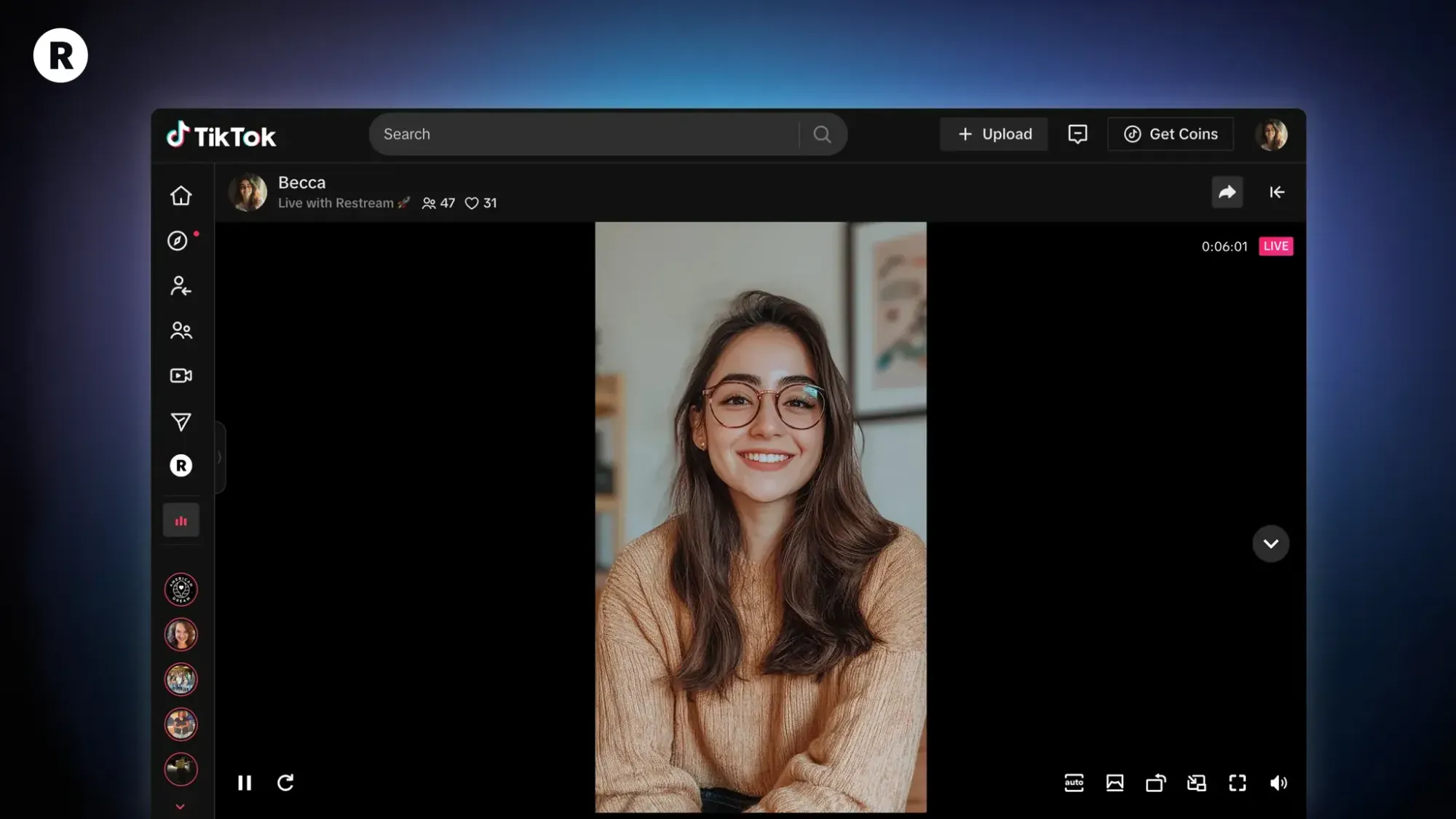
If you prefer streaming software, like OBS, you can connect OBS to Restream and take advantage of our TikTok integration within your existing setup. Learn how to use Restream with OBS here.