


How to do a test stream on Twitch
Quick answer: to test a Twitch stream without going live, run a bandwidth test and check the results in Twitch Inspector (inspector.twitch.tv), Twitch's own tool for reviewing your stream's health. Inspector lists all your streams from the last 7 days, including bandwidth tests, with details such as bitrate, frame rate, resolution and unstable events. You can also do a private test first with a recording in Restream Studio, or with Bandwidth Test Mode in OBS Studio.
How to do a streaming test for Twitch
Twitch Inspector is Twitch's tool for checking the health and specifications of your streams and troubleshooting issues. According to Twitch Help, it's available to all broadcasters in a web browser (not in the Twitch mobile apps), and only you can see the data for your own streams. Learn what each metric means in Twitch's guide to using Twitch Inspector.
- Access Twitch Inspector.
- Log in and authorize Inspector to access your Twitch account if you haven’t already.
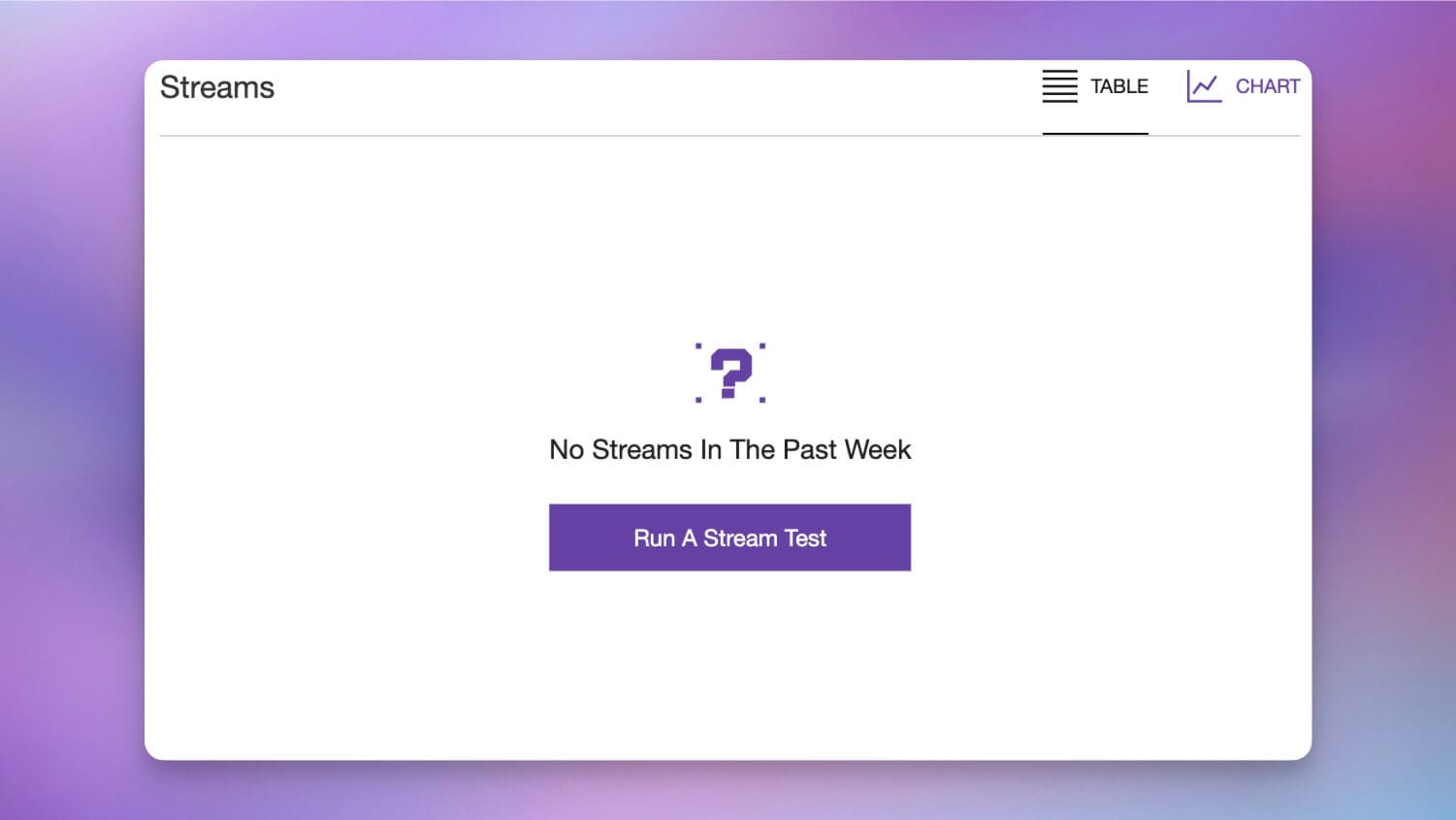
- Click the Run A Stream Test button and then follow the steps that appear in the pop-up.
- You’ll need to get your stream key and paste it into a broadcasting software such as Restream Studio or OBS. You can follow our simple tutorial to retrieve your Twitch stream key.
- Paste your stream key into your streaming software in the appropriate field. You can learn more about how to use a stream key with broadcasting software in our guide to stream keys.
- You’ll need to add ?bandwidthtest=true to the end of your stream key when you paste it into your streaming software.
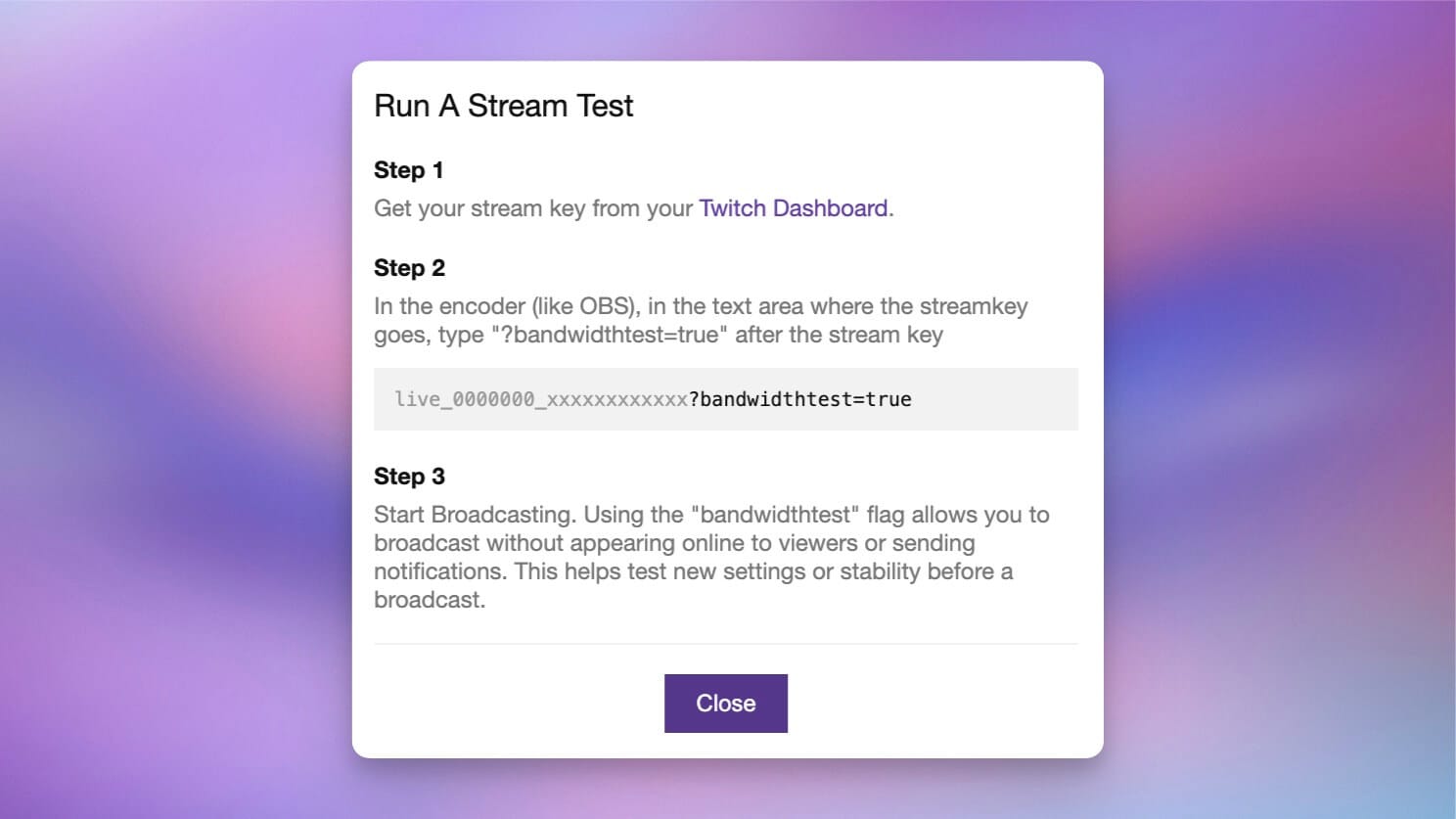
- Go live. Your stream won’t appear online or send your followers a notification.
How to do a Twitch test stream with streaming software
A second way to test a live stream on Twitch is by using streaming software such as Restream Studio or OBS Studio.
Twitch test stream with Restream Studio
- Log in to your Restream account or create a new Restream account if you don't have one already.
- Click New Stream and choose Studio.
- In Restream Studio, click the arrow next to Go Live and select Record only. Nothing is sent to your channels.
- Start and stop the recording, then watch it back to check your audio, video and layout. Recording is available on paid plans.
- When you're ready to go live, connect your Twitch account to Restream and start your stream.
For more ways to test, including a private test stream on YouTube, see Restream's guide on how to test your stream before going live.
After you finish making your recording with Restream Studio, you can go live on Twitch. Restream Studio is a browser-based live streaming solution that lets you go live on multiple platforms simultaneously. You can stream to Twitch, YouTube, Facebook, Instagram, TikTok, Kick and more.
Twitch test stream with OBS Studio
- Launch OBS Studio.
- Go to your Settings, and then Stream.
- Select Twitch from the drop-down menu at the top.
- Connect your Twitch channel to OBS if you haven’t already.
- Check the box next to Enable Bandwidth Test Mode. Then click OK to save your changes.
- Click Start Streaming. You’ll get an error message reminding you that the stream won’t be live on Twitch; click OK.
- Check out your quality indicators at the bottom of the screen in OBS. This includes your stream quality, frame rate and CPU usage.